Mark the Right Target
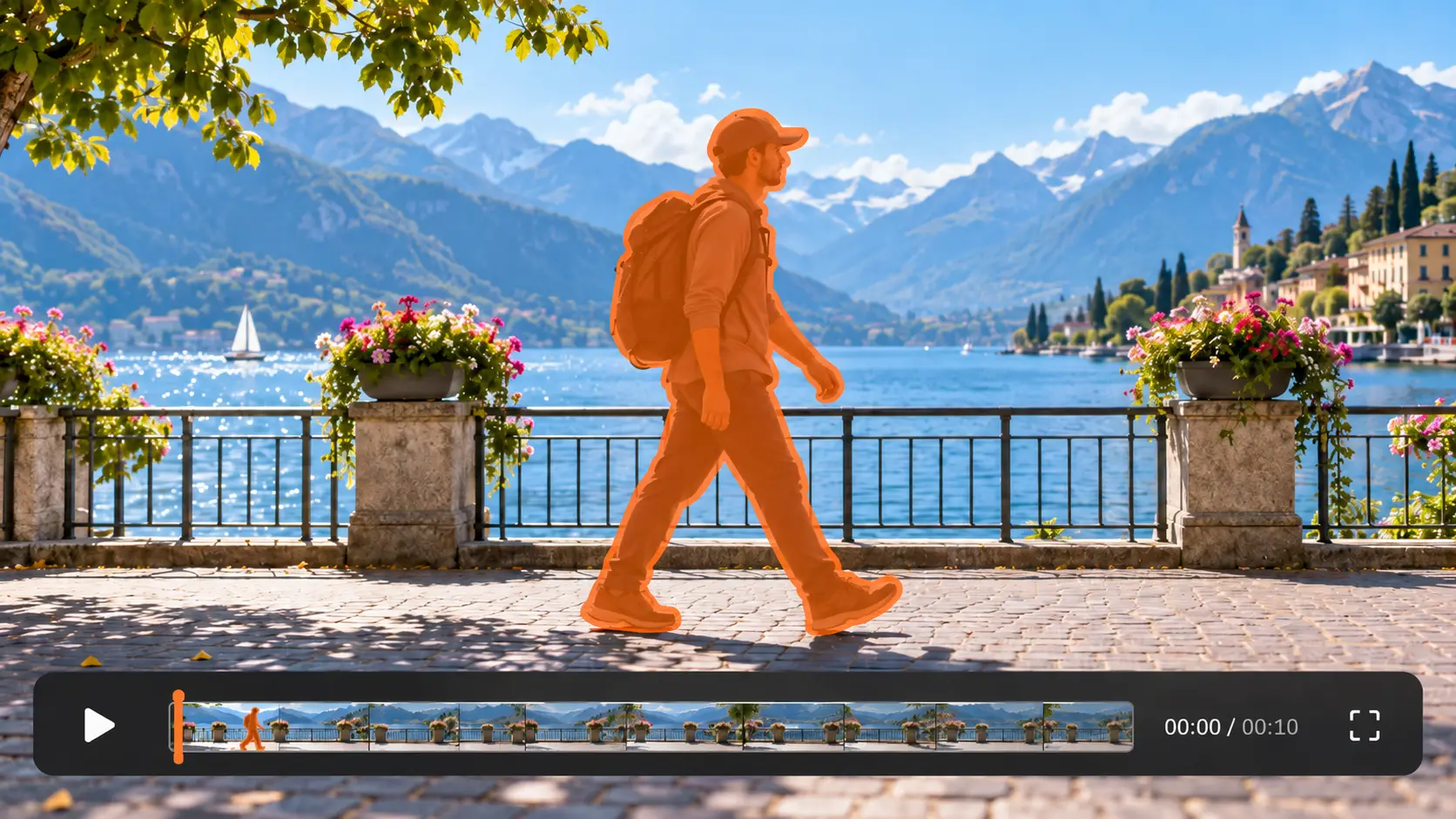
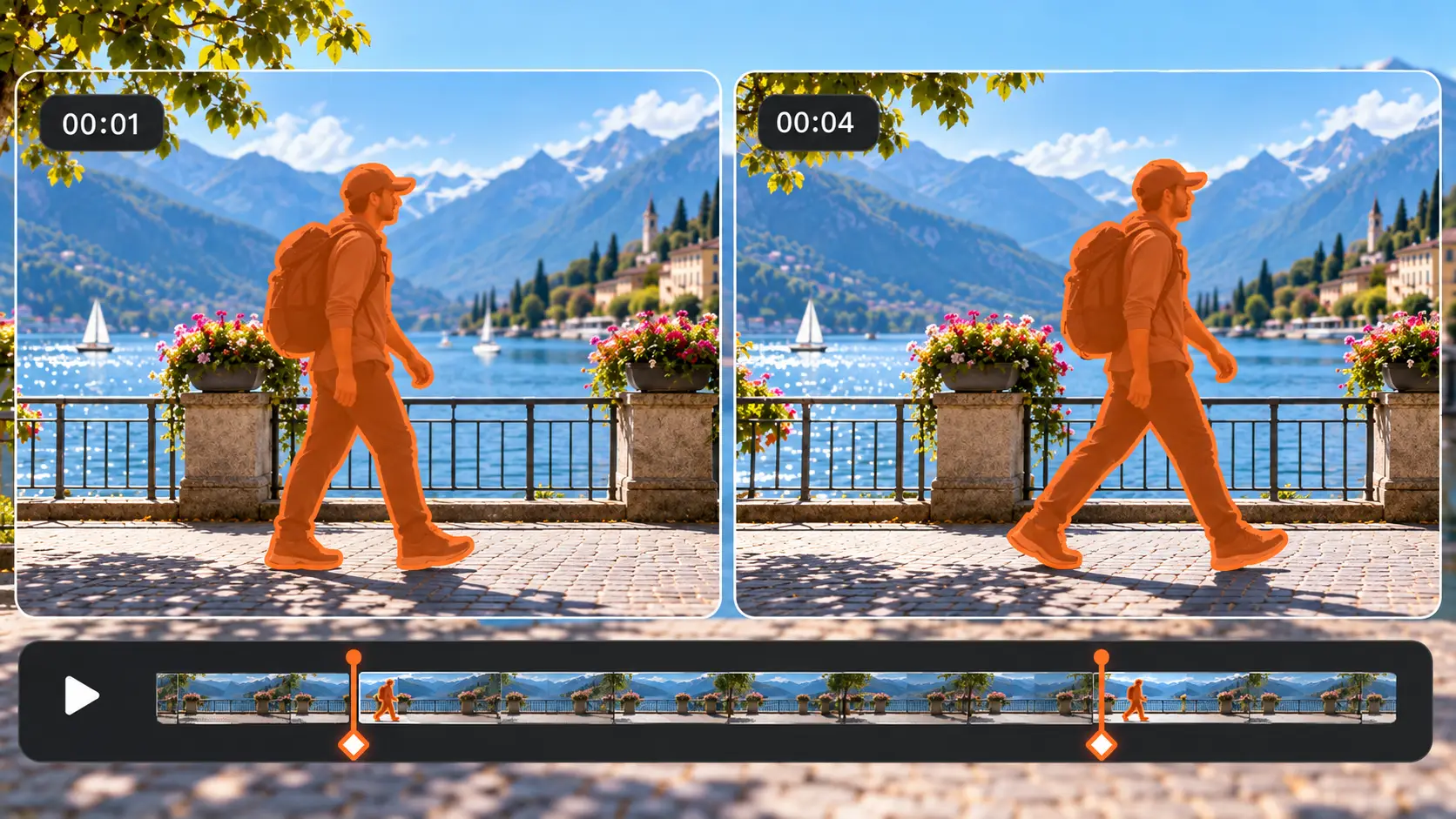
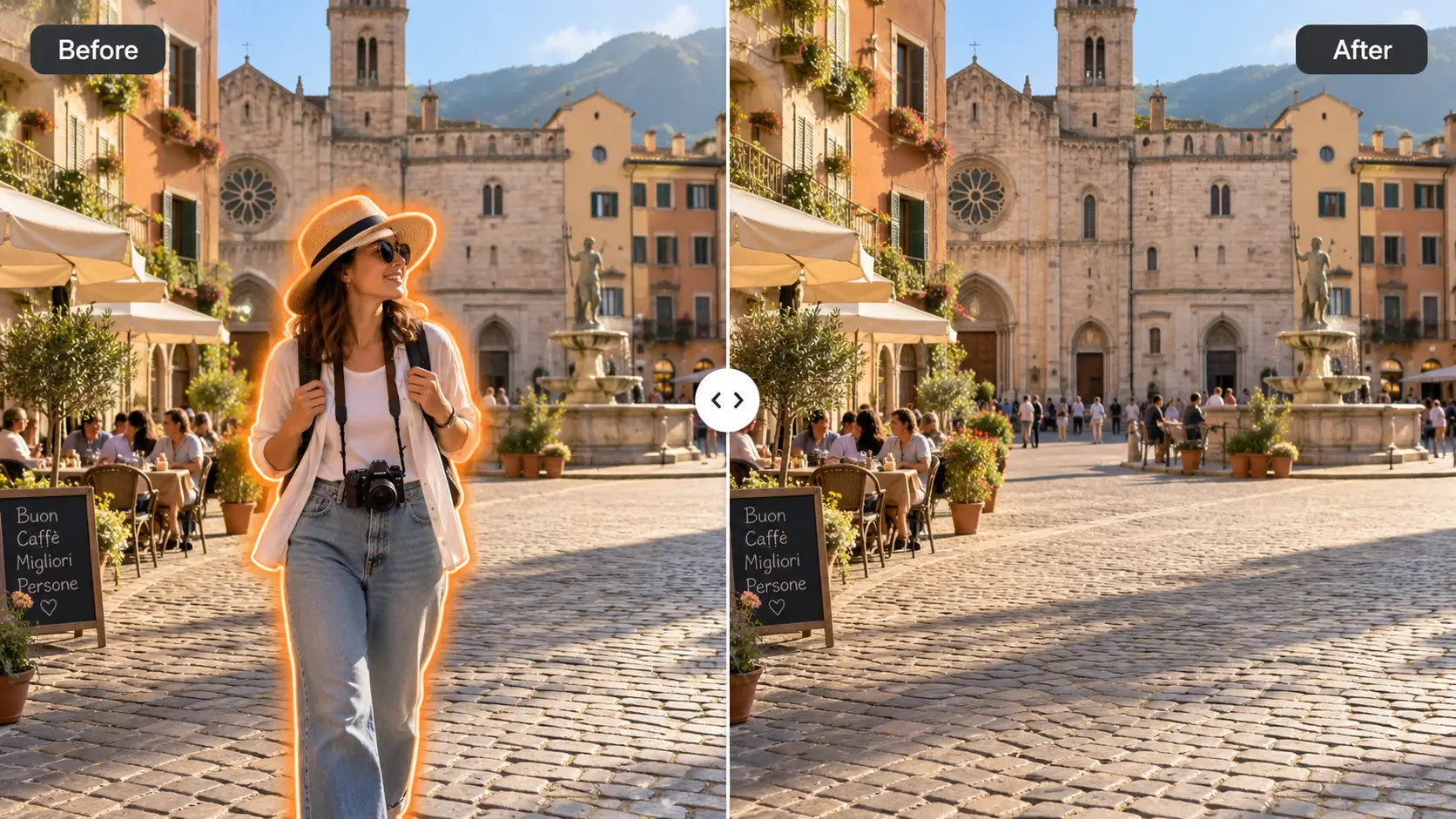
Brush directly over the person or object you want to erase. This makes it easier to distinguish the target from nearby people, products, or background details.
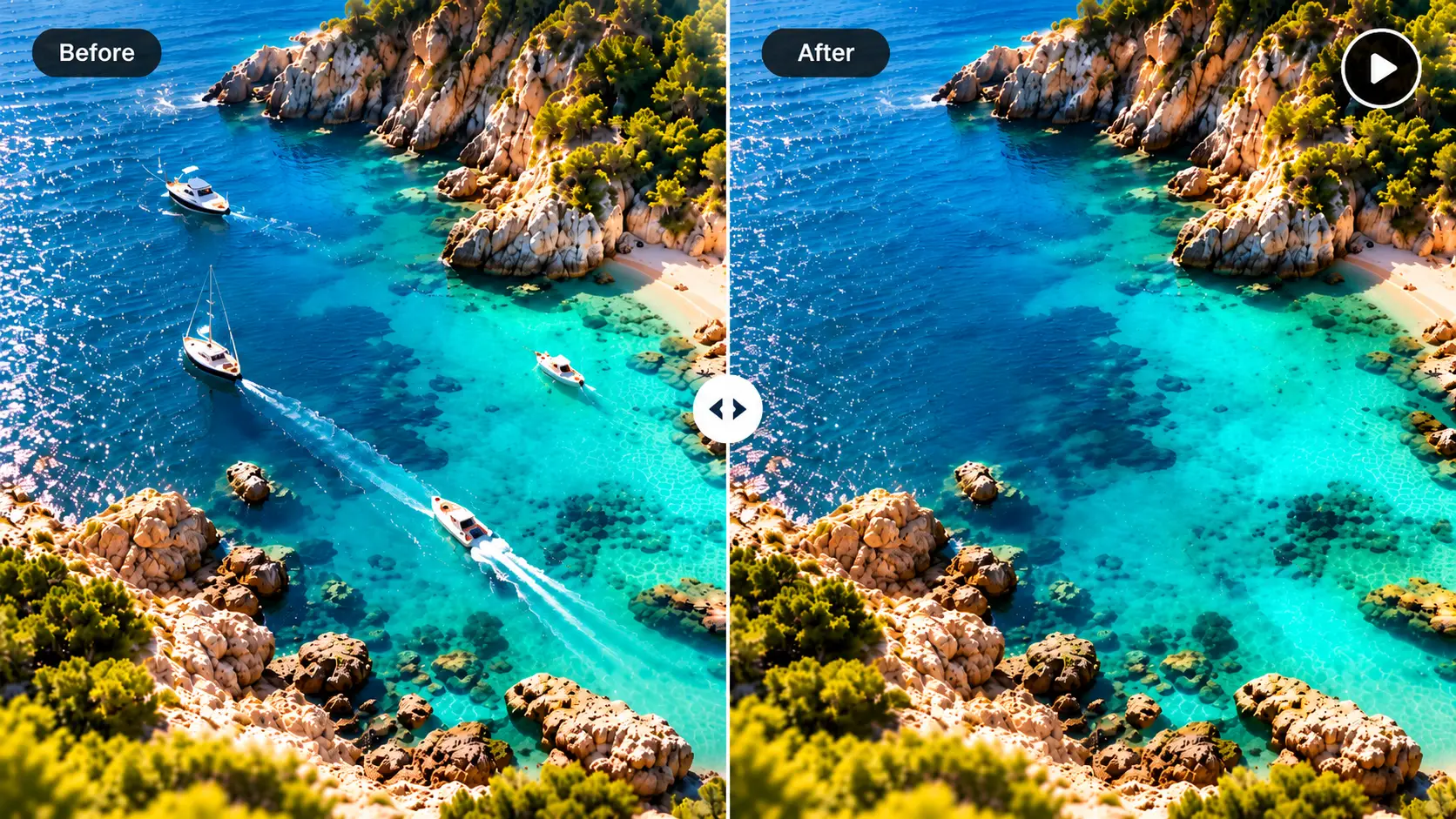
Remove unwanted people, objects, and visual distractions from your footage. Brush over the target on multiple keyframes, refine the selection as it moves or changes, and let AI reconstruct the selected areas.
Only upload videos you own or are authorized to edit.
Choose one MP4, MOV, M4V, MKV, or WEBM video from 1 second to 10 minutes long and up to 500 MB.
Videos over 5 seconds can be trimmed on your device. Only the selected clip is uploaded.
Choose time ranges and paint the areas to remove.
Creating your task...
AI is removing the selected area...
An object may move, turn, change size, or become partly hidden as a video plays. A single selection does not always describe the target clearly enough.
AIAI.COM gives you control over what should be removed. Choose a clear frame, brush over the unwanted person or object, then add more keyframes wherever the target changes position, size, or shape. Your selections guide the AI video object remover as it processes the clip and reconstructs the surrounding scene.
Brush directly over the person or object you want to erase. This makes it easier to distinguish the target from nearby people, products, or background details.
Add another keyframe when the target moves, turns, enters a different part of the frame, or needs a more accurate selection.
Play the processed video from beginning to end. Check the repaired area across movement and scene changes before deciding whether the result is ready to download.
Use the online video object remover to clean up footage that is difficult, expensive, or impossible to reshoot. Results depend on the size and movement of the selected object, the background it covers, and the visual information available in surrounding frames.
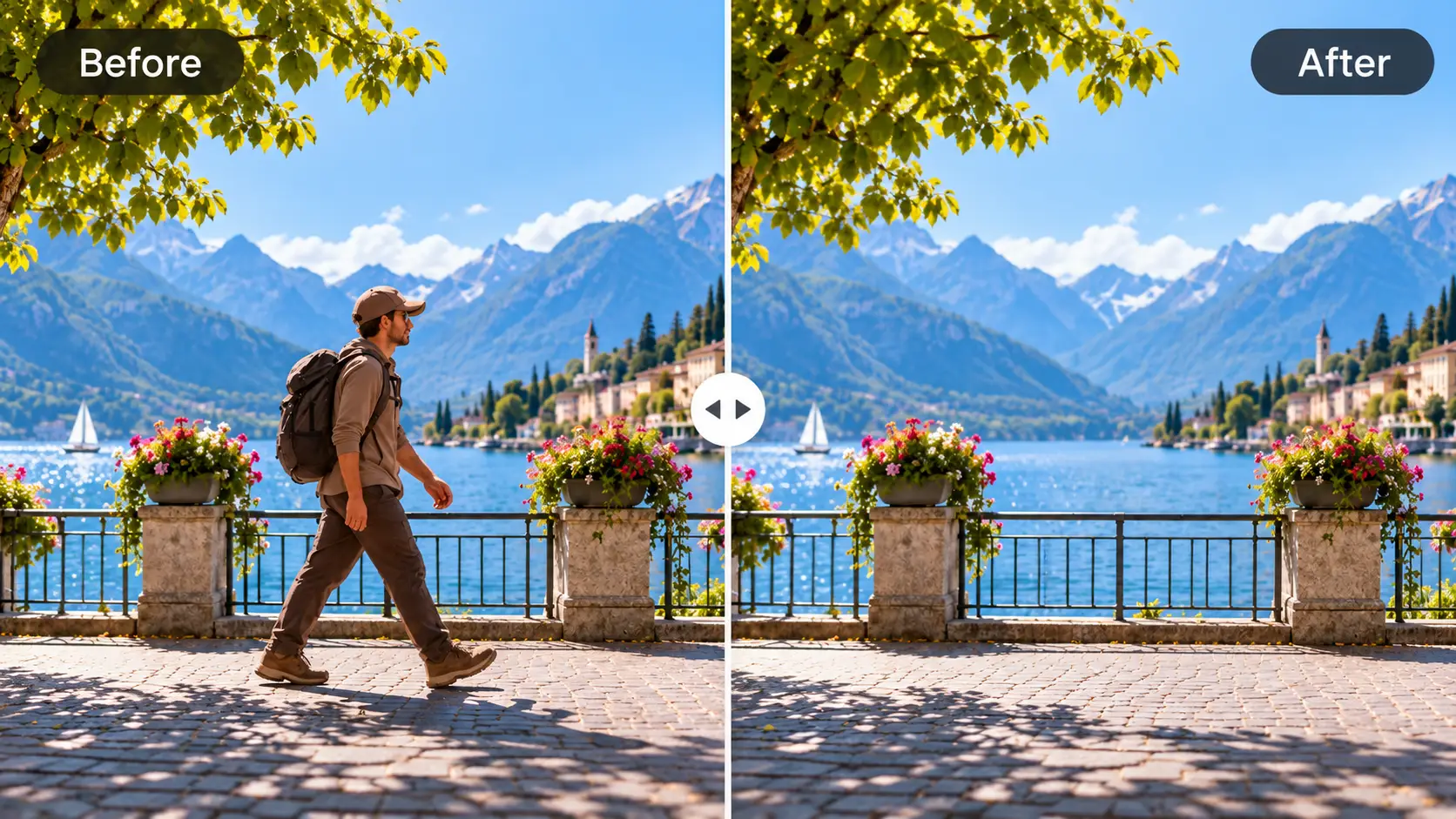
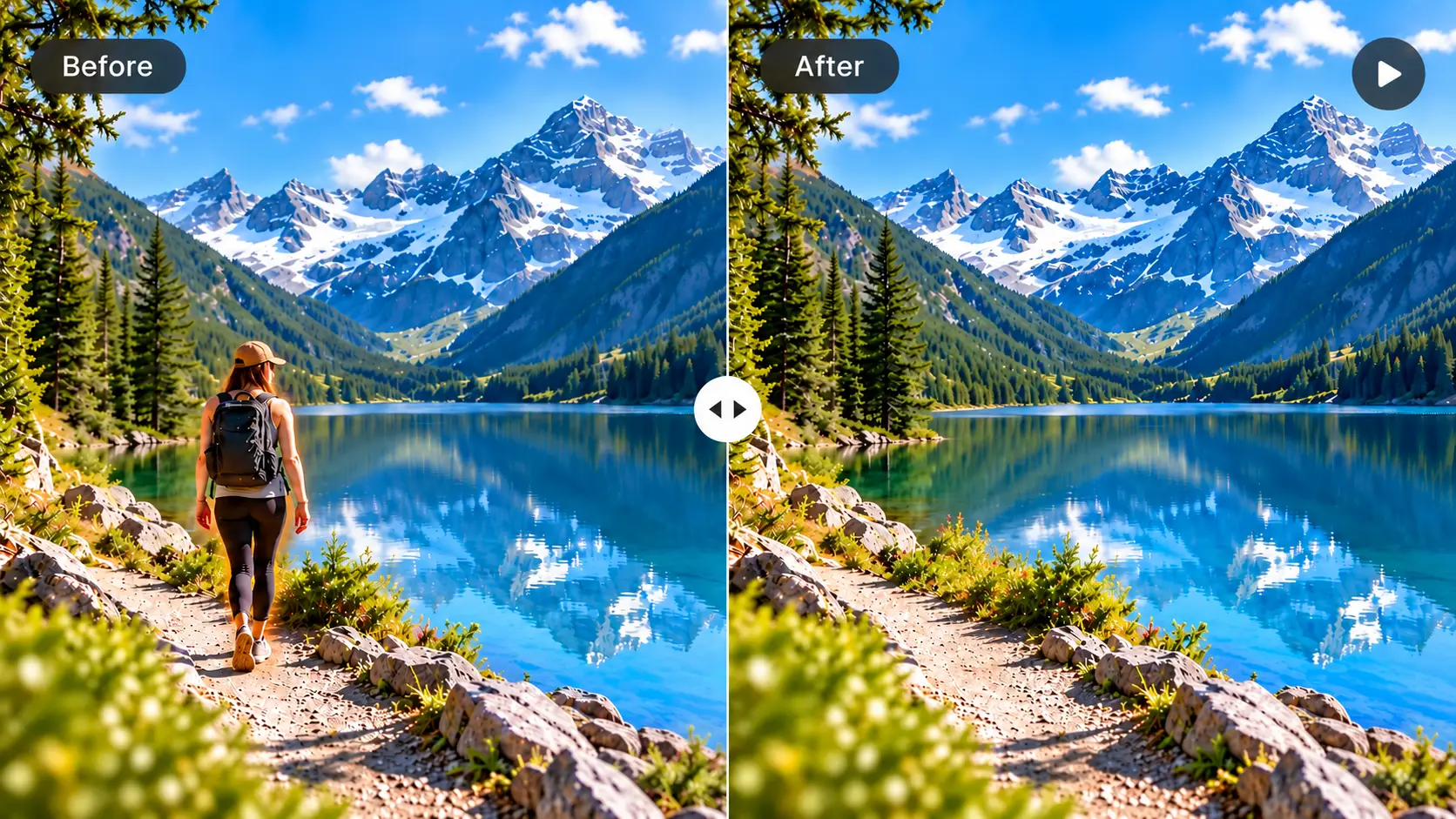
Erase a passerby, tourist, background guest, or other person who distracts from the main subject. Multiple keyframes let you update the selection when the person changes position or appearance during the clip.
This workflow is useful for travel videos, street footage, event recordings, property tours, and social media content.
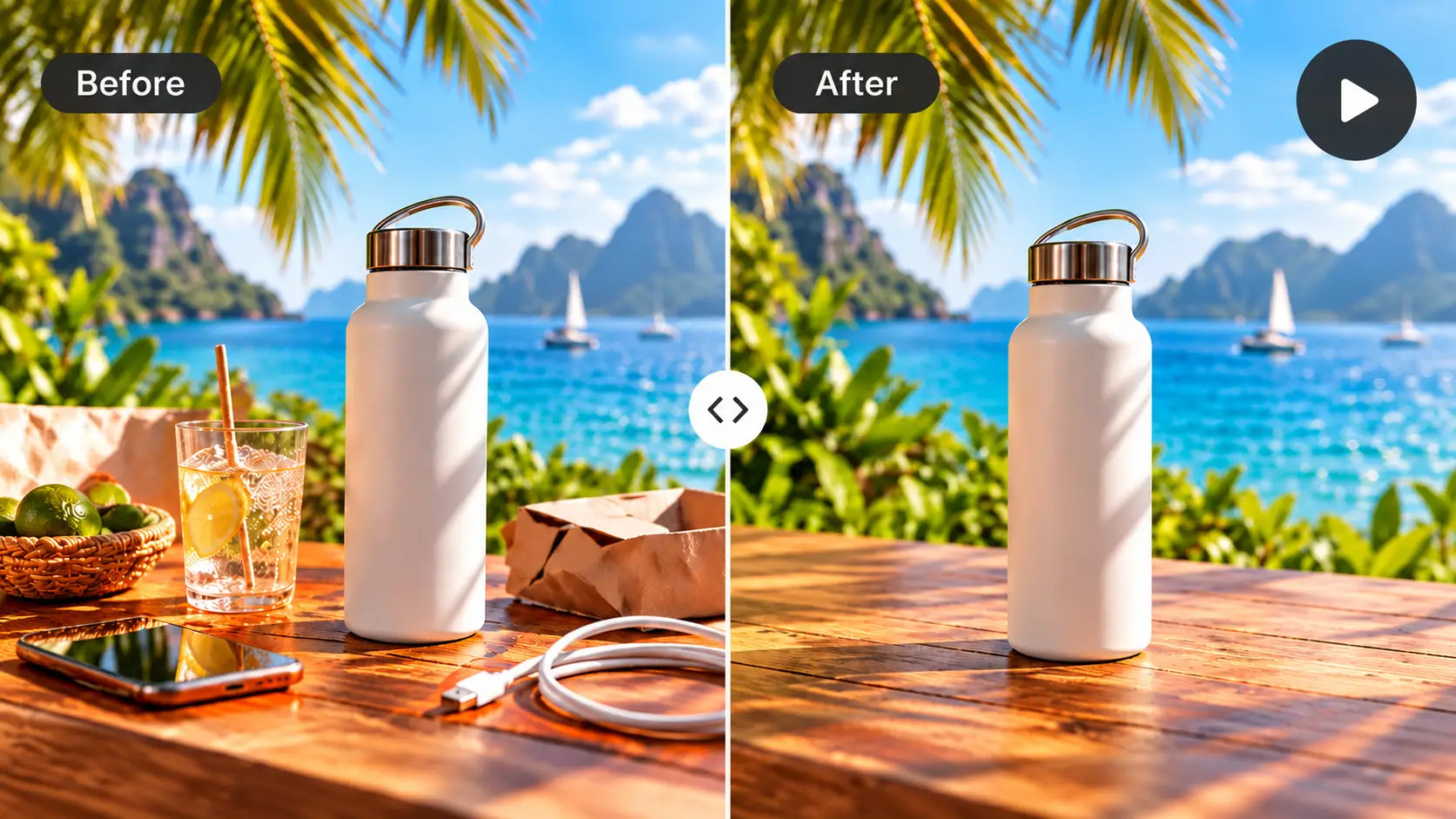
Remove small props, cables, packaging, signs, or background clutter that draws attention away from the product. Keep the original framing while cleaning the selected part of the scene.
Use it to refine product demonstrations, ecommerce videos, promotional clips, and branded content without reshooting the entire scene.
Mark an unwanted object at different moments as it travels through the frame. Additional keyframes provide clearer guidance when the object changes position, scale, or direction.
Moving objects, fast camera motion, strong motion blur, repeated occlusion, and large foreground subjects can be more difficult to reconstruct. Review the complete video carefully after processing.
Different cleanup methods solve different problems. Choose the one that matches the result you need.
Use video object removal when the unwanted element should disappear from the scene. The selected area is processed and reconstructed using information from the surrounding footage.
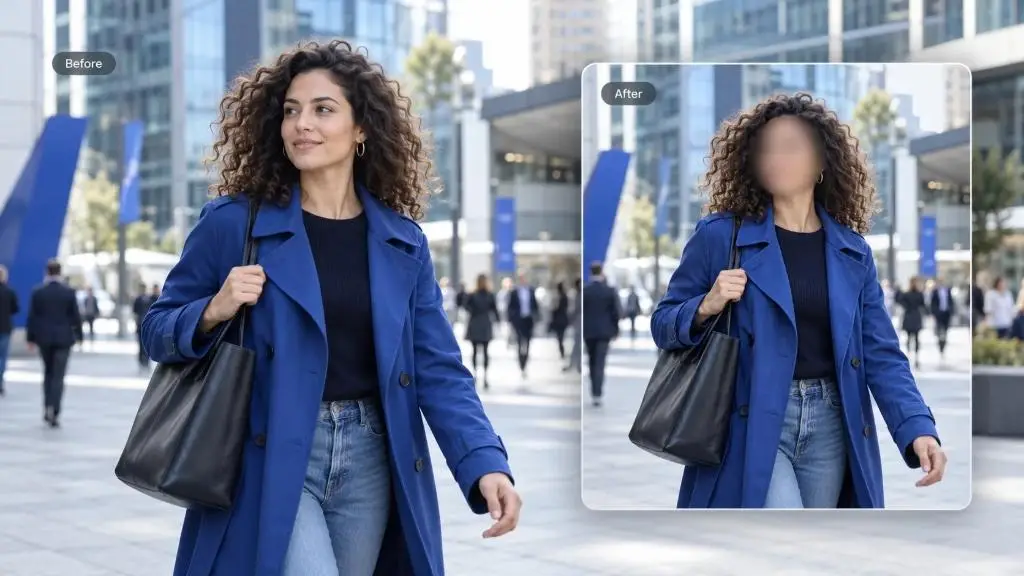
Use blur when you only need to hide a face, license plate, private detail, or sensitive information. The object remains in the video as a visible blurred area.
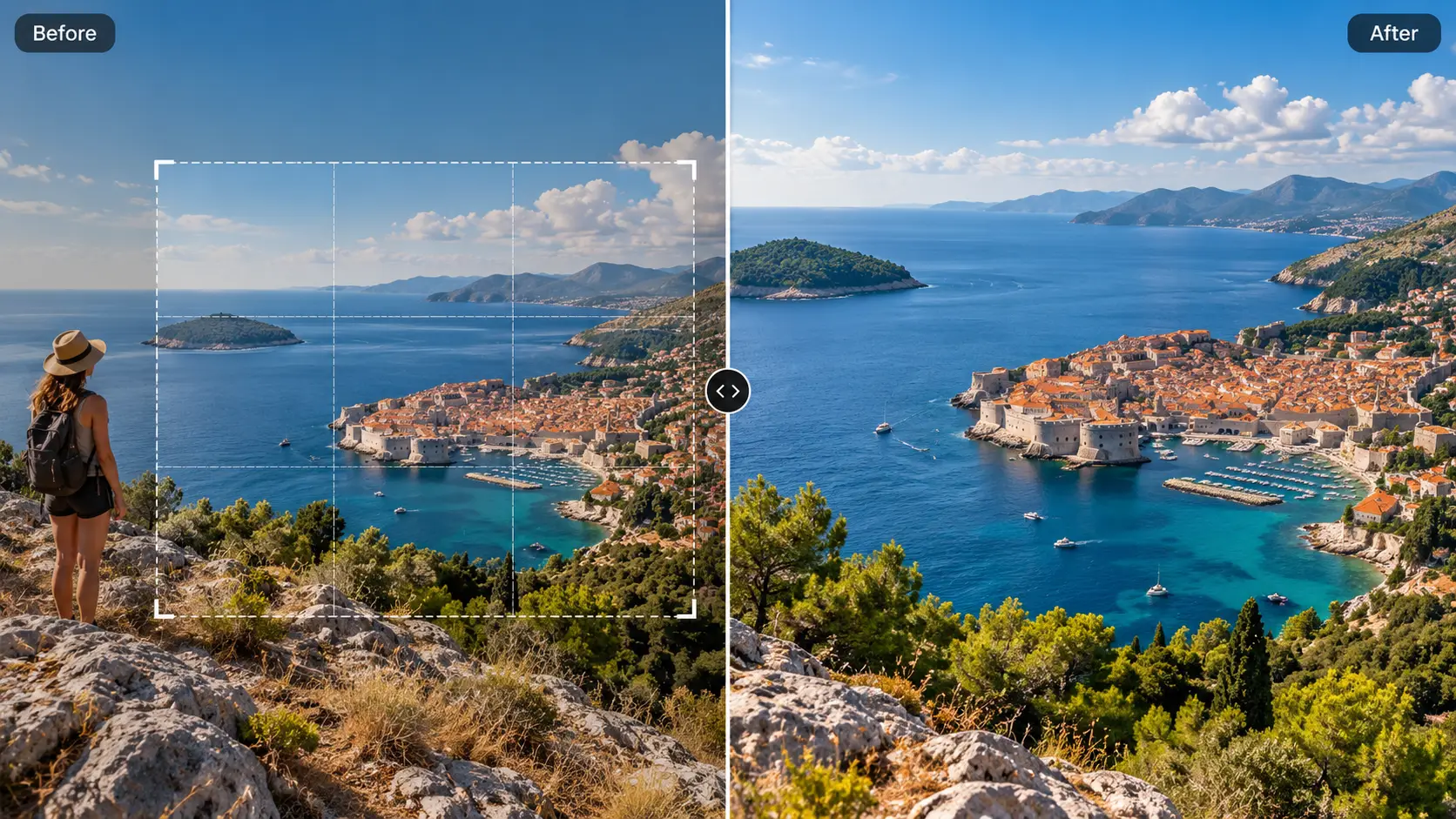
Cropping can remove an object positioned near the edge of the frame, but it changes the composition and reduces the usable image area.
An AI video object eraser is the better option when you want to preserve the original frame and remove the distraction rather than cover or cut it out.
Choose the video you want to clean up and upload it to the online editor.
Move to a frame where the unwanted person or object is clearly visible and brush over it. Add more keyframes and refine the marked area when the target changes position, size, or shape.
Review the estimated credit use, start processing, and play the complete result. Inspect the edited area across the full clip before downloading.
Object removal is designed for people, physical objects, and other visual distractions inside a scene. For common overlays, a more focused tool may provide a simpler workflow.
Erase embedded labels, timestamps, captions, and other unwanted text from footage.
Remove Text from VideoProcess visible watermarks and platform marks with a workflow designed specifically for watermark removal.
Remove a Video WatermarkRemove hardcoded subtitles and burned-in captions while preserving the rest of the frame.
Remove Subtitles from VideoA video object remover is a tool for erasing an unwanted person, item, or visual distraction from video footage. You mark the target, and the tool processes the selected area across the video and reconstructs the scene behind it.
Yes. You can brush over an unwanted person and add selections on multiple keyframes when their position, size, or appearance changes. The final result depends on the person's movement, the background they cover, and the complexity of the scene.
You can mark a moving object on multiple keyframes to show where it appears at different moments. This provides more control than relying on a single selection. Fast movement, motion blur, occlusion, and complex backgrounds may make removal more challenging.
No. You can select keyframes where the object is clearly visible or where its position and shape change. Add more keyframes when the existing selections do not describe the target accurately enough.
No. You decide what should be removed by brushing over the target. AI uses your keyframe selections as guidance when processing the marked areas and reconstructing the surrounding scene.
You can use the video object eraser for unwanted people, small props, cables, signs, clutter, and other visible distractions. Small, clearly defined objects on backgrounds with enough surrounding visual information are generally easier to process than large objects covering detailed subjects.
Results vary by video. Large objects, detailed textures, faces, fast camera movement, heavy motion blur, changing light, and repeated occlusion can make reconstruction more difficult. Always play the complete processed video and inspect the edited area before downloading.
The workflow processes the selected area rather than removing part of the frame through cropping. This helps retain the original composition, although the quality of the reconstructed area depends on the source footage.
The required credits depend on the video and the current processing rules. The estimated credit use is shown before processing begins, so you can review it before confirming the task.
You can mark many visible elements with the object remover. However, AIAI.COM also provides dedicated tools for removing video watermarks, text, and subtitles when those workflows better match the material.
Only process videos you own or are authorized to edit. Do not remove ownership marks, attribution, or protected content when you do not have permission to modify the source video.
Clean up unwanted people and objects without giving up the footage you want to keep. Upload your video, mark the target across keyframes, and review the reconstructed result.