
01
Mark the Emoji Where It Appears
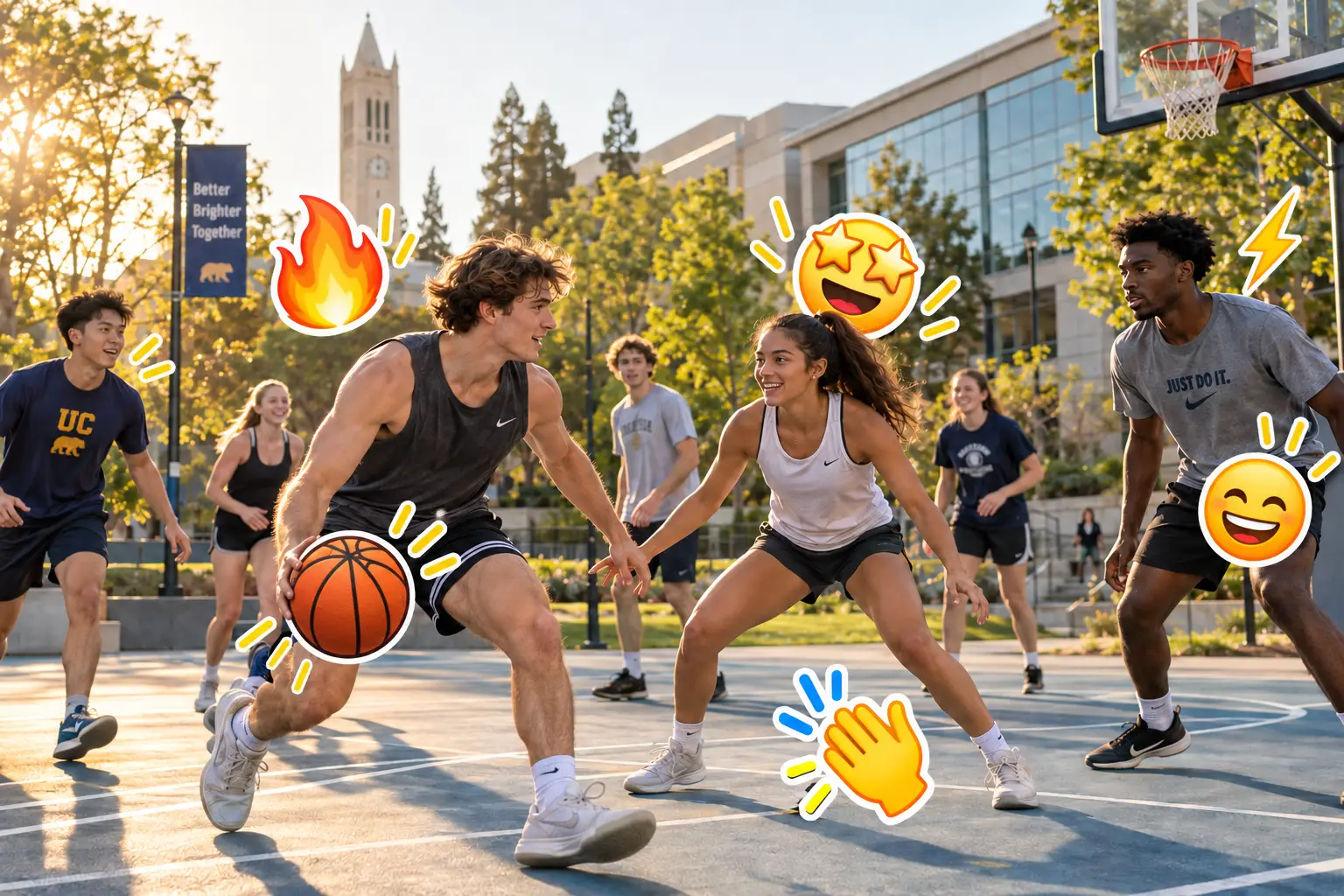
Move to a clear frame and brush over the complete emoji, including its outline, shadow, glow, and transparent edges.
Erase an emoji or sticker that is already embedded in an exported video. Brush over the unwanted overlay, add selections on different keyframes when it moves or changes, and let AI reconstruct the marked area.
Only upload videos you own or are authorized to edit.
Choose one MP4, MOV, M4V, MKV, or WEBM video from 1 second to 10 minutes long and up to 500 MB.
Videos over 5 seconds can be trimmed on your device. Only the selected clip is uploaded.
Choose time ranges and paint the areas to remove.
Creating your task...
AI is removing the selected area...
An emoji added inside an editable project can usually be deleted from its original sticker layer. Once the video has been exported, however, the emoji becomes part of the visible frames and can no longer be selected as a separate element.
AIAI.COM is designed for that exported-video workflow. You choose the emoji, reaction icon, or decorative sticker with a brush. Your selections guide the AI video emoji remover as it processes the marked region and creates a visually consistent replacement from the surrounding footage.
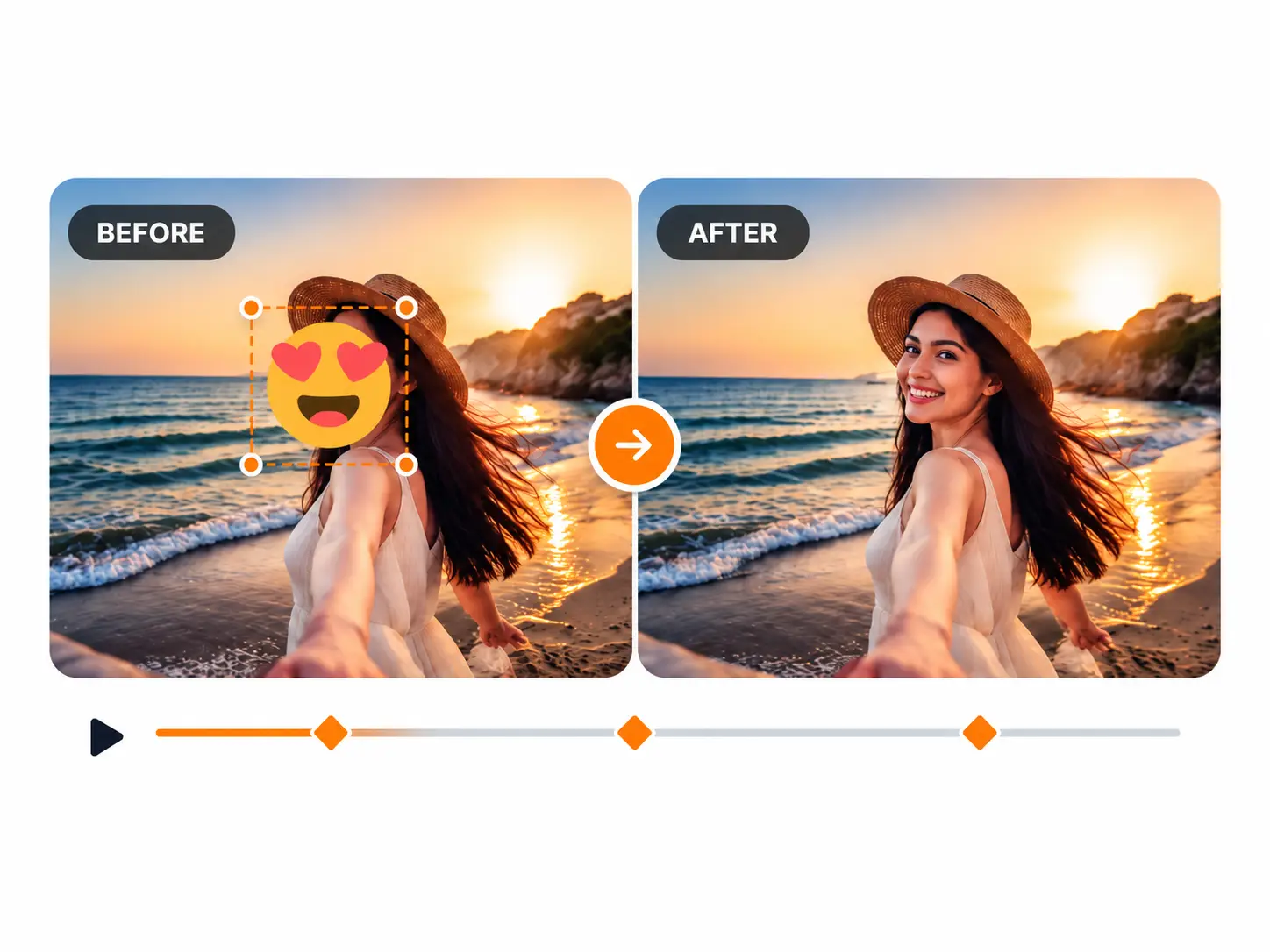
A sticker may stay in one corner, follow a face, move with a product, or change size as the clip plays. A single selection may not describe every position clearly enough.
Move to a clear frame and brush over the complete emoji, including its outline, shadow, glow, and transparent edges.

Add another selection when the emoji changes position, scale, angle, or shape. Different keyframes let you show exactly where the unwanted overlay appears throughout the video.

Play the processed video from beginning to end. Check each marked position for remaining edges, flicker, soft patches, or inconsistent background details before downloading.
Use the video sticker remover for visible overlays that have already been flattened into the footage.
Erase a reaction icon, face emoji, or decorative sticker that remains in a fixed corner or screen area.
Remove an emoji pinned to a face, person, product, or other moving subject. Add keyframes as its location changes to keep the selection aligned with the overlay.
Mark stickers that rotate, resize, pulse, or change shape. Additional selections provide clearer guidance when the animation no longer fits the original marked area.
Remove several emojis from one video by marking each unwanted overlay at the keyframes where it appears.
A clean paused frame does not prove that the repair stays consistent. Compare the original and processed videos across the complete clip, especially where the sticker moves or the scene changes.
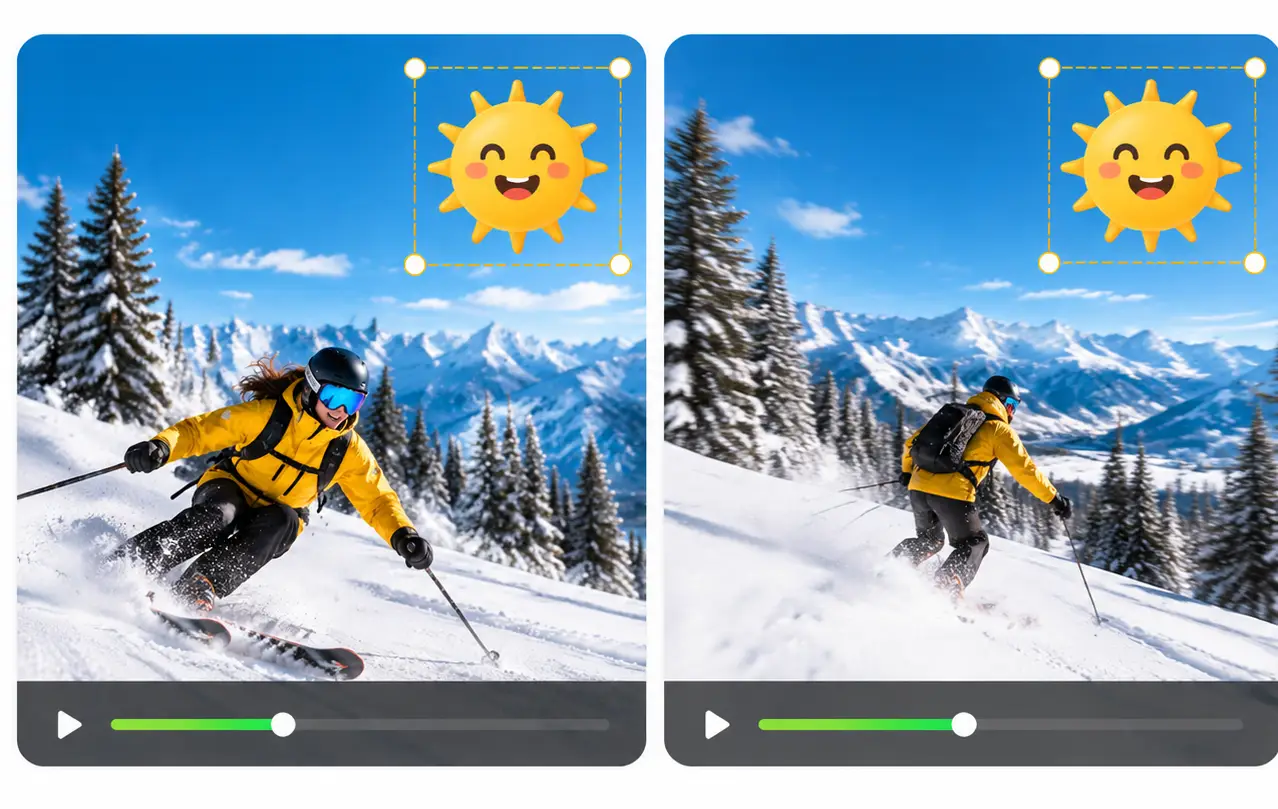
Check how the repaired area changes as people, objects, lighting, or scenery pass behind a stationary sticker.
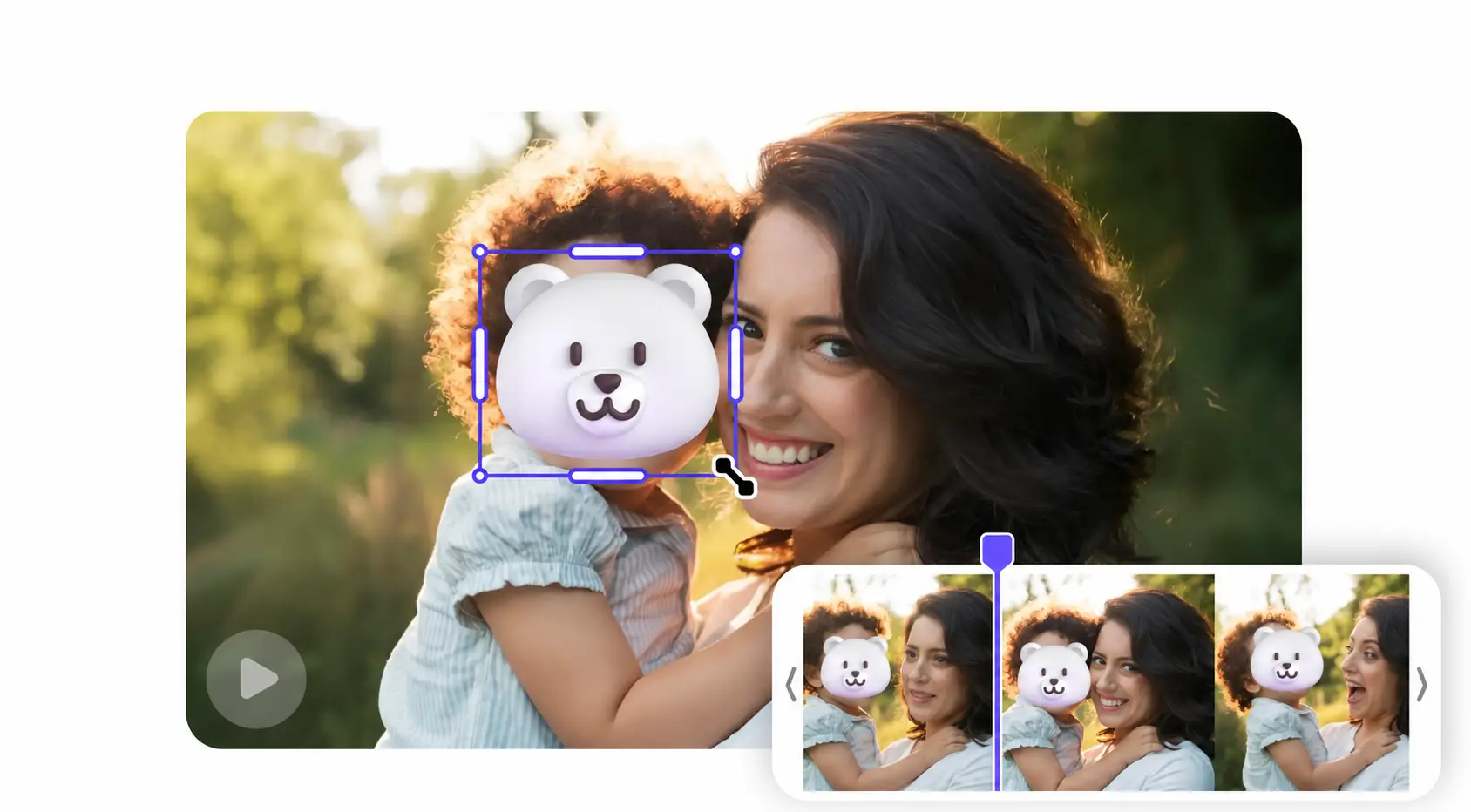
Review the result at each selected keyframe and between positions as the subject moves through the frame.
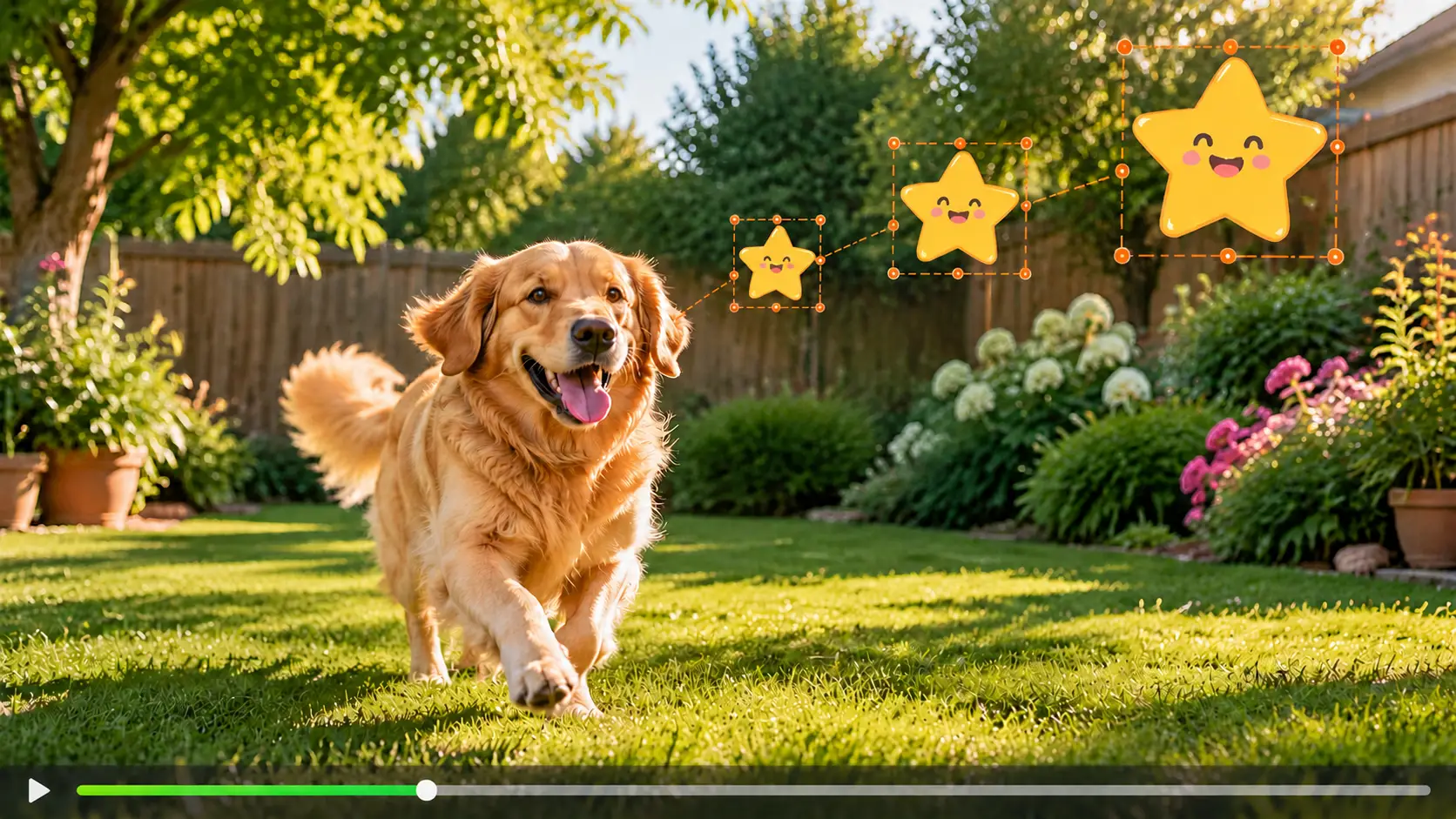
Inspect the edges of the repaired area while the original sticker grows, rotates, or changes shape.
Cropping can remove an emoji near the edge, but it cuts away part of the video and changes the composition. Blur and solid patches hide the sticker while leaving a visible edited area. Adding another graphic only replaces one overlay with another.
The AIAI.COM video emoji eraser processes the region you mark while keeping the original frame dimensions and composition in place.
| Method | Removes the visible emoji | Keeps the full frame | Repairs the selected area |
|---|---|---|---|
| Crop | Sometimes | No | No |
| Blur or pixelation | No | Yes | No |
| Cover with another sticker | No | Yes | No |
| Keyframe-guided emoji removal | Yes | Yes | Yes |
Small, clearly defined overlays are generally easier to remove when the hidden background is visible in nearby frames. Stable footage, moderate movement, and precise keyframe selections also give the tool more useful visual information.
Results can be more difficult when an emoji covers a large part of a face, detailed product, patterned surface, or fast-moving subject. Heavy compression, motion blur, abrupt scene changes, and complex lighting may also affect consistency.
The tool reconstructs a plausible replacement from the available footage. It cannot reveal exact original pixels that remain hidden behind an opaque emoji in every frame, and it should not be presented as a way to recover a person's real face or other concealed information.

Remove an outdated reaction sticker or misplaced emoji from your own short-form video before creating a cleaner version for another channel or campaign.
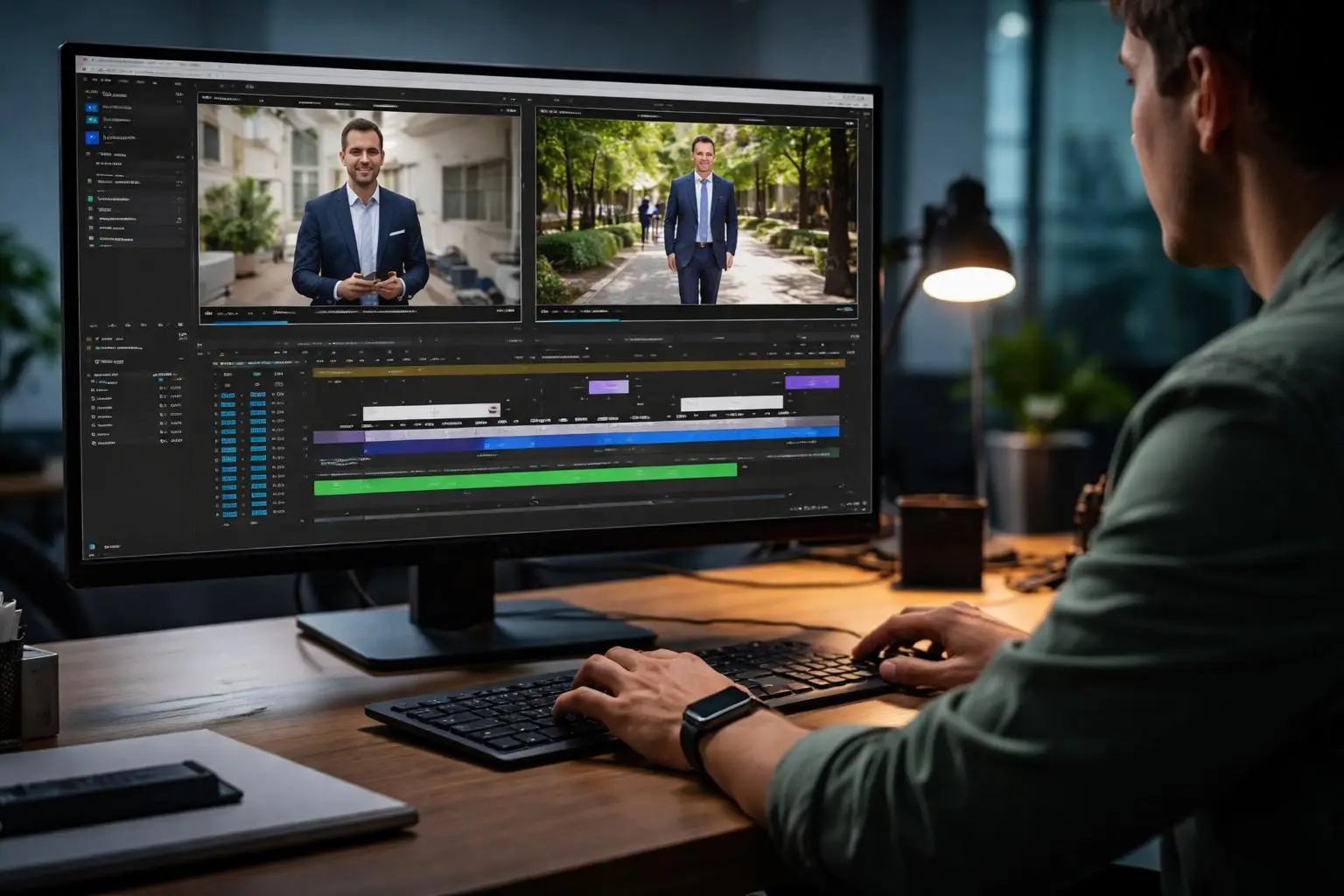
Repair an authorized client clip when the editable project is unavailable and only the exported video remains.

Erase a decorative sticker that blocks a product, model, label, or important visual detail in owned marketing footage.

Clean unwanted emojis from travel clips, family recordings, and other personal videos that cannot be recorded again.
Choose a supported video containing an embedded emoji or sticker.
Mark the complete overlay on a clear frame. Add more keyframes and update the selection wherever the emoji moves, resizes, rotates, or changes shape.
Review the estimated credit use, start processing, and play the complete result. Inspect every position where the emoji appeared before downloading the cleaned video.
Yes. If the emoji has been embedded into the exported video, brush over it and let the tool process the selected area. If you still have the original editing project, deleting the separate sticker layer is usually the better option.
Yes. Add selections on different keyframes as the emoji changes position. This gives the tool clearer guidance than relying on one fixed mask.
You can mark an animated sticker at keyframes where its size, angle, position, or shape changes. Results depend on the animation, movement, covered background, and source-video quality.
No. Select clear keyframes where the emoji changes position, size, or appearance. Add more keyframes when the existing selections do not describe its movement accurately enough.
Yes. Mark each visible emoji at the points where it appears and update the selections when any of the overlays move or change.
No. You decide what should be removed by brushing over the emoji or sticker. AI uses your keyframe selections to process the marked areas and reconstruct the surrounding scene.
You can mark an emoji placed over a face, but the result depends on whether useful facial and background details are visible in other frames. If the face stays fully hidden throughout the video, the exact original appearance cannot be recovered.
Not exactly. The tool generates a visually plausible replacement using information available in the surrounding footage. It cannot retrieve original pixels that are never visible in the video.
Yes. The selected region is reconstructed instead of being covered with blur or removed by cropping. The original frame dimensions and composition remain unchanged.
Results vary by clip. Large stickers, faces, detailed textures, rapid movement, motion blur, lighting changes, and heavy compression can make reconstruction more challenging. Preview the full processed video before using it.
The required credits depend on the uploaded video and the current processing rules. The estimated credit use is displayed before processing begins.
Only process videos you own or are authorized to edit. Removing an emoji, sticker, logo, or other overlay does not grant permission to use someone else's footage.
Upload your video, mark the emoji wherever it moves or changes, and preview the repaired result across the complete clip.