InShot export restoration

Remove the InShot Watermark from an Exported Video

Already saved your edit with the InShot logo? Upload a video you own or are authorized to modify, let AI rebuild the visible watermark area, and keep the complete Reel, Short, or mobile video instead of cropping the corner.

Built for finished InShot exports when reopening the original mobile draft is no longer practical.

Before and After

Before: InShot Logo VisibleAfter: Bottom-Right Area RestoredSame Video, Same Frame

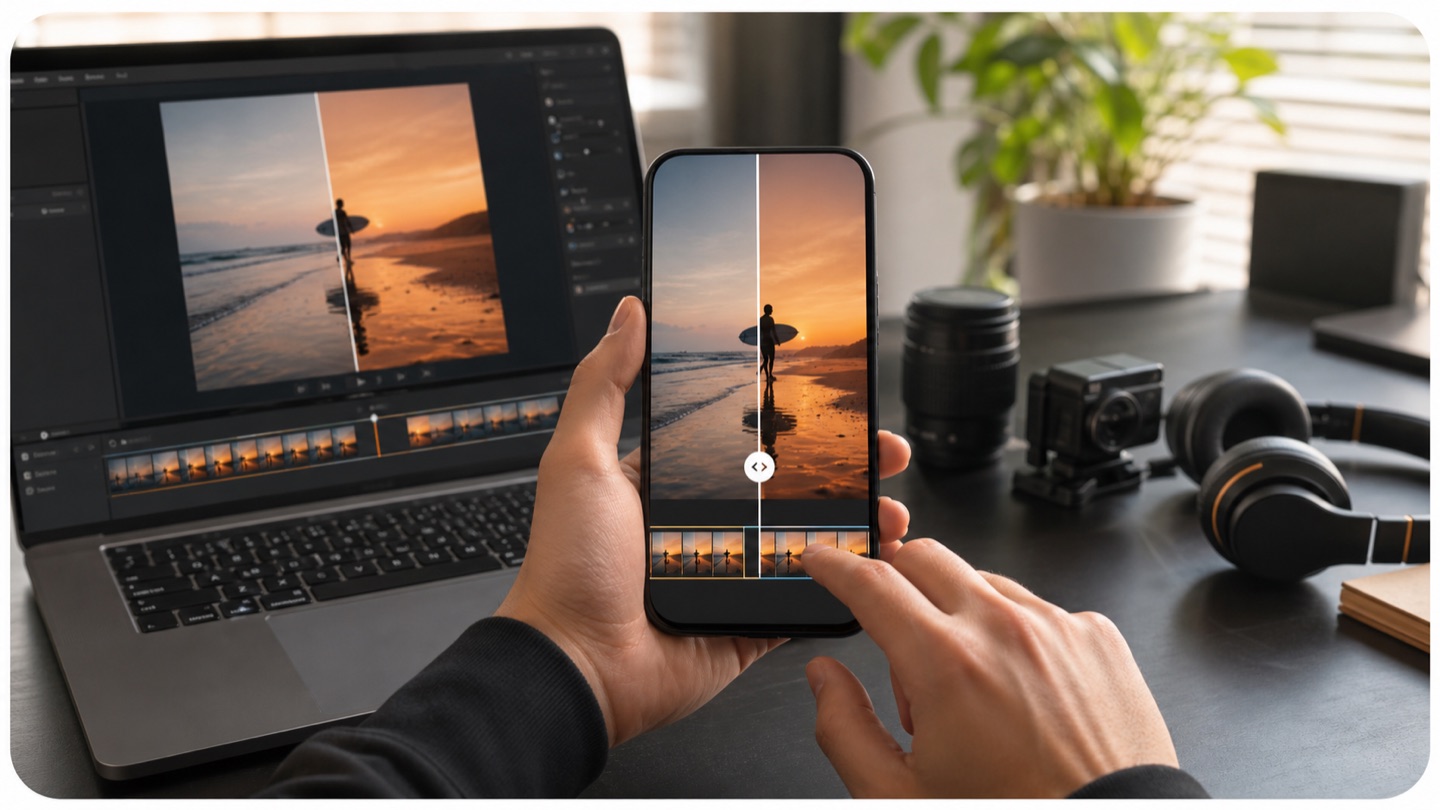
Compare the same video before and after processing. The result keeps the original dimensions while AI erases the visible InShot mark and reconstructs the changing content behind it.

Upload Your InShot Export

Choose a supported video with a visible InShot watermark.

Only upload videos you own or are authorized to edit.

Video Upload

Upload Your InShot Export

Choose a supported video with a visible InShot watermark. Choose Video Files

Cleaning the InShot Watermark Area

AI is restoring the visible bottom-right area across the video. Processing may take a few minutes.

Watch the Full Result

Review the opening, middle, and ending before downloading your processed video. · Download Video · Process Another Export
Can You Still Open the InShot Draft?

Mobile video creator reviewing a full-frame InShot export before and after authorized AI restoration

The best next step depends on whether your mobile editing project still exists. InShot may let free users remove its logo for an individual project by tapping the watermark and watching an advertisement. Availability can vary by version, device, region, and advertising inventory.

Yes, the Draft Still Opens

Open the project and tap the visible InShot logo in the preview. If Free Remove or a similar option is available, complete the advertisement and export the project again. InShot Pro can also remove the platform watermark and advertisements automatically.

Re-exporting from the editable draft is normally the most accurate option because the logo has not yet been permanently embedded in a finished video file.

No, Only the Saved Video Remains

Use AIAI.COM when the mobile draft, source device, or editing history is unavailable and the authorized MP4 or other supported export is the only practical version left.

The workspace processes the visible watermark inside the rendered video. It does not recover or modify an InShot project.

The Draft Opens but Cannot Be Exported Again

If the in-app removal option is unavailable or the draft depends on missing clips, fonts, music, or other source files, compare the incomplete project with the finished export before deciding which version to keep.

Already Pressed Save with the InShot Logo?

Once the watermark is embedded in a downloaded video, tapping the original logo inside InShot is no longer possible unless the editable draft still exists. The final file contains the mark as part of its frames.

The App Was Removed or the Phone Was Replaced

Keep an older edit when the original project remained on a previous phone or disappeared after the app was reinstalled.

The Draft No Longer Contains Its Source Clips

Use the finished export when photos, video clips, music, fonts, or overlays used by the project can no longer be found.

A Client Sent Only the Final MP4

Process a client-provided video only when the client owns it or has expressly authorized the edit.

The Complete Edit Would Take Too Long to Rebuild

Preserve existing cuts, captions, transitions, speed changes, music timing, and effects instead of recreating the mobile edit from the beginning.

An Older Video Needs to Be Published Again

Prepare an authorized archived Reel, tutorial, product clip, event video, or slideshow for a new channel while keeping the original sequence.

Remove the InShot Logo Without Cropping Your Reel or Short

Short-form videos often place a person, product, caption, or call to action close to every edge of a narrow 9:16 frame. Cutting away the lower-right corner can damage more than the watermark.

Keep the Original 9:16 Canvas

Retain the complete vertical composition for Reels, Shorts, TikTok posts, Stories, and mobile-first ads.

Protect Lower Captions and Product Details

Avoid trimming subtitles, prices, buttons, clothing, hands, products, or other elements positioned near the bottom of the video.

Preserve Square and Landscape Layouts

The same full-frame workflow also supports authorized 1:1, 4:5, and 16:9 exports. The goal is to restore the marked area, not force every video into a new ratio.

Avoid Replacing One Mark with Another

A sticker, shape, or blur can hide the word InShot while leaving an equally distracting patch. AI generates a replacement that follows the nearby visual content.

Keep Platform-Ready Dimensions

Review the processed output before posting to confirm that its framing still fits the destination channel.

Is the InShot Watermark an Ending Clip?

Mobile video creator reviewing a full-frame InShot export before and after authorized AI restoration

Usually, the standard InShot mark is not a separate branded outro. It commonly appears as a small InShot wordmark or logo in the lower-right area of the video and can remain visible over the edited footage.

A Visible Overlay, Not Just an Outro

Deleting the final seconds will not solve a watermark that is embedded across the main video frames.

Commonly Positioned at the Bottom Right

The exact design can vary with the app version and device, so inspect the actual file instead of relying on an example from another version.

Check More Than the Thumbnail

Play the complete export. Confirm whether the mark is present at the opening, during scene changes, and near the ending.

Separate It from Your Own Text or Logo

An InShot platform watermark, a creator logo, a subtitle, and a sticker are different visible elements. Select the cleanup tool that matches what is actually embedded in the video.

Visible ElementRecommended Next Step
InShot logo still editable in the draftRemove it inside InShot and re-export
InShot logo embedded in the final videoProcess the authorized export
Your own logo or brand markUse Remove Logo from Video
Unwanted caption, date, or labelUse Remove Text from Video
Separate branded ending clipTrim the ending if the edit allows it

Keep More Than the Video Frame

An InShot export can contain hours of small editing decisions. The value of processing the existing file is not limited to retaining its dimensions; it can also preserve the timing and assembly that already work.

Keep Completed Cuts and Transitions

Maintain the order, pace, and transitions of a finished mobile edit without rebuilding the timeline.

Keep Caption Timing

Preserve burned-in captions and text animation timing while restoring only the visible InShot watermark area.

Keep Music and Voiceover Placement

Work from the rendered video that already has the intended music, narration, sound effects, and volume changes.

Keep Speed Ramps and Effects

Retain slow motion, speed changes, filters, keyframe movement, and visual effects included in the saved export.

Keep the Chosen Export Length

Process the existing duration rather than reconstructing a new project from incomplete source clips.

Removing a watermark does not create rights to music, stock media, fonts, templates, or other third-party elements contained in the video.

Check the InShot Watermark Area from Start to Finish

A clean poster frame cannot prove that a processed video remains stable. The restored lower-right area must be reviewed while people move, captions appear, backgrounds change, and clips transition.

Opening

Check that the visible InShot logo is removed as soon as the main video begins and that the nearby background looks natural.

Middle

Watch the most active part of the edit. Look for flicker, temporary patches, distorted edges, or details that appear and disappear near the processed area.

Scene Changes

Review every major cut or transition. A replacement that works on one background may need to adapt when the next clip begins.

Ending

Confirm that the mark does not return near the last frame and that the ending has not been shortened unintentionally.

Playback

Check the full duration, aspect ratio, audio synchronization, caption timing, and overall viewing quality before downloading.

Clean Finished InShot Videos for Their Next Use

Mobile video creator reviewing a full-frame InShot export before and after authorized AI restoration

InShot is commonly used for quick mobile production rather than large desktop projects. The page should address creators who already completed the edit and now need a practical path for the saved file.

Reels, Shorts, and TikTok Creators

Keep a vertical edit ready for social publishing without trimming away part of the mobile frame.

Mobile Vloggers

Reuse a finished travel, lifestyle, food, beauty, or daily-life video after the original phone draft is no longer available.

Small Businesses and Online Sellers

Prepare an authorized product demo, offer video, menu clip, or social advertisement without cropping the product or price near the edge.

Tutorial and Education Creators

Retain completed narration, captions, screen recordings, and step timing in an instructional video.

Event and Community Teams

Recover an older slideshow, invitation, recap, or announcement that exists only as a saved video.

Freelancers Handling Client Exports

Process a final file supplied by a client when permission is clear but the editable InShot draft cannot be transferred.

How to Remove an InShot Watermark from a Saved Video

01

Step 1: Upload the Export

Choose a supported InShot video that you own or are authorized to modify. Review the selected file and estimated credits before starting.

02

Step 2: Let AI Rebuild the Marked Area

AI analyzes the visible InShot watermark region as the footage changes and generates replacement content for the affected frames.

03

Step 3: Watch, Compare, and Download

Play the processed result from beginning to end. Download it when the lower-right area, motion, audio, and framing meet your needs.

Which InShot Videos Are Easier to Restore?

The quality of a result depends on the content behind the watermark, not simply on whether the word InShot is visible.

More Predictable Results

  • Walls, skies, floors, tables, and soft gradients
  • Stable camera shots
  • Limited movement in the lower-right area
  • Repeating textures with nearby reference detail
  • Clear exports with moderate compression
  • Watermarks that do not overlap captions or faces

Results That Need Closer Review

  • People or products moving through the watermark
  • Subtitles, prices, or small lettering behind the logo
  • Fast camera movement and speed ramps
  • Frequent cuts, flashes, and transitions
  • Reflections, water, smoke, confetti, and particles
  • Detailed fabrics, hair, hands, and patterned backgrounds
  • Low-resolution or heavily compressed videos

Honest Result Standard

AI does not reveal the exact pixels hidden by the original watermark. It creates a visually plausible replacement from the surrounding frames. Review difficult scenes carefully and do not expect every source video to produce a perfect result.

Can You Remove an InShot Watermark from a Photo?

InShot also includes photo and collage editing. If an authorized exported image contains a visible InShot mark, switch to the image workspace and upload a supported file.

Image Processing

AI analyzes nearby color, texture, edges, and repeated patterns to rebuild the marked region in a single frame.

Image Review

Inspect the result at full size, especially when the mark overlaps text, faces, product labels, illustration details, or complex textures.

The main intent of this page remains video watermark removal. Image support is available for users whose saved InShot content is a still file.

Choose the Right Tool for Your Saved Video

Video Watermark Remover

Process other visible platform or creator watermarks in videos you own or are authorized to edit.

Remove a Video Watermark

Remove Text from Video

Clean dates, captions, labels, prices, or other visible text embedded in a video.

Remove Text from Video

Video Subtitle Remover

Process hardcoded subtitles when you have permission to create a clean-language or replacement-caption version.

Remove Video Subtitles

Image Watermark Remover

Remove a visible watermark from an authorized photo, graphic, or still export.

Remove an Image Watermark

FAQ

InShot Watermark Remover FAQs

Keep the InShot Video You Already Finished

Your cuts, captions, transitions, music, and timing are already in place. Upload an authorized InShot export, let AI restore the visible watermark area, and keep the complete mobile edit without rebuilding it from the beginning.

Preview the full processed video before downloading. InShot is a trademark of its respective owner. AIAI.COM is an independent service and is not affiliated with, sponsored by, or endorsed by InShot.