Upload Your Photo
Choose a supported image containing a visible logo you have permission to edit.
Remove a visible logo from a photo, product image, or clothing picture with precise manual control. Upload your image, brush over the brand mark, and let AI rebuild the selected area without opening Photoshop.
You decide exactly what is removed. This page does not automatically detect logos.
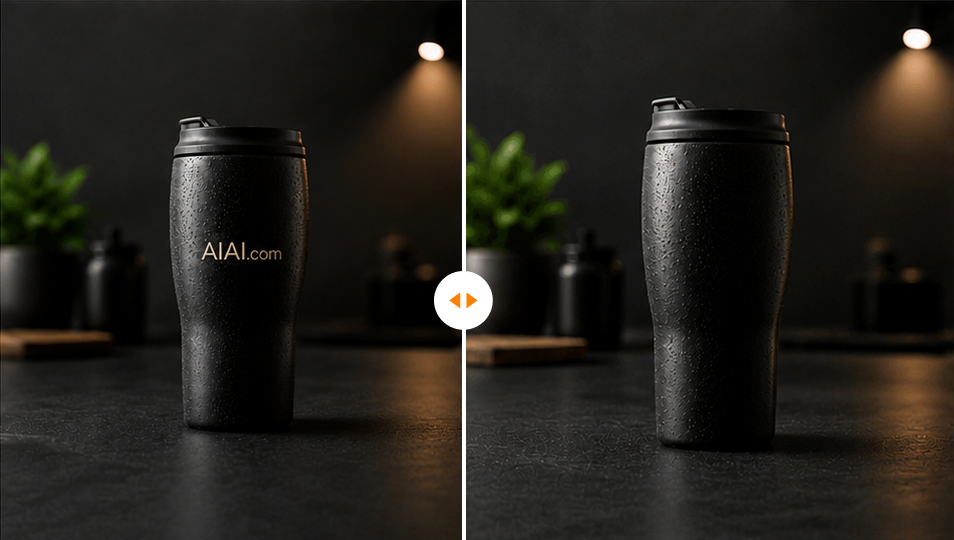
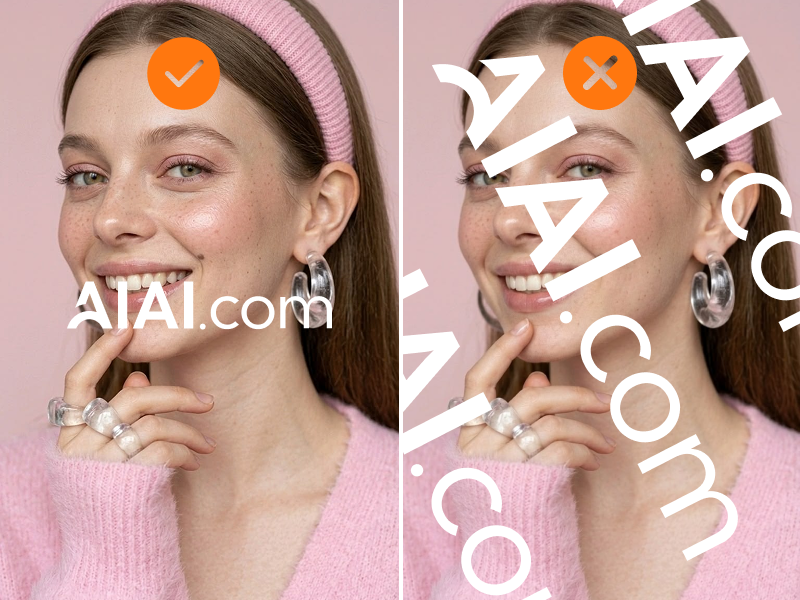
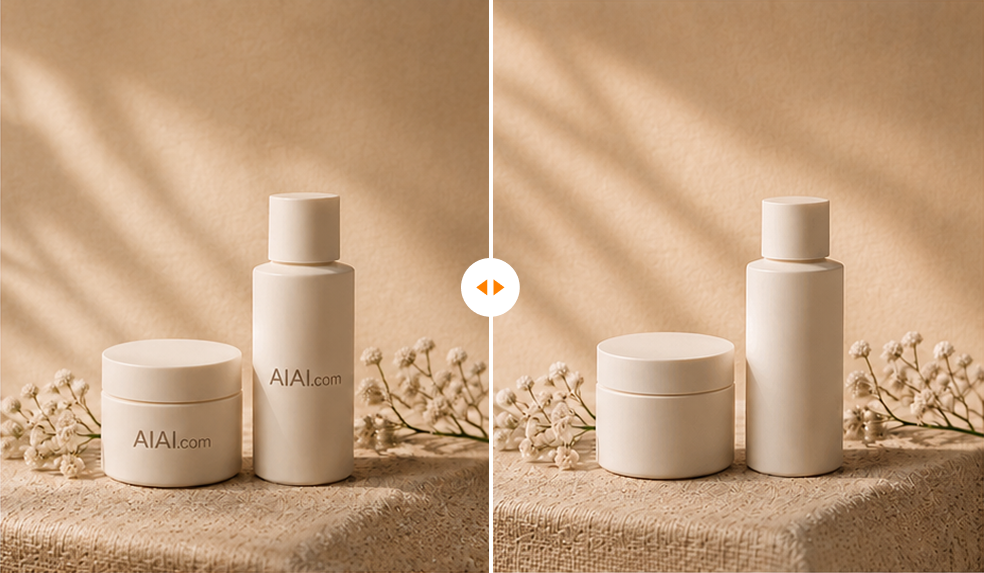 Before
After
Before
After
Supports JPG, JPEG, PNG, WEBP, and BMP. Up to 10 images at once, 20MB per image.
Total Estimated Cost
0 Credits
Upload only images you own or are authorized to edit. AIAI.COM is intended for legitimate cleanup, rebranding, and creative editing workflows.
Precision first
Not every visible logo is a simple corner overlay. A brand mark may be printed on a curved package, stitched into fabric, embossed on metal, or placed beside text you need to keep. Automatic detection can select the wrong detail. AIAI.COM gives you the brush so you can mark only the logo that should be removed. After you finish the mask, AI inpainting analyzes nearby colors, textures, edges, lighting, and patterns to reconstruct the selected area.
Paint over one logo while keeping nearby labels, product details, faces, and other visual elements untouched.
Adjust the brush size, zoom in, move around the image, and use undo or redo before processing the selection.
Once the mask is ready, AI works inside the selected area to recreate a plausible continuation of the surrounding image.
A focused brush workflow for photos and images you are allowed to edit.
Choose a supported image containing a visible logo you have permission to edit.
Open the image in the editor, paint over the full logo, and slightly cover its outer edges. Zoom in and change the brush size when the mark sits near a seam, label, product edge, or other fine detail.
Start processing, compare the original and cleaned versions, and download the result when the repaired area looks right.
Use a smaller brush near product contours and fabric seams. If a faint edge remains, refine the mask and process the image again.
Product teams often need to update approved visual assets after a packaging change, company rename, white-label agreement, or campaign refresh. Instead of rebuilding the entire photograph, brush over the outdated brand mark and generate a clean base for the next design.
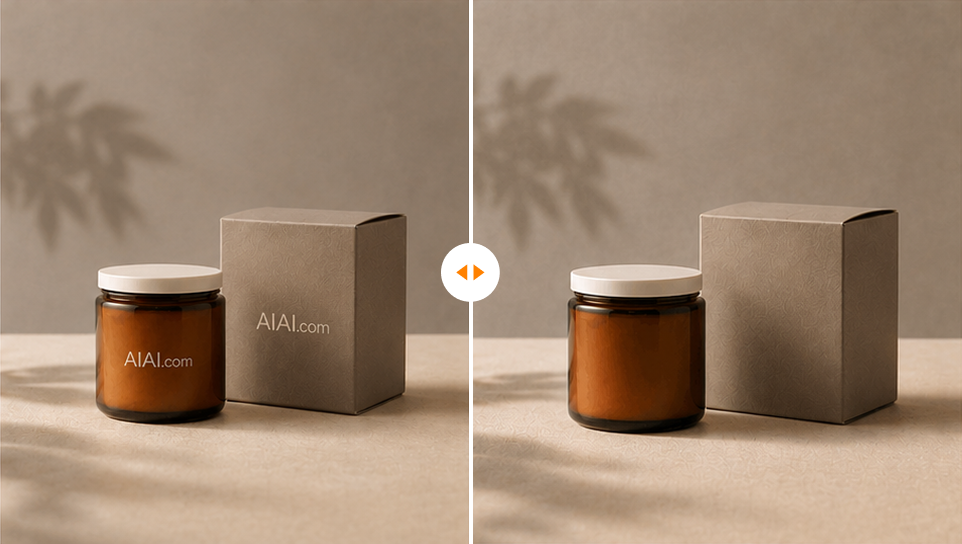
Remove an outdated logo from your own box, bottle, pouch, or label photography before adding the current brand identity.
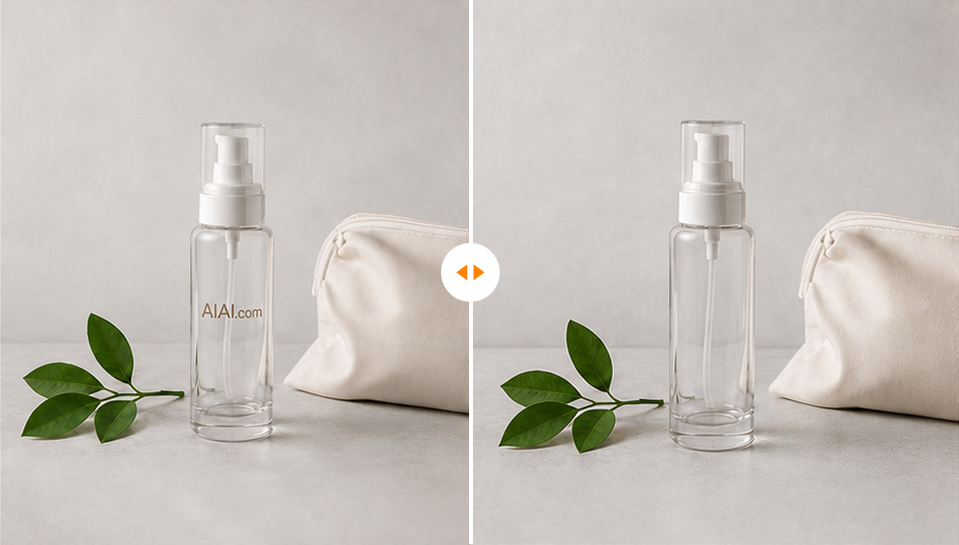
Clean approved supplier or manufacturer images when your agreement allows the original branding to be replaced.
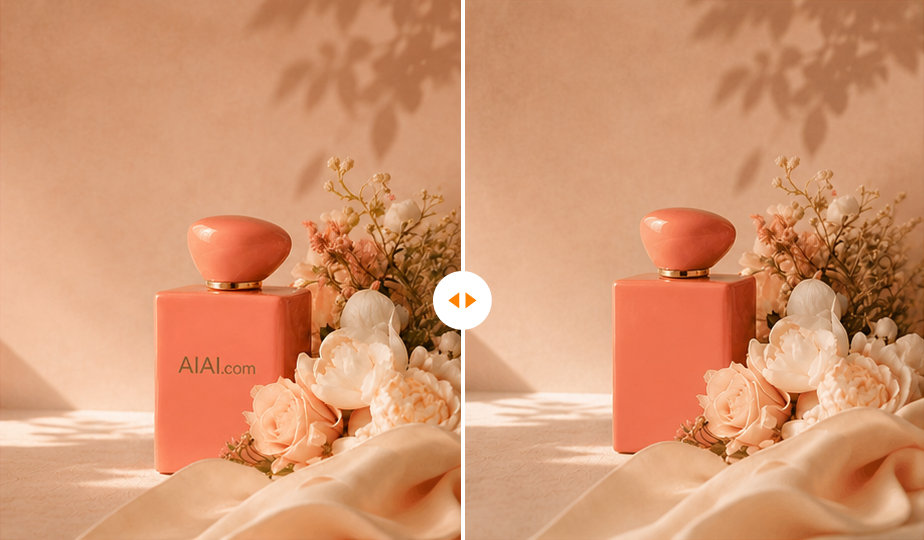
Reuse owned campaign banners, press images, mockups, and presentation visuals after a rebrand without recreating every asset from scratch.
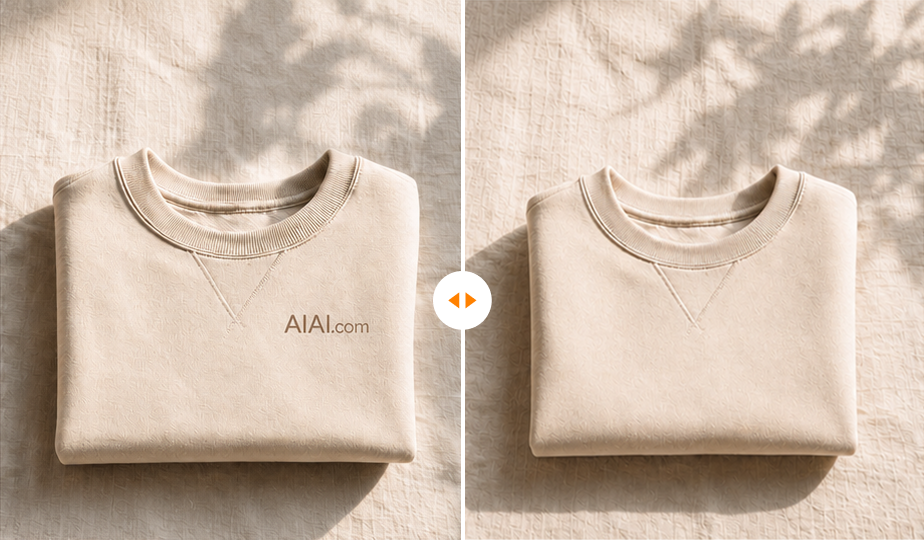
Logos on shirts, hoodies, hats, uniforms, and fabric mockups are often part of the photographed surface rather than an overlay. Brush over the print or embroidery and let AI rebuild the surrounding color, weave, folds, and lighting.
Flat, evenly lit fabric usually produces the cleanest result. Large graphics, strong wrinkles, patterned textiles, embroidery crossing a seam, and logos covering hands or hair may require a more careful mask or another pass. Use this workflow for clothing photos you own or have permission to modify, including approved mockups, samples, and campaign assets.
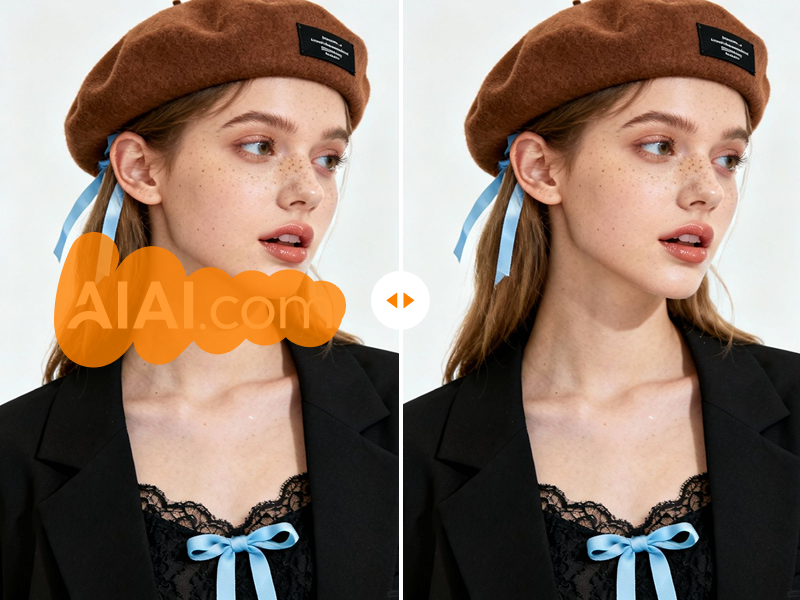
You do not need to create layers, sample pixels with a clone stamp, or blend a repair by hand. Open AIAI.COM in your browser, upload a picture, paint over the logo, and let AI handle the background reconstruction. Manual selection still gives you control over the edit, but the restoration step does not require advanced retouching skills. The workflow works in modern desktop and mobile browsers without installing a full photo editor.
Try the manual brush workflow on your own image before committing to a larger project. Sign in to use any free credits currently available to your AIAI.COM account, mark the logo, and review the processed result online. Additional processing or download options may require credits depending on the current plan.
There is no software installation. Current credit requirements and export options are displayed inside the upload workflow before processing.
Browser based
Manual brush control
Credit estimate before processing
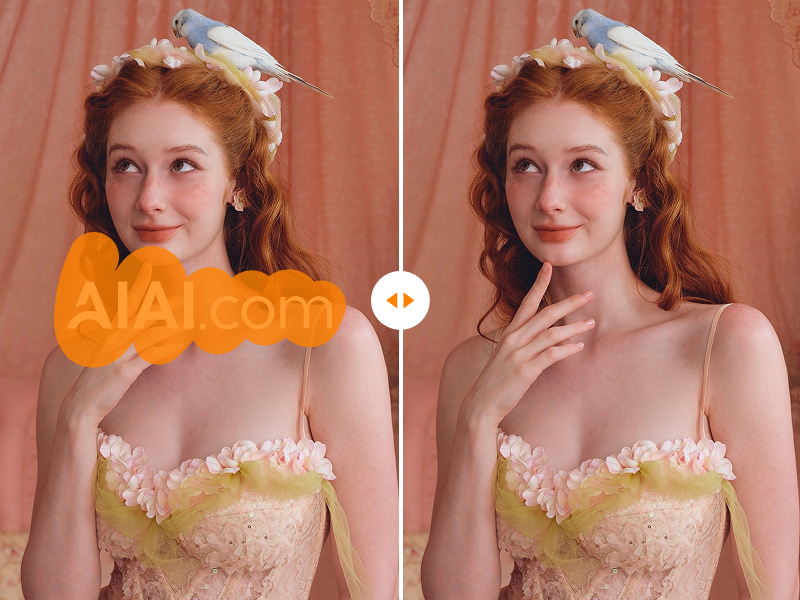
Logo removal quality depends on what the mark covers. AI has more visual context when the logo is small and the surrounding surface has a clear, repeatable texture. Results can be less predictable when the logo covers a face, hand, fine product text, sharp edge, unique illustration, or a large part of the subject.
Choose the perfect credit package for your needs. No hidden fees.
Upload the image, open the logo brush, and paint over the complete logo. Adjust the brush size and zoom when needed, then generate and review the cleaned result before downloading.
No. This page uses manual selection so you control exactly which logo is removed. AI reconstructs the area only after you finish brushing over it.
Yes, when you own the product image or have permission to edit it. The tool can help clean old packaging, approved supplier assets, mockups, and rebranding materials. Results depend on the logo size and the surface behind it.
You can try the online workflow using any free credits currently available to your AIAI.COM account. Processing and download requirements depend on the current credit and plan rules shown in the workspace.
Yes. AIAI.COM runs in the browser, so you can upload, brush, generate, and download without installing Photoshop or manually cloning nearby pixels.
Yes. Brush over each logo you want removed before generating. Keep the selection limited to the unwanted marks and avoid covering details you want to preserve.
Yes. The upload component accepts up to 10 images, with a maximum size of 20MB per file. Open each image and mark its logo manually before processing. For a workflow focused specifically on high-volume cleanup, use the dedicated batch tool.
Not always. A watermark is usually a text, copyright, signature, or semi-transparent overlay placed on top of an image. A logo may be printed, stitched, embossed, or photographed as part of a physical product. Use the image watermark remover for visible overlays and this manual logo remover for precise brand-mark cleanup.
Use the dedicated Remove Text from Image tool for captions, labels, signs, dates, and other text-focused cleanup. It provides content and controls tailored to text removal.
Yes. Brush over the printed or embroidered logo and AI will attempt to reconstruct the nearby fabric. Plain, evenly lit fabric is usually easier than patterned or heavily folded clothing.
No. Results vary with logo size, mask accuracy, image resolution, lighting, and the complexity of the covered surface. Review edges and textures, and refine the mask when another pass is needed.
No. Only upload images you own or are authorized to modify. Do not remove ownership marks, trademarks, or copyright information from third-party content without permission.
Remove visible copyright text, signatures, timestamps, and semi-transparent overlays from an authorized image.
Brush over captions, labels, dates, signs, and other unwanted text while AI rebuilds the background.
Brush over people, products, background distractions, and other unwanted objects when the editing task is broader than a visible logo.
Use the video workflow when a visible logo appears in moving footage rather than a still image.
Upload an image you own or are authorized to edit, brush over the exact brand mark, and let AIAI.COM reconstruct the selected area online.