Kapwing export cleanup

Remove Kapwing Watermark from Your Videos

Clean the visible Kapwing watermark from a video you own or are authorized to edit. This online video watermark eraser uses AI to delete the visible mark and reconstruct the covered area without cropping away the surrounding frame. Preview the result and download a cleaner version for your next project.

Keep the full frame. Erase only the visible watermark.

Before & After

Upload Your Kapwing Video

* Supports MP4, MOV, M4V, MKV and WEBM formats, max 10 files at once, maximum file size of 500MB per file.

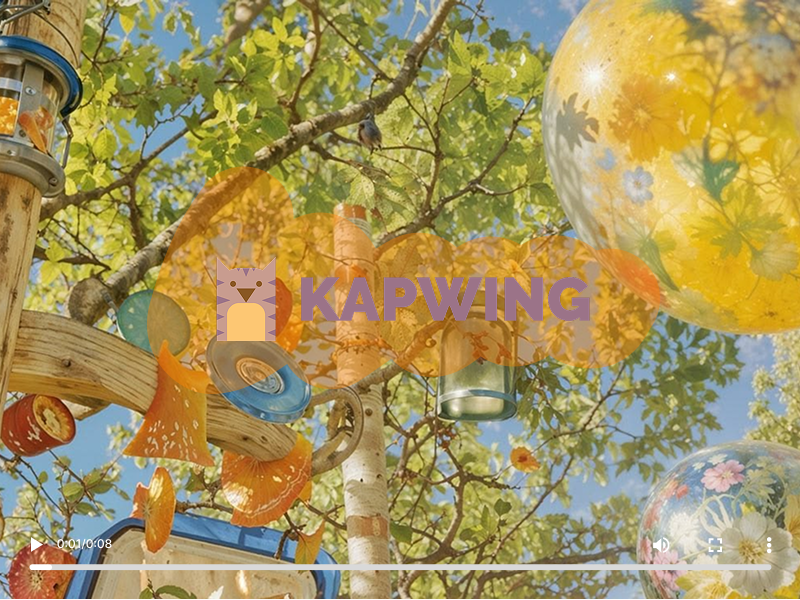
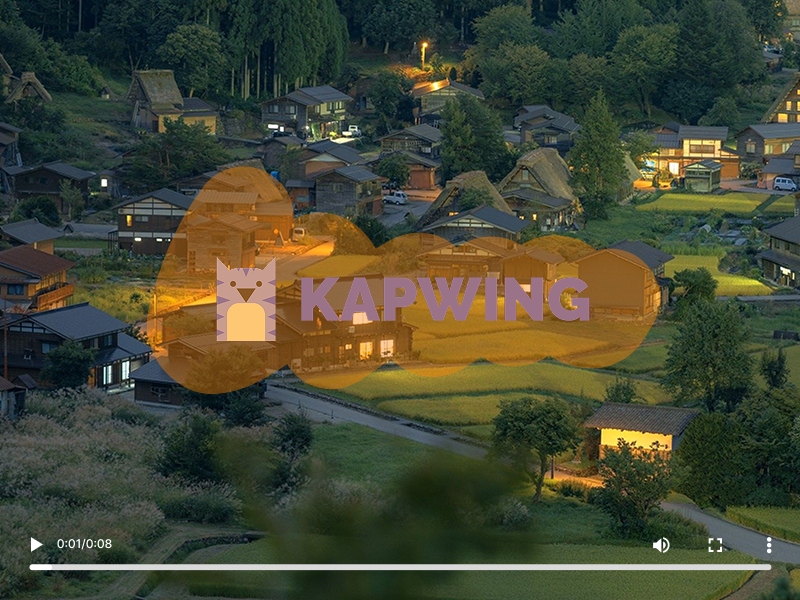
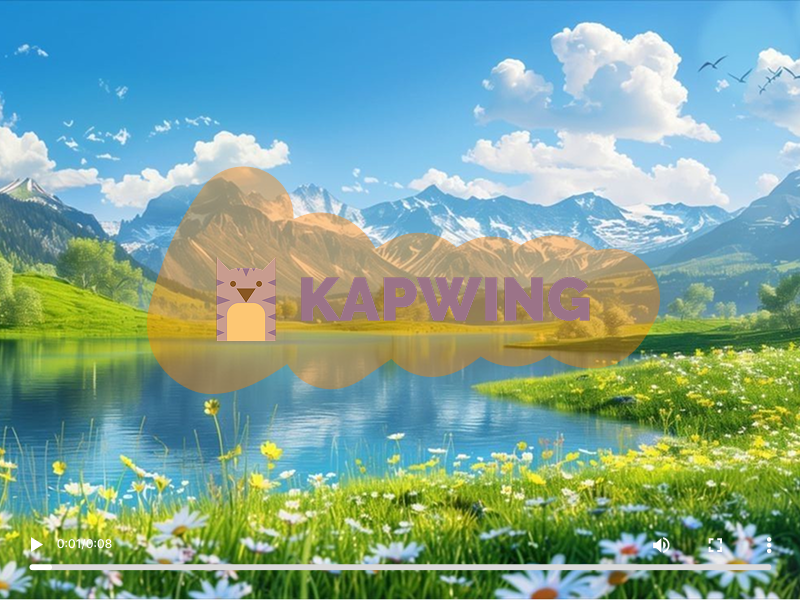
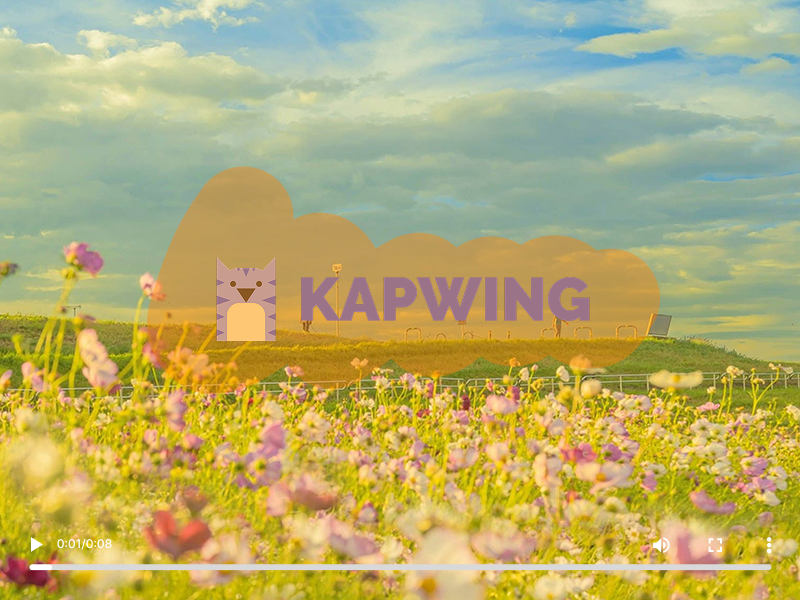
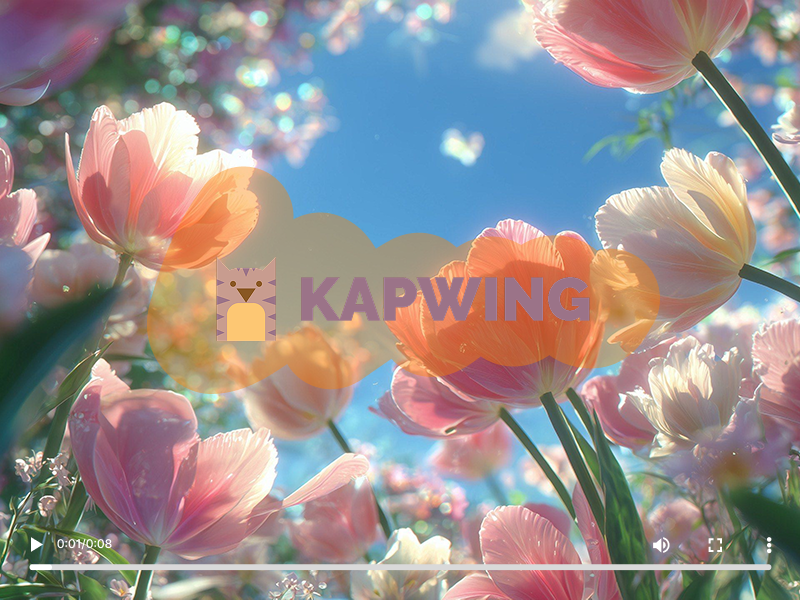
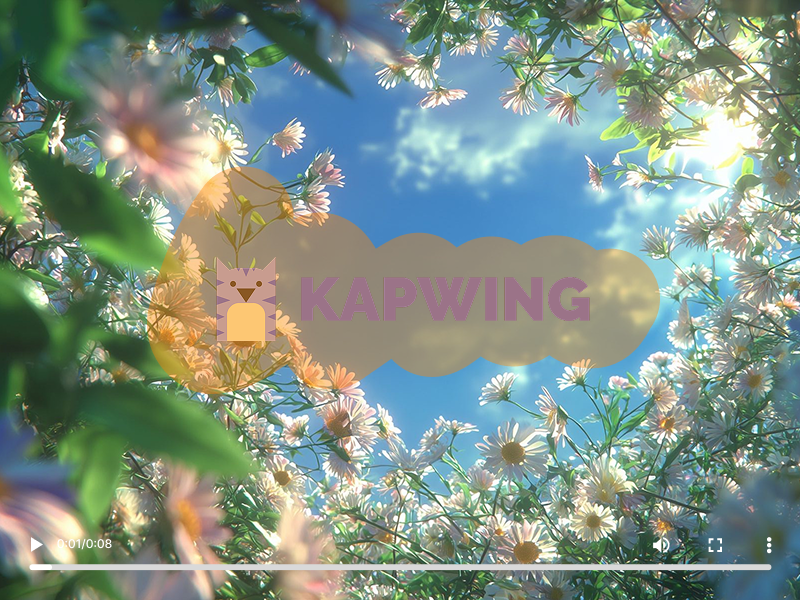
Before: Kapwing WatermarkAfter: Watermark ErasedWatermark Area Close-Up

Watch the complete clip, not just a still frame. The watermark eraser processes the marked area while the scene moves, helping preserve the composition without replacing the Kapwing mark with a crop or fixed blur.

Full frame retainedNo corner cropVisible watermark deletedMarked area reconstructed across framesAudio and video remain synchronized

Supports the video formats and file limits shown in the uploader. Processing requirements and estimated credits are displayed before you start.

Only upload content you own or are authorized to edit.

Selected Videos

Estimated Credits · Remove Kapwing Watermark · Clear All

Removing the Visible Watermark

AI is processing the marked area across the video frames. This may take a few minutes.

Preview Your Result

Play the processed video and check the restored area before downloading. Download Video · Process Another Video
02

Only Have a Kapwing-Exported Video?

Creator recovering an old Kapwing export after losing the original project

Sometimes the original project is no longer available, but the watermarked export still needs to be reused. This tool is designed for authorized files when returning to the original timeline is not practical.

Lost the Original Project

Clean up your own exported video when the editable project, source timeline, or original assets are no longer available.

Audience: Casual creators, students, and small teams working with older files.

Cleaning Up an Older Export

Prepare an authorized archived video for a new presentation, portfolio, campaign, or social platform without rebuilding it from the beginning.

Audience: Content creators, marketers, educators, and nonprofit teams.

Received a Watermarked Client File

Process a client-supplied export when you have permission to edit the content but do not have access to the original Kapwing workspace.

Audience: Freelance editors, agencies, and social media teams.

Preparing Your Own Video for Social Media

Remove the visible platform mark from your own short video before publishing it in a new layout or channel.

Audience: Short-form creators, meme makers, community managers, and small businesses.

Reusing an Authorized Video

Restore an approved video from your media library when the watermarked version is the only usable copy left.

Audience: Internal communications teams, educators, event organizers, and brand archives.

03

Erase a Kapwing Watermark Without Cropping the Video

Comparison of cropping, blurring, and AI reconstruction for a Kapwing watermark

The fastest workaround is not always the most usable result. Compare what happens when a lower-right watermark is cropped, covered, blurred, or reconstructed.

Cropping the Corner

What happens: The watermark disappears because part of the video is removed.

Tradeoff: The frame changes, subjects may be cut off, and the finished aspect ratio may no longer fit the intended platform.

Covering or Blurring the Watermark

What happens: A shape or blur hides the text.

Tradeoff: The lower-right corner remains visibly altered, especially when the background moves or contains texture.

AI Reconstruction with AIAI.COM

What happens: AI processes the visible watermark area and rebuilds the surrounding visual content across frames.

Benefit: The video keeps its full composition without replacing the watermark with another obvious block.

MethodKeeps Full FrameRebuilds Covered AreaDesigned for Moving VideoRequires Reframing
CropNoNoNoYes
Blur or CoverYesNoLimitedNo
AIAI.COM AI ProcessingYesYesYesNo

Results vary with the scene. A watermark over fast movement, faces, subtitles, or highly detailed textures can be more difficult to reconstruct naturally.

04

Built for Kapwing-Exported Videos

AI processing a visible Kapwing watermark across video frames

The workflow focuses on the job users actually need to complete: upload an authorized export, delete the visible watermark, review the full video, and download the result.

Automatic Visible Watermark Processing

The AI analyzes the video and processes the visible watermark area without requiring frame-by-frame manual editing.

Full-Frame Output

Keep the original composition instead of trimming away the lower-right corner to hide the watermark.

Multi-File Workspace

Select multiple supported files, review the estimated credits, and follow each video's processing status in one workspace.

Preview Before Download

Play each result and inspect the restored corner before saving the processed video.

05

Reuse Your Kapwing Video Across More Channels

Processed Kapwing video prepared for TikTok and Instagram Reels

Once an authorized export has been processed, review it carefully and prepare it for the channel where it will be used next.

TikTok and Instagram Reels

Prepare your own vertical clips for short-form feeds without cropping the lower-right portion of the composition.

YouTube Shorts

Reuse owned highlights, explainers, or meme videos in a clean vertical presentation.

Classroom and Presentation Videos

Restore an authorized educational or presentation clip when the original editable project is no longer accessible.

Client and Marketing Deliverables

Process an approved client export before placing it in a campaign draft, review deck, or updated deliverable.

Removing a visible watermark does not grant ownership of the video, music, footage, design, or brand elements. Only process material you own or have permission to edit and republish.

06

How to Remove a Kapwing Watermark

Uploading an authorized Kapwing video export

Step 1: Upload Your Video

Choose the Kapwing-exported video you own or are authorized to edit. The workspace will display the supported format, file limits, and estimated credits before processing begins.

Step 2: Let AI Process the Watermark

Start the task and allow AI to analyze the video frames, remove the visible watermark, and reconstruct the surrounding area.

Step 3: Preview and Download

Play the processed result, inspect the restored corner during movement, and download the video when it meets your needs.

07

When Does Kapwing Watermark Removal Work Best?

Simple and complex scenes compared for Kapwing watermark removal results

Results are generally easier to restore when the watermark stays in a consistent corner and appears over simple, stable, or repeatable visual content. Solid colors, skies, walls, gradients, empty space, and slower background motion usually provide clearer visual context for reconstruction.

More complex scenes require closer review. Watermarks that overlap faces, small text, detailed patterns, fast-moving objects, scene cuts, or rapidly changing light can be harder to remove without visible artifacts.

  • Watermark remains in a consistent lower-right position
  • Background contains simple or repeatable detail
  • Important subtitles and faces do not overlap the watermark
  • Source video is clear and not heavily compressed
  • Movement near the watermark is moderate
  • Faces or hands pass directly behind the watermark
  • Small captions overlap the marked area
  • Highly detailed textures change rapidly
  • The video contains heavy compression or motion blur
  • The watermark changes position, size, or opacity

Always play the complete result before publishing. Check scene changes and moments when a subject moves through the restored area, not only the first frame.

08

When to Re-Export from Kapwing or Use AIAI.COM

Decision guide for re-exporting a Kapwing project or processing an authorized watermarked export

If your original Kapwing project is still available, exporting it through an eligible Kapwing plan is generally the most direct way to preserve the original project output without reconstructing any pixels.

Use AIAI.COM when you own or are authorized to edit the video and the watermarked export is the only practical file available. The tool processes the visible mark in the rendered video rather than accessing or modifying a Kapwing project.

  • Credit requirements are shown before processing
  • Each processed result can be previewed before download
  • Uploaded content remains subject to AIAI.COM's current privacy and retention policies
  • Files that violate applicable policies or terms may be rejected
  • Processing a file does not transfer copyright or trademark rights

Kapwing is a trademark of its respective owner. AIAI.COM is an independent service and is not affiliated with, sponsored by, or endorsed by Kapwing.

09

More Tools for Cleaning Up Kapwing Videos

Related AIAI.COM tools for removing visible elements from authorized videos

Choose the tool that matches the visible element you need to clean from an authorized video.

Video Watermark Remover

Remove other visible watermarks from videos you own or are authorized to edit.

Remove a Video Watermark

Remove Text from Video

Erase visible labels, dates, captions, or other text embedded in a video.

Remove Text from Video

Video Subtitle Remover

Remove hardcoded subtitles from videos when you have permission to modify the content.

Remove Video Subtitles

FAQ

Kapwing Watermark Remover FAQs

Clean Up Your Kapwing Export

Upload a Kapwing-exported video you own, let AI process the visible watermark, review the restored area, and download a cleaner version for your next authorized use.

Keep the composition you created. Leave the visible platform mark behind.