No Timestamp Detection Required
The tool does not need to identify the font or read the date. You choose the target with the brush.
Manual brush control
Brush over a visible date, clock, or timecode embedded in your video. AIAI.COM processes the area you select throughout the clip without automatic timestamp detection, cropping, or zooming.
Batch upload up to 10 videos at once. Supports MP4, MOV, M4V, MKV and WEBM. Each video must be 1 second to 10 minutes long and up to 500MB.
Free users can access a 3-second preview video. Upgrade to unlock the full watermark-free video.
Only upload videos you own or are authorized to edit.
Visible pixels, not file metadata
A burned-in timestamp is part of the visible video frames. It may show a calendar date, running clock, recording timecode, or date-and-time combination that changes as the video plays. This tool does not change hidden creation dates, GPS information, camera details, or other file metadata.
If your camera or recording software can export a clean version, use that source. This workflow is for visible timestamps already embedded in the video.
The numbers may change every second, but their screen area usually stays fixed. Automatic detection can miss faint digits, unusual fonts, or transparent edges. Manual selection removes that uncertainty: mark the complete display area, and the video eraser repairs that region without reading individual digits.
This workflow works best when the timestamp remains within one defined area. If a date, logo, or text overlay moves significantly around the frame, use the Moving Watermark Remover.
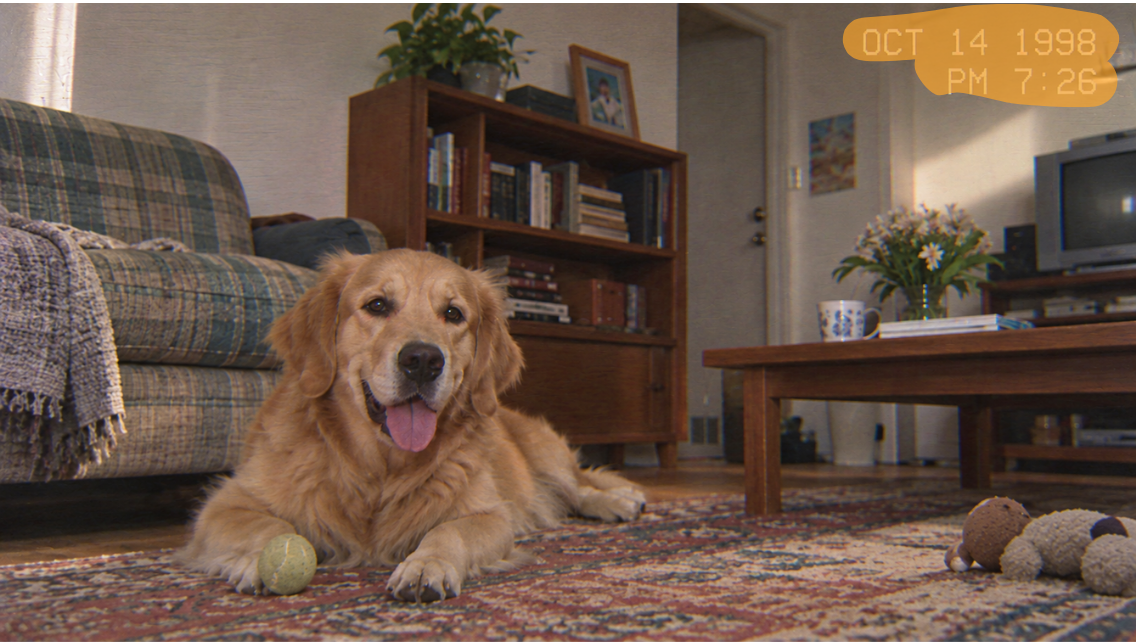
Manual selection
Choose exactly which visible timestamp pixels should be processed. A complete, carefully painted mask keeps the restoration focused on the display rather than nearby scene details.
The tool does not need to identify the font or read the date. You choose the target with the brush.
Cover the display at its widest so changing seconds, dates, and AM or PM indicators stay inside the mask.
Include outlines, glow, shadows, and semi-transparent edges that could otherwise remain visible.
Keep subtitles, road signs, and other details you want to preserve outside the selection.
Use manual selection for a fixed date, time, temperature, or recorder label in footage you own or are authorized to edit.
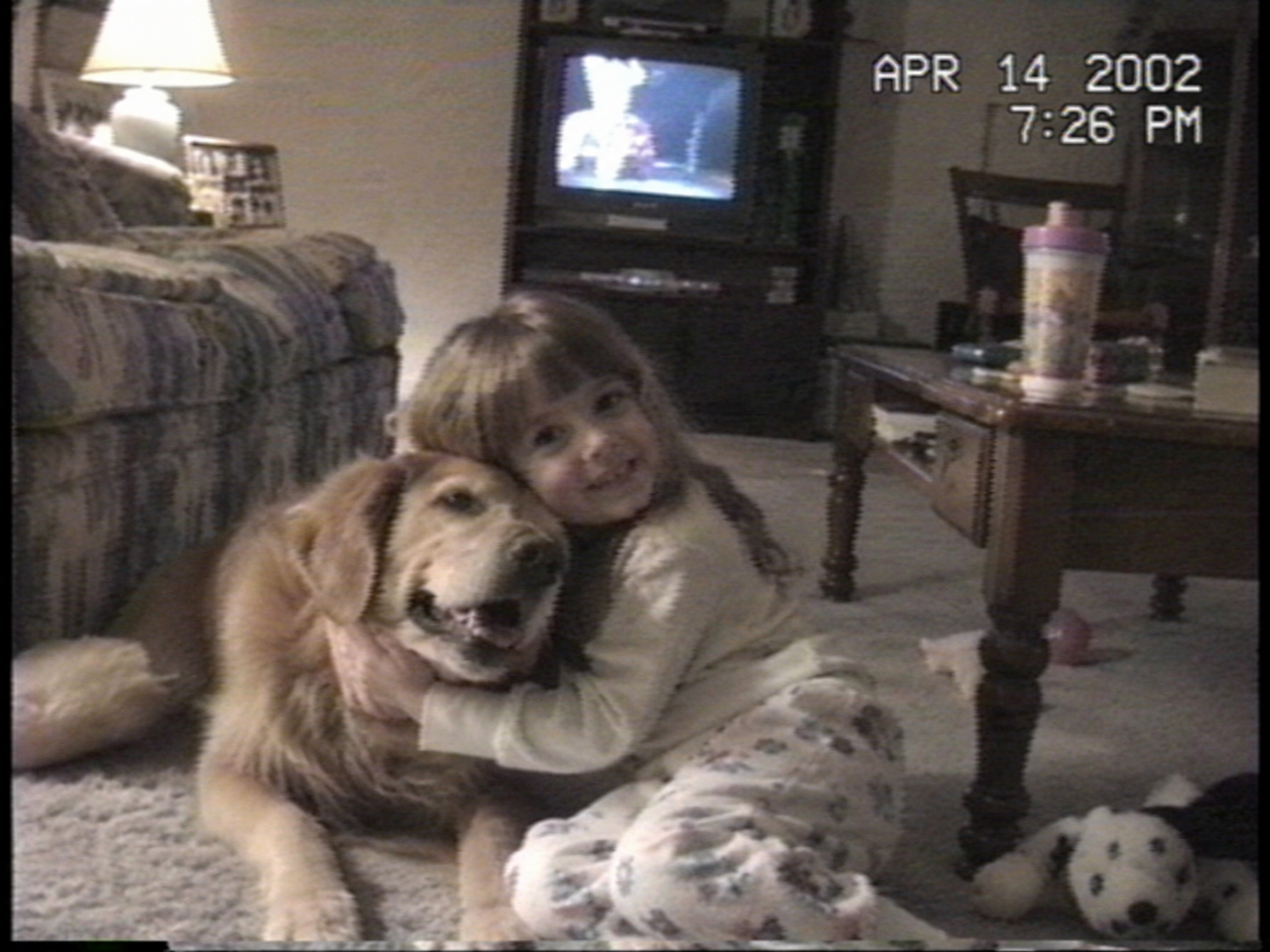
Clean dates from family videos, travel footage, VHS transfers, Hi8 recordings, and other archived clips.
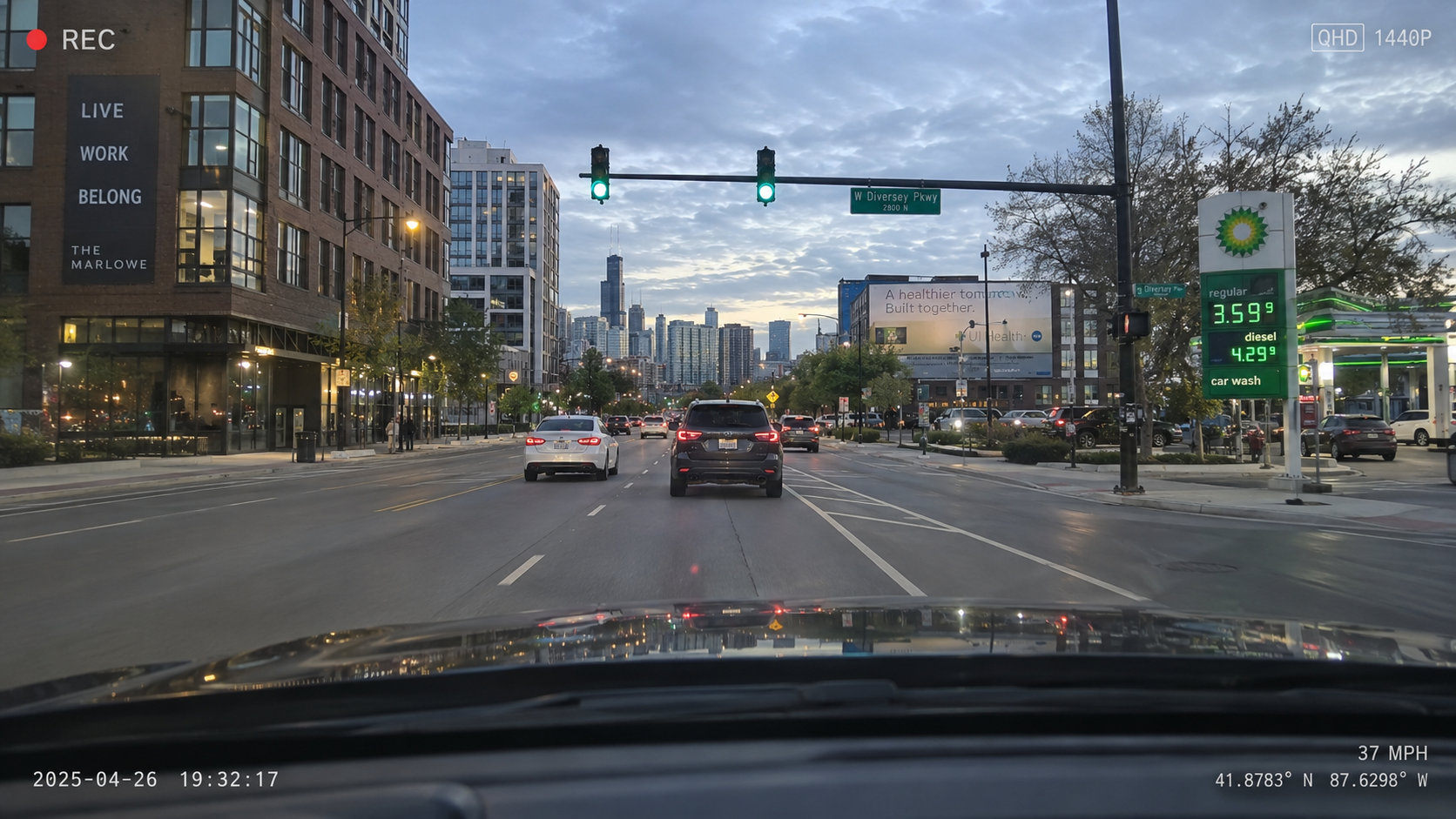
Remove a fixed date-and-time display from authorized driving, cycling, travel, or outdoor footage.
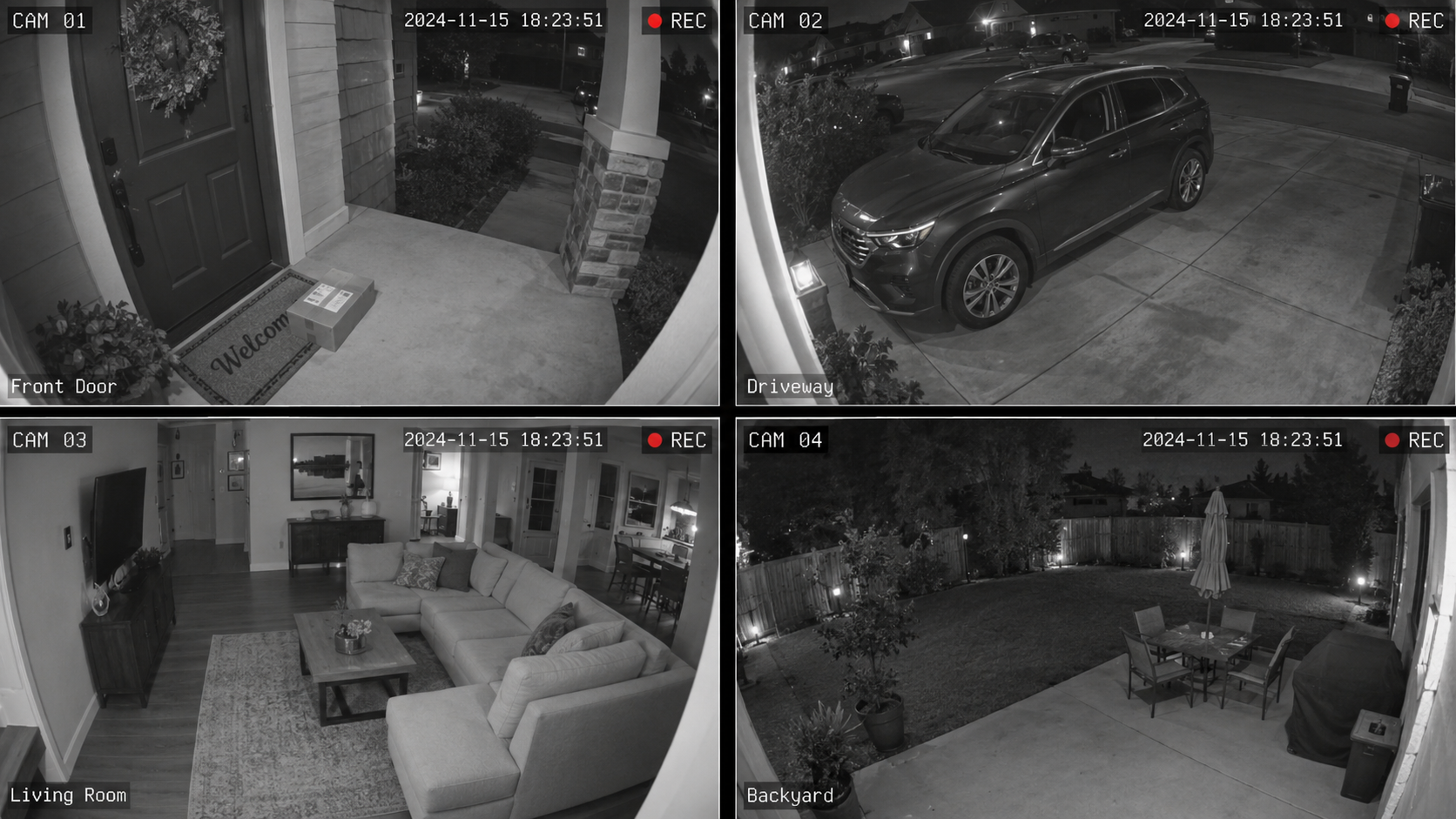
Clean non-evidentiary clips used for presentations, training, or property updates. Keep the original when authenticity may matter.
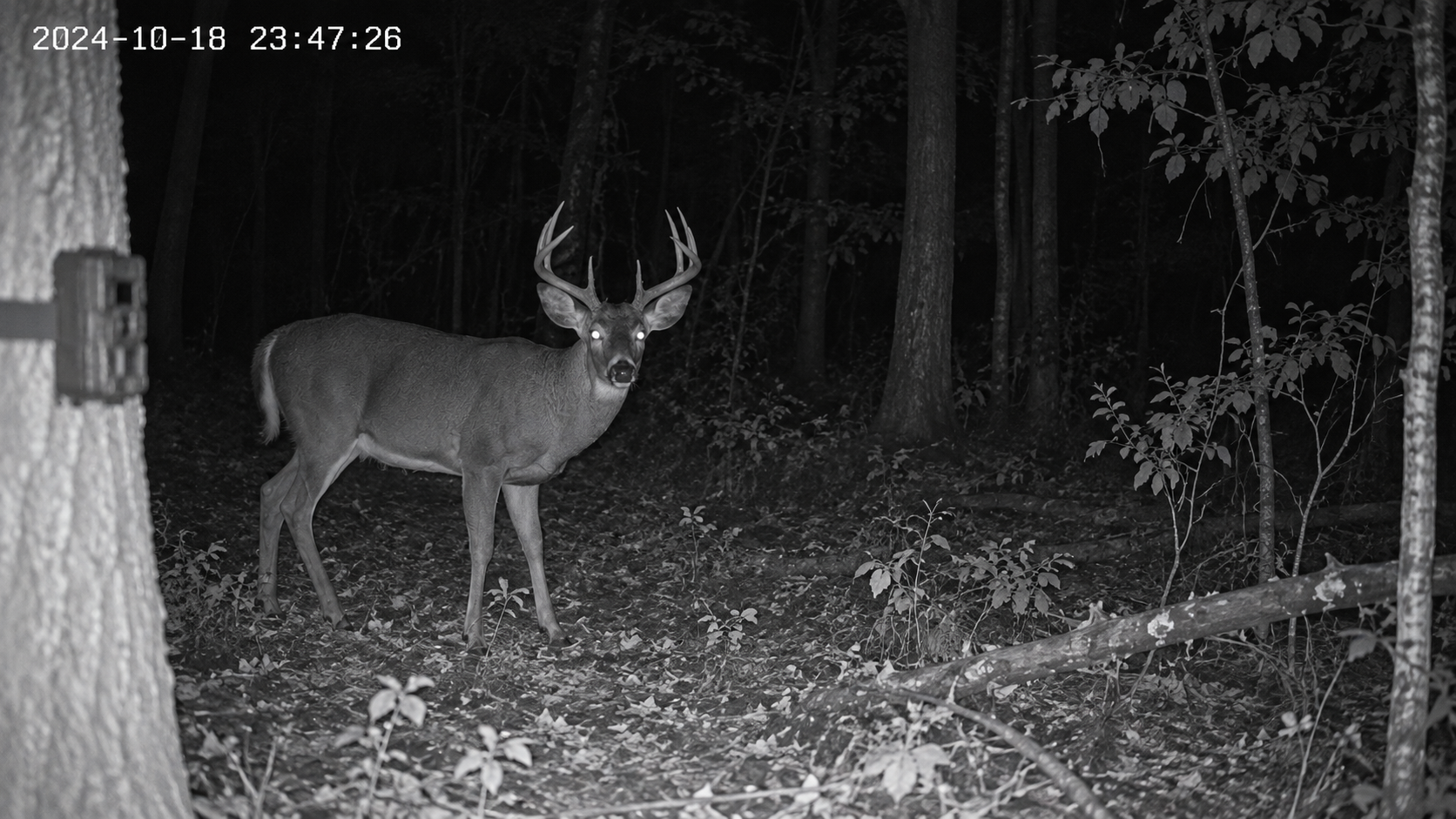
Process fixed date, time, temperature, or recording labels in wildlife and nature clips.

Remove fixed time displays from time-lapse footage, inspection videos, and system-generated exports.
Review the whole clip
A paused frame cannot show consistency. Play the before-and-after videos as the timestamp changes and the scene moves behind it.
Check the clock area as seconds and minutes update.
Review vehicles, people, reflections, or scenery as they pass behind the selected area.
Check compressed footage for remaining number edges and background consistency.
Cropping and zooming remove part of the frame, while blur and solid patches remain visible. AIAI.COM processes the marked area while keeping the original frame dimensions and aspect ratio. The rest of the composition stays in place.
| Automatic Detection | Manual Brush Removal |
|---|---|
| The system decides where the timestamp is | You mark the exact area yourself |
| May miss faded, transparent, or unusual digits | Does not depend on font or text recognition |
| Detection may vary as the numbers change | One defined region covers the changing display |
| May select nearby on-screen text | Only the painted area is processed |
| Requires less setup | Provides more control over the target area |
Automatic detection suits clear, standard overlays. Manual brushing provides more control over faint, unusual, or closely placed timestamps.
Three clear steps
Review the estimate before processing, then play the complete result before downloading.
Choose a supported video that you own or are authorized to edit.
Mark the complete display, including its widest digits, outlines, shadows, and transparent edges.
Review the credit estimate, process the marked region, and play the complete result before downloading.
Video processing is charged by length, with the estimated credit consumption shown before processing. New AIAI.COM accounts receive 20 credits to test the effect; the footage covered depends on the estimate for the uploaded video.
Small, fixed timestamps over stable backgrounds are generally easier to repair. Faces, detailed patterns, fast motion, large masks, scene changes, and heavy compression can make the result less consistent.
The video eraser creates a plausible replacement from surrounding frames; it cannot recover the exact original pixels hidden beneath the timestamp. Review the complete output before use.
Brush over fixed logos, captions, usernames, and other visible overlays.
Process an overlay that changes position significantly during the video.
Clear labels, captions, lower-thirds, usernames, and other visible video text.
Remove a visible date or time stamp from a still photo.
Yes, when the changing numbers remain inside one defined area. Cover the complete display at its widest.
No. You decide which visible area should be processed.
Yes, for footage you own or may edit. Keep an unedited original when authenticity or evidence may matter.
Yes, when the timecode remains inside a defined part of the frame.
No. It processes visible pixels, not file dates, GPS data, device details, or other metadata.
Use the Moving Watermark Remover when the overlay travels significantly across the frame.
Yes. Paint over each fixed date, time, or recorder label in the same selection.
No. The selected region is processed without cutting away part of the frame.
No. The video eraser generates a plausible replacement from surrounding visual information.
Results depend on the mask, timestamp size, source quality, background detail, motion, and scene changes. Preview the complete processed video before using the result.
Mark the visible date or time area yourself, review the processed clip, and keep control over exactly what gets removed.