Filmora export cleanup

Remove Filmora Watermark from Your Video

Clean a visible Filmora watermark from a video you own or are authorized to edit. Upload the exported file and let AI process the marked area across the clip, including watermarks that remain visible beyond a single ending frame. Preview the full result and download a cleaner version for your next project.

Keep the video you created. Erase the visible Filmora mark.

Before & After

Upload Your Filmora Video

* Supports MP4, MOV, M4V, MKV and WEBM formats, max 10 files at once, maximum file size of 500MB per file.

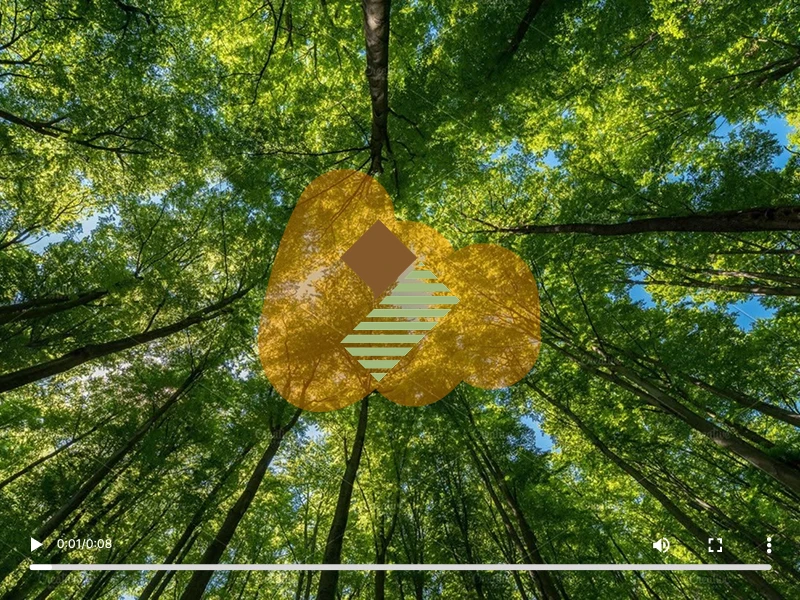
Before: Filmora WatermarkAfter: Watermark RemovedFull-Video PreviewWatermark Area Close-Up

Filmora trial watermarks may be embedded in the rendered video rather than appearing only at the end. Watch the complete comparison to see how the watermark eraser handles the marked area as the scene changes.

Watermark processed beyond a single end frameFull video composition retainedNo forced corner cropBackground reconstructed across framesAudio and video remain synchronized

Supports the video formats and file limits shown in the uploader. Processing requirements and estimated credits are displayed before you start.

Only upload content you own or are authorized to edit.

Selected Videos

Estimated Credits · Remove Filmora Watermark · Clear All

Removing the Filmora Watermark

AI is processing the visible mark across the video frames. This may take a few minutes.

Preview Your Clean Video

Play the full result and check the restored area before downloading. Download Video · Process Another Video

02

Do You Still Have the Filmora Project?

Filmora WFP project and original media files ready for re-export

The best way to remove a trial watermark depends on which files you still have. If your Filmora project and source media are available, re-exporting the project is usually the most direct route. If you only have the rendered video, AIAI.COM can help process the authorized export.

I Still Have the .wfp Project

Open the original Filmora project with its source files and export it again through an eligible Filmora plan. This preserves the original timeline and avoids reconstructing pixels from a rendered file.

Best for: Creators who saved the project, source clips, audio, and media assets.

I Only Have the Final Video

Upload the authorized rendered video when the project file is lost, unavailable, or no longer practical to reopen.

Best for: Archived projects, client files, old exports, and videos received without the original timeline.

I Need a Quick Clean Copy

Process a short authorized video when rebuilding the project would take longer than preparing the final file.

Best for: Social clips, internal reviews, drafts, and time-sensitive presentations.

If you still have the original Filmora project, re-exporting from that project is generally the most accurate option. This tool is for authorized rendered videos when the project route is unavailable or impractical.

03

Remove a Filmora Watermark Across the Full Video

Filmora watermark visible at multiple points across a video timeline

Some Filmora trial exports show a watermark over the rendered video instead of only adding a short ending segment. A single still frame cannot prove whether the result is usable. Compare the opening, middle, and final moments of the same clip before downloading.

  • Opening Frame
  • Mid-Video Motion
  • Final Frame
  • The watermark is visible at more than one time point.
  • The scene changes behind or near the marked area.
  • The processed result remains stable during playback.
  • The original aspect ratio and framing are retained.
04

Is the Filmora Watermark Only at the End?

Comparison of a Filmora watermark across a full video and an end-card watermark

Not every video-platform watermark works the same way. Some editors add a short branded clip to the end of a timeline. Filmora trial exports can instead contain a visible watermark in the rendered video, so deleting the last few seconds may not clean the main footage.

Watermark typeWhere it appearsBest first action
End-card watermarkA short clip at the end of the timelineRemove the ending clip in the original project
Filmora trial export watermarkMay remain visible across the rendered videoRe-export the original project or process the authorized export
Embedded logo or overlayAny position and duration in the final fileUse a video cleanup tool and review the full clip

Before using an eraser, inspect the full timeline if you still have the original project. If the Filmora mark is already embedded in the final video, an end-card solution will not be enough. Upload the rendered file only when you are authorized to edit it.

05

Built for Filmora Video Exports

AI processing a visible Filmora watermark across video frames

The workflow is designed around the task users need to complete: upload an authorized Filmora export, process the visible mark, review the complete video, and download the result.

Full-Clip Watermark Processing

AI analyzes the visible Filmora mark across the rendered video instead of treating the problem as a single still image.

No Forced Reframing

Keep the original composition instead of trimming the frame just to hide the watermark.

Preview Before Download

Play the completed result and inspect the opening, middle, and final moments before saving the file.

Multi-File Queue

Select supported videos, review estimated credits, and follow each file's processing status in one workspace.

The tool is designed to preserve the full video experience, but reconstruction quality depends on the visual content behind the watermark. Always review the complete result before publishing.

06

Who Uses a Filmora Watermark Eraser?

Creators and teams reusing authorized Filmora video exports

Filmora is used for both quick social clips and longer timeline projects. The common problem is not video length; it is discovering that the exported file still carries a trial watermark after the editing work is finished.

YouTube and Long-Form Creators

Prepare an authorized tutorial, review, interview, or channel video when only the rendered export remains.

Tutorial and Course Creators

Reuse lesson recordings, screen tutorials, and training videos without rebuilding the entire Filmora project.

Small Businesses and Marketing Teams

Clean an approved campaign video, product walkthrough, or internal presentation when the original editor project is unavailable.

Freelance Editors and Agencies

Process a client-supplied video only when the client has authorized the edit and the original Filmora workspace is not accessible.

Short-Form Creators

Prepare a short vertical clip for social publishing when the project was created in Filmora and the final export is the only usable copy.

Only process videos, audio, footage, and brand elements that you own or are authorized to edit and republish.

07

How to Remove a Filmora Watermark from Video

Three steps for removing a Filmora watermark from an authorized video export

Step 1: Check Your Filmora Project

If you still have the .wfp file and all source media, consider re-exporting the project through an eligible Filmora plan. If you only have the final watermarked video, upload that authorized file to AIAI.COM.

Step 2: Upload the Exported Video

Choose one or more supported video files. The workspace displays the current file limits, processing requirements, and estimated credits before you start.

Step 3: Let AI Process, Preview, and Download

Start the task and let AI process the visible Filmora mark across the video frames. Play the result from beginning to end, then download it when the restored area meets your needs.

08

When Does Filmora Watermark Removal Work Best?

Simple and complex scenes compared for Filmora watermark removal results

Results are generally easier to review when the watermark has a consistent position and appears over simple, stable, or repeatable visual content. Clear footage and moderate movement give the AI more visual context for rebuilding the marked area.

More complex scenes require closer inspection. A watermark over a face, small subtitle, detailed texture, fast-moving object, scene cut, or strong motion blur can be harder to restore naturally.

  • The watermark remains in a consistent position.
  • The background contains simple or repeatable detail.
  • Important faces and subtitles do not overlap the marked area.
  • The source video is clear and not heavily compressed.
  • Movement near the watermark is moderate.
  • The watermark covers faces, hands, or small text.
  • The background changes rapidly behind the mark.
  • The watermark changes position, size, or opacity.
  • The video contains strong compression or motion blur.
  • The final file is very long or has frequent scene changes.

Play the entire processed video before publishing. Check the first, middle, and final sections, especially when a subject moves through the restored area.

09

When to Re-Export from Filmora or Use Our Watermark Removal Tool

Decision guide for re-exporting a Filmora project or processing an authorized exported video

If your .wfp project and original media are still available, reopening the project and exporting through an eligible Filmora plan is usually the most direct way to preserve the original edit without reconstructing rendered pixels.

Use AIAI.COM when you own or are authorized to edit the exported video and the Filmora project is missing, inaccessible, or no longer practical to reopen.

  • Estimated credit requirements are shown before processing.
  • Each result can be previewed before download.
  • Uploaded content remains subject to AIAI.COM's current privacy and retention policies.
  • Files that violate applicable policies or terms may be rejected.
  • Processing a video does not transfer copyright, trademark, or commercial usage rights.

Filmora and Wondershare are trademarks of their respective owners. AIAI.COM is an independent service and is not affiliated with, sponsored by, or endorsed by Wondershare or Filmora.

10

More Tools for Cleaning Up Filmora Videos

Choose the tool that matches the visible element you need to remove from an authorized video.

Video Watermark Remover

Remove other visible watermarks from videos you own or are authorized to edit.

Remove a Video Watermark

Remove Text from Video

Erase visible labels, dates, captions, or other text embedded in a video.

Remove Text from Video

Video Subtitle Remover

Remove hardcoded subtitles from videos when you have permission to modify the content.

Remove Video Subtitles

FAQ

Filmora Watermark Remover FAQs

Clean Up Your Filmora Export

Upload a Filmora-exported video you own, let AI process the visible watermark, review the full clip, and download a cleaner version for your next authorized use.

Keep the edit you made. Leave the trial watermark behind.