You Only Have the Exported Video
Use an authorized MP4 when the original VEED project, timeline, or source files are no longer available.
Remove the position-changing VEED.IO watermark from a video you have already exported. Process the complete clip online while keeping its full frame, original dimensions, duration, and audio.
Batch upload up to 10 videos at once. Supports MP4, MOV, M4V, MKV and WEBM. Each video must be 1 second to 10 minutes long and up to 500MB.
Free users can access a 3-second preview video. Upgrade to unlock the full watermark-free video.
New users receive 20 credits to test the result. Payment or a subscription is required to download.
Only upload videos you own or are authorized to edit.
A VEED watermark may appear in different parts of a video as it plays. Cropping one corner, placing a fixed blur, or covering a single area may hide one appearance while leaving the watermark visible later in the clip.
AIAI.COM processes position-changing watermarks across the video and reconstructs the affected areas from the surrounding visual content. The watermark can move while the complete video frame remains intact.
A clean paused frame is not enough. Watch the complete before-and-after video as the VEED.IO watermark changes position, crosses different backgrounds, and appears elsewhere in the frame.
Check every position for visible text, flicker, ghosting, soft patches, or unstable edges. Previewing the full clip helps you decide whether the processed result is ready to publish.
Use an authorized MP4 when the original VEED project, timeline, or source files are no longer available.
Prepare a small number of social videos, ads, demos, or promotional clips without starting another editing workflow.
Remove the visible VEED watermark without cutting away captions, products, people, or other details near the edge of the video.
Clean up an older training video, presentation, marketing export, or social post that you own or have permission to edit.

Handle a VEED.IO logo that appears in different parts of the video without switching to desktop editing software.
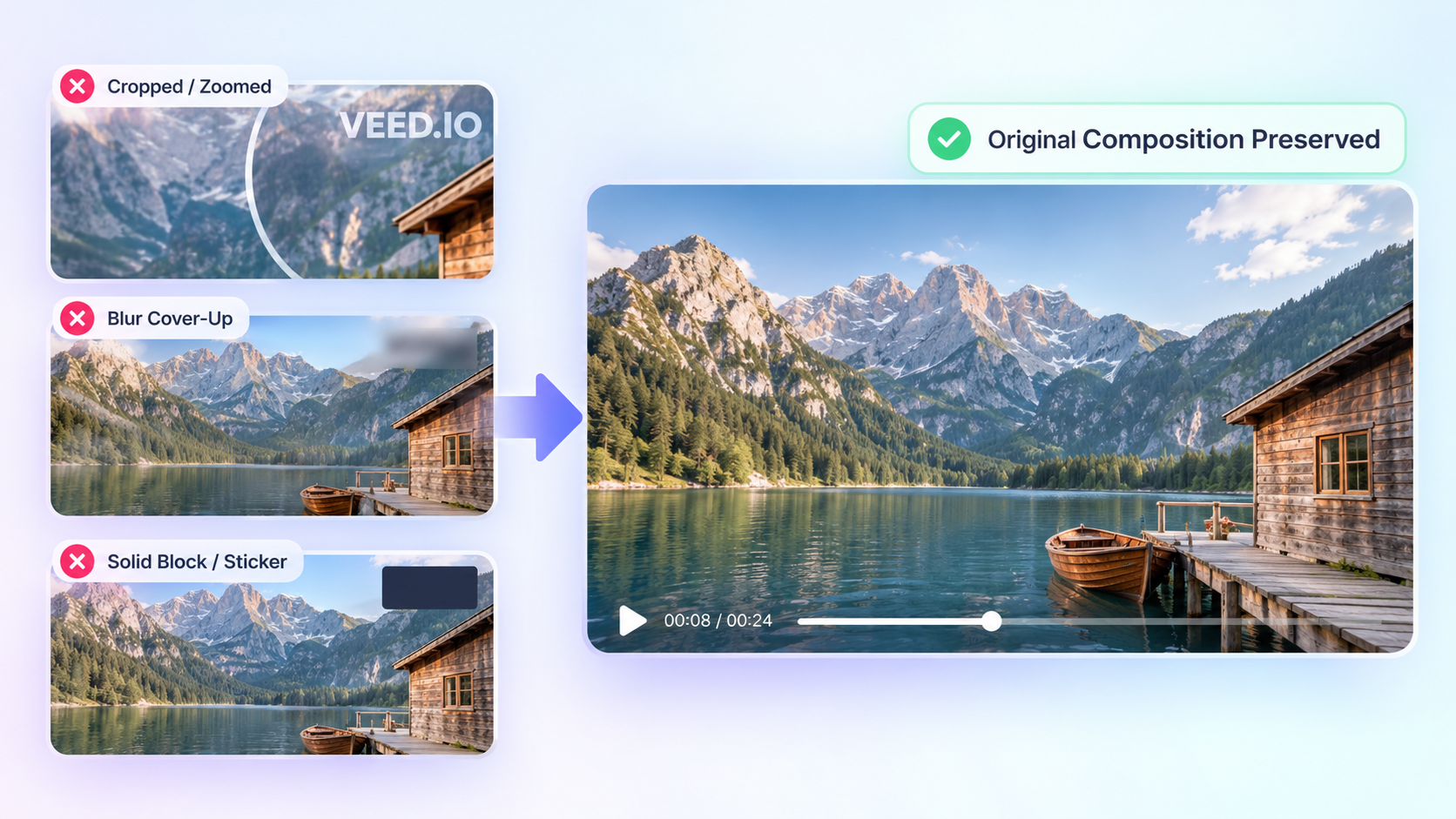
Keep the original composition instead of zooming into the video or replacing the watermark with a blur, sticker, or solid block.
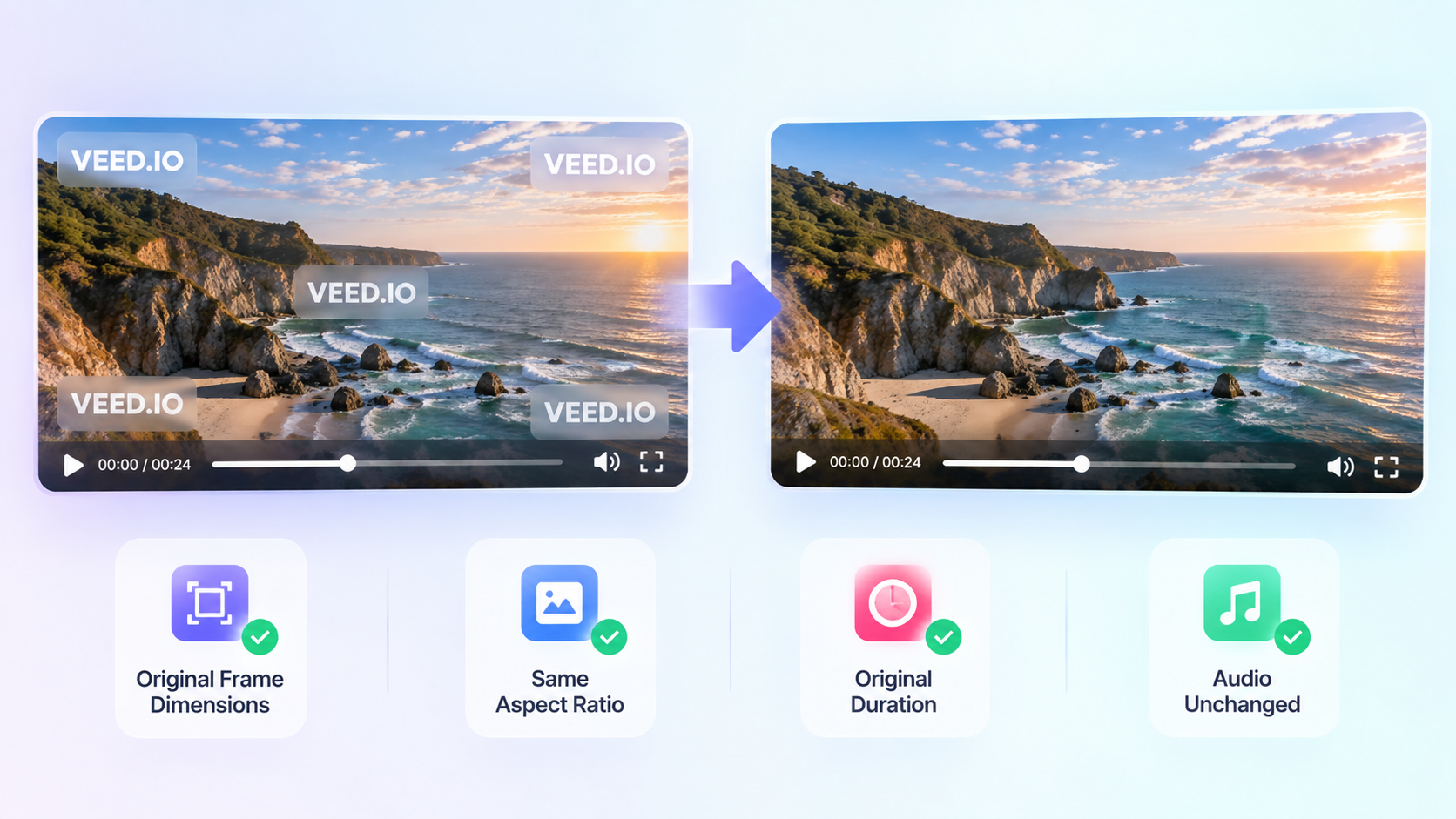
Retain the original frame dimensions, aspect ratio, duration, and audio while the visible watermark is processed.
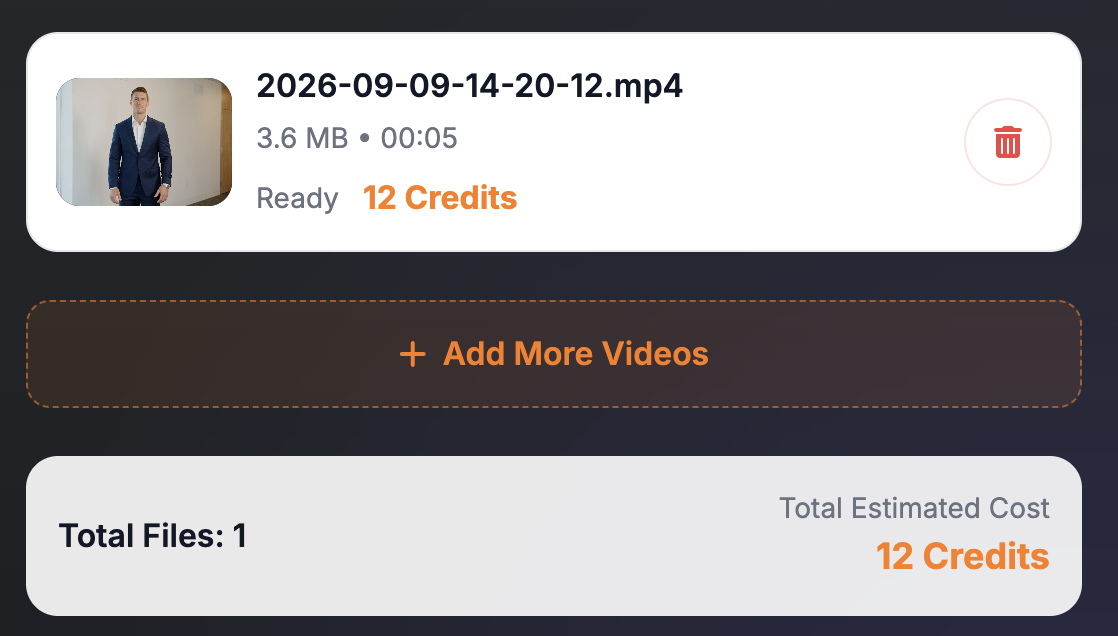
See the estimated credit use before processing begins. Preview the complete result and check every watermark position before downloading.
Re-exporting is usually the best option when the original project is still available, you have a plan that supports watermark-free export, and you want to continue editing the video.
Use AIAI.COM when the edit is already finished and the watermarked export is the only usable copy, or when you only need to clean up a few authorized videos.
Upgrading a VEED account does not alter a video file that has already been downloaded. A watermark-free version must be exported again from the original project when that project remains available.
Choose a supported video that you own or have permission to edit.
Review the estimated credit use, then start processing the visible VEED.IO watermark across the video.
Play the complete result, inspect each position where the watermark appeared, and download when the video meets your needs.
Results depend on the watermark size, its position, the source resolution, video compression, background detail, motion, and scene changes. Areas containing faces, hands, subtitles, product edges, reflections, or detailed textures can be more difficult to reconstruct naturally.
AI generates a visually plausible replacement from the surrounding video content. It cannot recover the exact original pixels hidden by the watermark, so review the entire processed video before using it.
 Faces
Faces Fine Detail
 Complex Textures
 Fast Motion
Remove moving watermarks, animated text, and shifting logos from authorized videos.
Clean a fixed or visible logo from a video while keeping the complete frame.
Remove a visible Kapwing watermark from an exported video you are allowed to edit.
Clean up an OpusClip watermark from an authorized short-video export.
VEED states that projects exported from a free account or without signing in include a VEED.IO watermark. Platform plans and export rules may change, so check VEED's current documentation for the latest information.
VEED states that its watermark can appear in a different part of the video after some time. That makes a single corner crop or fixed cover insufficient for the complete clip.
Yes. Upload an authorized VEED export and process the visible watermark online without installing desktop editing software.
Yes. AIAI.COM reconstructs the affected video areas instead of removing part of the frame. Results vary with the content behind the watermark.
Yes. The tool works with a supported video file you upload, so the original VEED timeline is not required.
The workflow retains the original frame dimensions, aspect ratio, duration, and audio rather than cropping or shortening the video.
Not always. Fast movement, heavy compression, scene changes, and watermarks over faces, text, or complex textures may make natural reconstruction more difficult.
New AIAI.COM users receive 20 credits to test the removal result. Additional processing may require more credits, and payment or a subscription is required to download.
You can upload videos within the limits shown in the workspace. Credit use is based on video length, so re-exporting from VEED may be more practical when you regularly produce long videos and still have access to the original projects.
No. AIAI.COM is an independent tool and is not affiliated with, endorsed by, or sponsored by VEED.
Only process videos you own or are authorized to edit. Removing a watermark does not grant ownership, copyright, or permission to reuse the content.
Upload your authorized VEED video, process the position-changing watermark, and preview the complete result before downloading.
AIAI.COM is an independent service and is not affiliated with, endorsed by, or sponsored by VEED.