If you are searching for a veo3 watermark remover, you probably want a cleaner export for a short-form video, product demo, ad mockup, or client presentation. The practical answer is simple: you can clean a visible Veo watermark from videos you own or have permission to edit, but you should not use watermark removal to hide authorship, bypass platform rules, or misrepresent AI-generated media.
Quick Answer
A Veo3 watermark remover is useful when you need to remove a visible mark from your own Google Veo or Veo 3.1 video for legitimate editing, presentation, or repurposing. The safest workflow is to confirm your rights first, try official export options when available, use crop/reframe or AI inpainting only when needed, then run a quality and transparency check before publishing.
This matters because Veo content can involve two different kinds of identification. The visible logo or text mark is what viewers see in the frame. Google DeepMind’s SynthID is different: it is an imperceptible digital watermark designed to help identify AI-generated content, and Google says it is built to survive common edits like cropping, compression, filter changes, and frame-rate changes. A normal visual watermark remover should not be treated as a way to remove or defeat SynthID.
Key Takeaways
- Use a Veo3 watermark remover only for videos you created, licensed, or are authorized to edit.
- A visible watermark and SynthID are not the same thing. Removing a visible mark does not mean the video stops being AI-generated.
- Google has expanded Veo workflows across Gemini, Flow, the Gemini API, Vertex AI, YouTube, and Google Vids, so the cleanest option may be to choose the right export route before editing.
- AI inpainting can produce cleaner results than blur or cropping, but it still needs a frame-by-frame quality review.
- The best article-level answer is not “remove every mark.” It is “choose the least risky method that preserves quality and keeps the content honest.”
What This Guide Helps You Decide
Most people looking for a Veo3 watermark remover do not need a long theory lesson. They need to know which cleanup method is safe, which one will preserve quality, and when removing the watermark is the wrong move.
This guide is built around that practical decision. It will help you choose between official export options, cropping, masking, AI inpainting, and regeneration. It will also show you how to avoid the two biggest mistakes: damaging the video quality and removing a visible mark in a way that misrepresents the content.
If you only need a fast draft, a simple crop or mask may be enough. If you are preparing public-facing content, client work, or paid creative, you need a stricter workflow that checks ownership, export quality, motion artifacts, and AI disclosure.
Before You Remove Anything: Visible Watermark vs SynthID
The first mistake is treating every watermark as the same kind of object.
A visible Veo watermark is a mark in the video frame. Depending on the export path, it may appear as small text, a logo, or a corner mark. It can distract from a product demo, a pitch deck clip, or a paid ad preview, especially when the frame is already crowded.
SynthID is not a visible logo. Google DeepMind describes SynthID as a watermarking technology for AI-generated images, audio, text, and video. For video, the watermark is designed to be embedded into the generated output and detectable by Google’s technology. Google also says users can upload media to Gemini and ask whether it was generated or altered by Google AI when SynthID is present.
For editors, the practical difference is this:
| Item | Visible Veo watermark | SynthID watermark |
|---|---|---|
| Where it appears | In the visible video frame | Embedded imperceptibly in the media |
| Why users notice it | It can distract from the visual composition | Viewers usually cannot see it |
| Common handling | Crop, reframe, mask, or AI inpaint | Do not treat visual cleanup as SynthID removal |
| Ethical concern | Do not remove from content you do not own | Do not misrepresent AI-generated media |
| Best practice | Clean only authorized clips | Keep disclosures honest when context requires it |
That distinction should shape your workflow. If your goal is a cleaner layout for an authorized asset, visible cleanup can be reasonable. If your goal is to hide that a clip was generated by AI, that is a trust problem.
When It Is Reasonable To Use a Veo3 Watermark Remover
There are legitimate situations where removing a visible watermark makes sense.
You may be preparing a client concept video created from your own prompt and assets. You may need to place a Veo clip inside a product landing page mockup where the corner mark interferes with interface text. You may be creating internal review material, a social ad concept, a storyboard, or a branded video draft where your team already owns the output and wants the frame to match the surrounding design.
In those cases, the key is not only whether the tool can remove the mark. The key is whether the final use is accurate, authorized, and high quality.
Avoid watermark removal when the clip belongs to someone else, when the mark is required by a platform or license, when removing it would make the content look like real footage in a misleading context, or when a client, viewer, or ad platform expects AI-generated content to be disclosed. A polished video can still be a risky video if the context is wrong.
The Best Methods To Remove a Visible Veo Watermark
There is no single best method for every clip. The right choice depends on the watermark position, background complexity, motion, output format, and where the video will be published.
1. Use the cleanest official export path first
Before editing, check whether your Veo generation route offers a cleaner export option. Google’s own Veo updates mention availability across the Gemini app, YouTube, Flow, the Gemini API, Vertex AI, and Google Vids, with some workflows supporting higher-resolution output such as 1080p and 4K through Flow, API, and Vertex AI. If your production path offers a version with better resolution, fewer visible marks, or cleaner framing, start there.
This is often better than fixing the problem after export. A high-quality source file gives every downstream editor more room to work.
2. Crop or reframe when the watermark sits outside the subject
Cropping is the simplest option when the watermark sits in a corner and the subject is not close to that edge. It works especially well for landscape clips that will become vertical social videos, because you may need to reframe anyway.
The tradeoff is resolution. If your source is low resolution, aggressive cropping can make the clip look soft. It can also cut off important background detail, subtitles, product edges, or hands. Use crop/reframe when composition allows it, not because it is the fastest workaround.
3. Use masking or blur only for drafts
Masking, blur, or a simple cover patch can hide a visible watermark quickly, but it often looks amateur in the final file. It may create a suspicious smudge, a static patch over moving video, or a block that draws more attention than the original mark.
This approach is acceptable for internal drafts, mood boards, and rough concept review. It is usually not the best option for public ads, landing pages, or polished client delivery.
4. Use AI inpainting for final-quality cleanup
AI video inpainting is the most promising option when the watermark overlaps textured background, moving scenery, or gradients. A good AI tool can analyze nearby frames and reconstruct the area behind the watermark more naturally than a blur.
Still, inpainting is not magic. It may struggle with faces, hands, text, logos, reflections, fast camera movement, and patterned surfaces. Always preview the cleaned clip at full speed and frame by frame around the edited area. Try Free Veo3 Watermark Remover Online now.
5. Regenerate the clip when the repair becomes obvious
Sometimes the cleanest fix is not a remover. It is regeneration.
If the watermark overlaps a face, product label, user interface, or key visual detail, removal may create artifacts that hurt credibility. In that case, regenerate with safer framing, more negative space near the edges, or a different aspect ratio. This is especially smart when the video will be used in paid campaigns or product pages where small defects can reduce trust.
Veo3 Watermark Remover Method Comparison
| Method | Best for | Pros | Risks | Recommended use |
|---|---|---|---|---|
| Official export route | Professional workflows and API users | Preserves source quality | Availability depends on plan or platform | Try first |
| Crop or reframe | Corner marks away from the subject | Fast, simple, no artificial repair | Resolution loss, composition changes | Good for social edits |
| Mask or blur | Internal drafts and rough previews | Quick and predictable | Looks obvious in polished content | Draft only |
| AI inpainting | Public-ready cleanup of authorized clips | Can preserve natural texture and motion | Artifacts, flicker, edge distortion | Best final-edit method when checked carefully |
| Regenerate | Watermark overlaps important detail | Avoids repair artifacts | Costs time and credits | Best when quality matters more than speed |
A Practical Safe Workflow
Use this workflow when you have a Veo or Veo 3.1 clip and need a clean version for legitimate use.
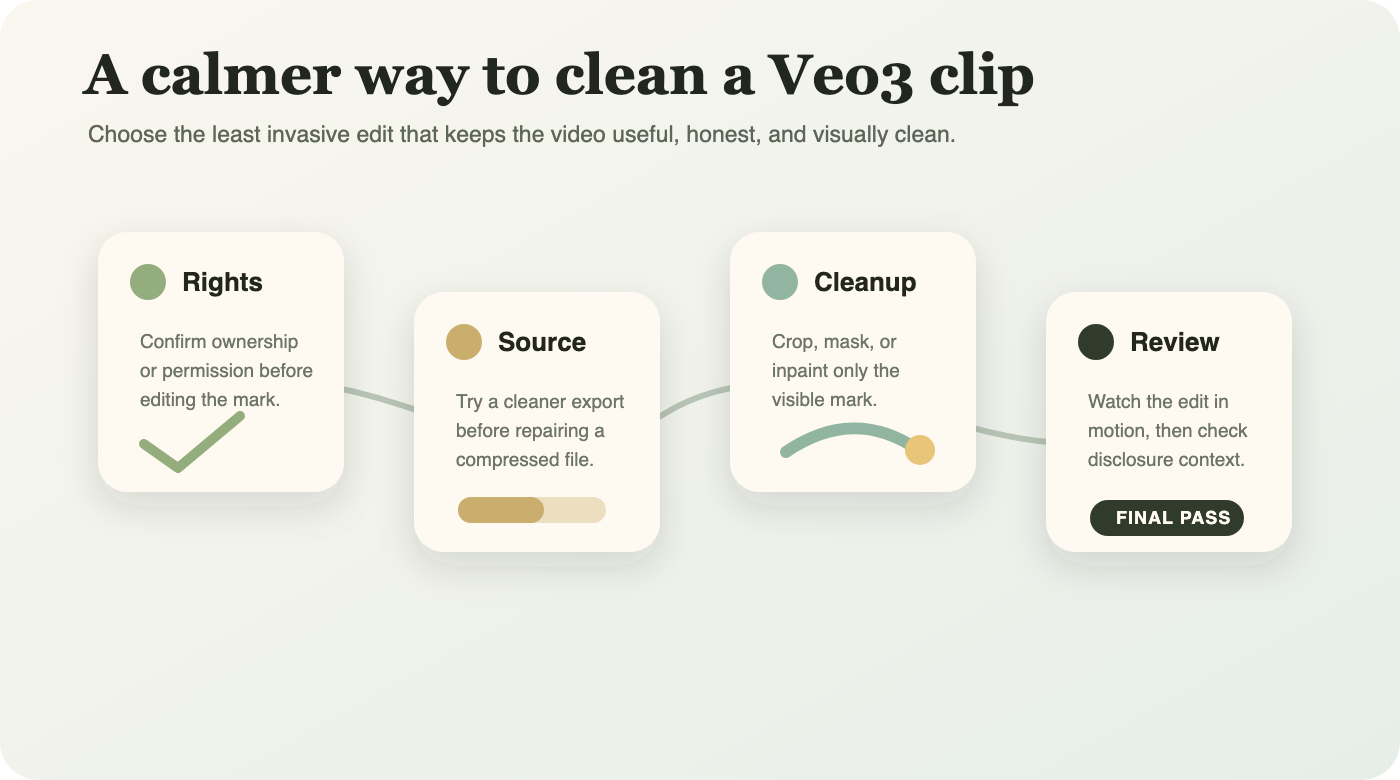
- Confirm ownership or permission. If the video is not yours and you do not have permission, stop.
- Decide whether the final context needs AI disclosure. Ads, news-like content, political content, and sensitive topics need extra care.
- Check the original export path. If a cleaner or higher-resolution route is available, use that before editing.
- Choose the least invasive method. Crop if it does not hurt composition; inpaint if quality matters; regenerate if repair would be obvious.
- Review the edited area in motion. Do not judge quality from a single still frame.
- Export at the right resolution and bitrate for the platform.
- Keep records of the original file, prompt, license, and editing steps if the video is client-facing or commercial.
That last step is easy to skip, but it is valuable. If a stakeholder asks where the clip came from or whether it can be used commercially, you do not want to reconstruct the answer from memory.
Quality Problems To Watch For
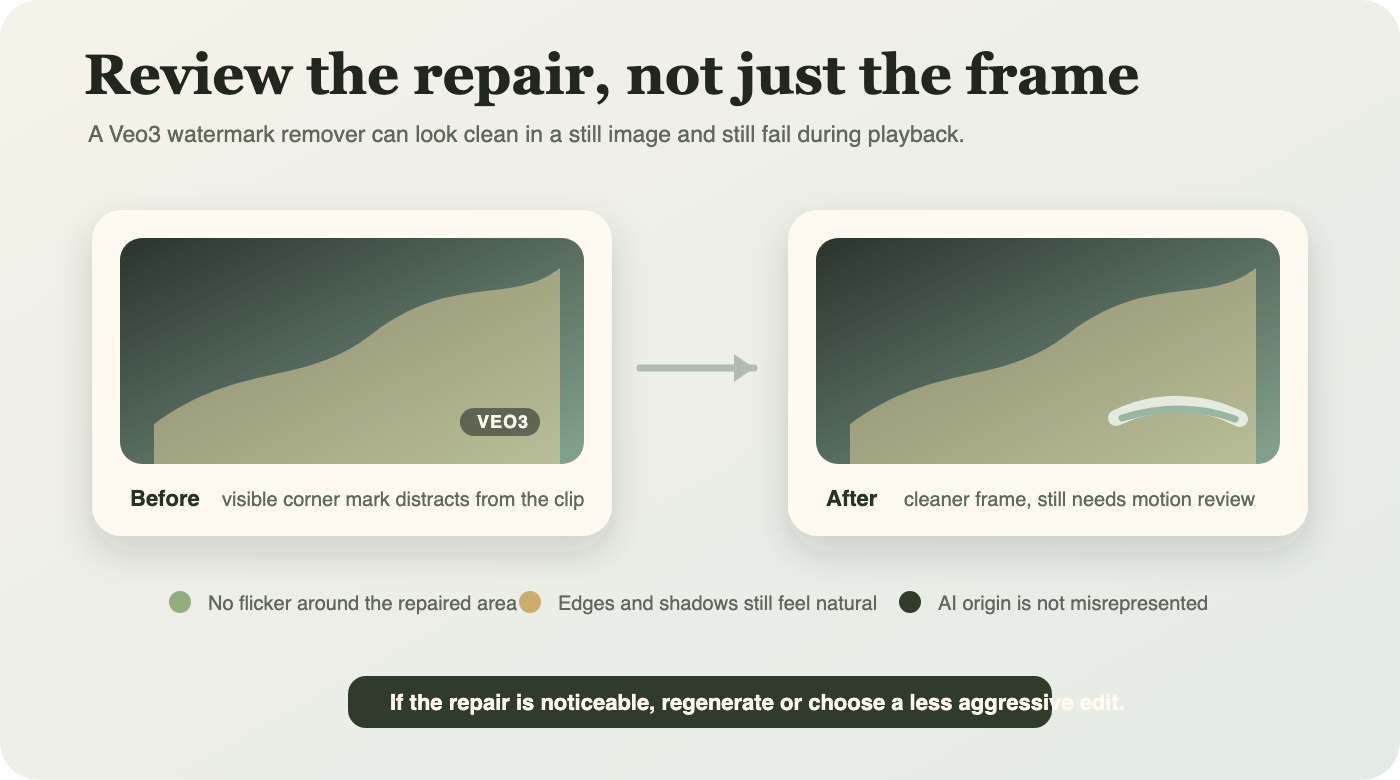
The most common failure is not that the watermark remains visible. It is that the removal area looks unnatural.
Watch for temporal flicker, especially when the background moves. A repaired patch may look fine in one frame but shimmer across the clip. Also check hard edges, shadows, reflections, and repeating textures. AI inpainting can invent detail that looks plausible but does not match the surrounding motion.
Text is another danger zone. If the watermark sits near subtitles, UI labels, product packaging, or signage, automatic tools may distort letters. That can make the video feel fake even if the rest of the frame is beautiful.
For social video, also test the final crop in the actual viewing format. A repair that looks fine on a desktop preview may become obvious after TikTok, Instagram, YouTube Shorts, or an ad platform compresses the file.
How To Avoid the Watermark Problem Next Time
The best watermark strategy starts before generation.
Frame important subjects away from the corners. Leave safe margins where platform marks, captions, or UI overlays may appear. Generate at the highest resolution your workflow supports. If the clip is for vertical publishing, use a vertical generation or export path instead of cropping a landscape file after the fact.
If you use Veo through a professional workflow, compare outputs from Gemini, Flow, API routes, and editing platforms before committing to a production process. Google’s Veo 3.1 update highlights vertical output, upscaling, and availability across several products, which means the best route may depend on whether you are making casual social content, internal storyboards, or commercial assets.
Also build a simple internal policy. For example: “We may remove visible watermarks from AI videos only when we created or licensed the asset, but we do not remove marks to mislead viewers about AI generation.” That one sentence can prevent confusion across marketing, design, and client teams.
What Most Ranking Pages Miss
Most existing pages focus on speed: upload, process, download. That answers the immediate query, but it leaves the serious user with unanswered questions.
They rarely explain the difference between a visible watermark and SynthID. They often imply “clean” means fully unmarked, which is not accurate when AI provenance technologies are involved. They also under-discuss when removal is a bad idea, how to judge motion artifacts, and how to choose between cropping, inpainting, regeneration, or official export routes.
For creators and businesses, those details are not optional. They determine whether the final video looks professional, whether it can be used safely, and whether the publishing context remains honest.
FAQ
What is a Veo3 watermark remover?
A Veo3 watermark remover is a tool or editing workflow that removes a visible Veo mark from a video frame. It may use cropping, masking, blur, or AI inpainting. It should be used only on clips you own, created, licensed, or have permission to edit.
Can a Veo3 watermark remover remove SynthID?
Do not assume that. SynthID is an imperceptible AI watermarking system from Google DeepMind, not the same thing as a visible corner logo. Visual cleanup tools are meant to edit what viewers can see in the frame, not to defeat AI provenance systems.
Is it legal to remove a Veo watermark?
It depends on ownership, license terms, platform rules, and how the final video is used. Removing a watermark from your own authorized draft for presentation may be reasonable. Removing a mark from someone else’s content or using removal to mislead viewers can create legal, ethical, or platform-policy risk.
What is the cleanest way to remove a visible Veo watermark?
Start with the cleanest export route available. If you already have the video, crop when the mark is outside the subject, use AI inpainting when the background needs reconstruction, and regenerate when the repair area overlaps important detail.
Will watermark removal reduce video quality?
It can. Cropping reduces available resolution, blur can look obvious, and AI inpainting can introduce flicker or distorted texture. Always review the final clip in motion, not just as a still preview.
Should I disclose that the video was AI-generated after removing a visible watermark?
If the context requires transparency, yes. Removing a visible mark for layout reasons does not change the fact that the clip was generated with AI. Sensitive, commercial, political, journalistic, or realistic human footage deserves extra care.
Conclusion
A veo3 watermark remover can be useful, but the best workflow is not simply “erase the mark.” The better approach is to confirm your rights, understand the difference between visible watermarks and SynthID, choose the least invasive cleanup method, and check the final video carefully before publishing.
For simple social edits, cropping or reframing may be enough. For polished client or marketing work, AI inpainting plus a strict quality review is usually stronger. For clips where the mark overlaps important detail, regeneration is often cleaner than repair.
The final goal is a video that looks professional without becoming misleading. Clean the frame when you have the right to do so, but keep the content’s origin and usage context honest.