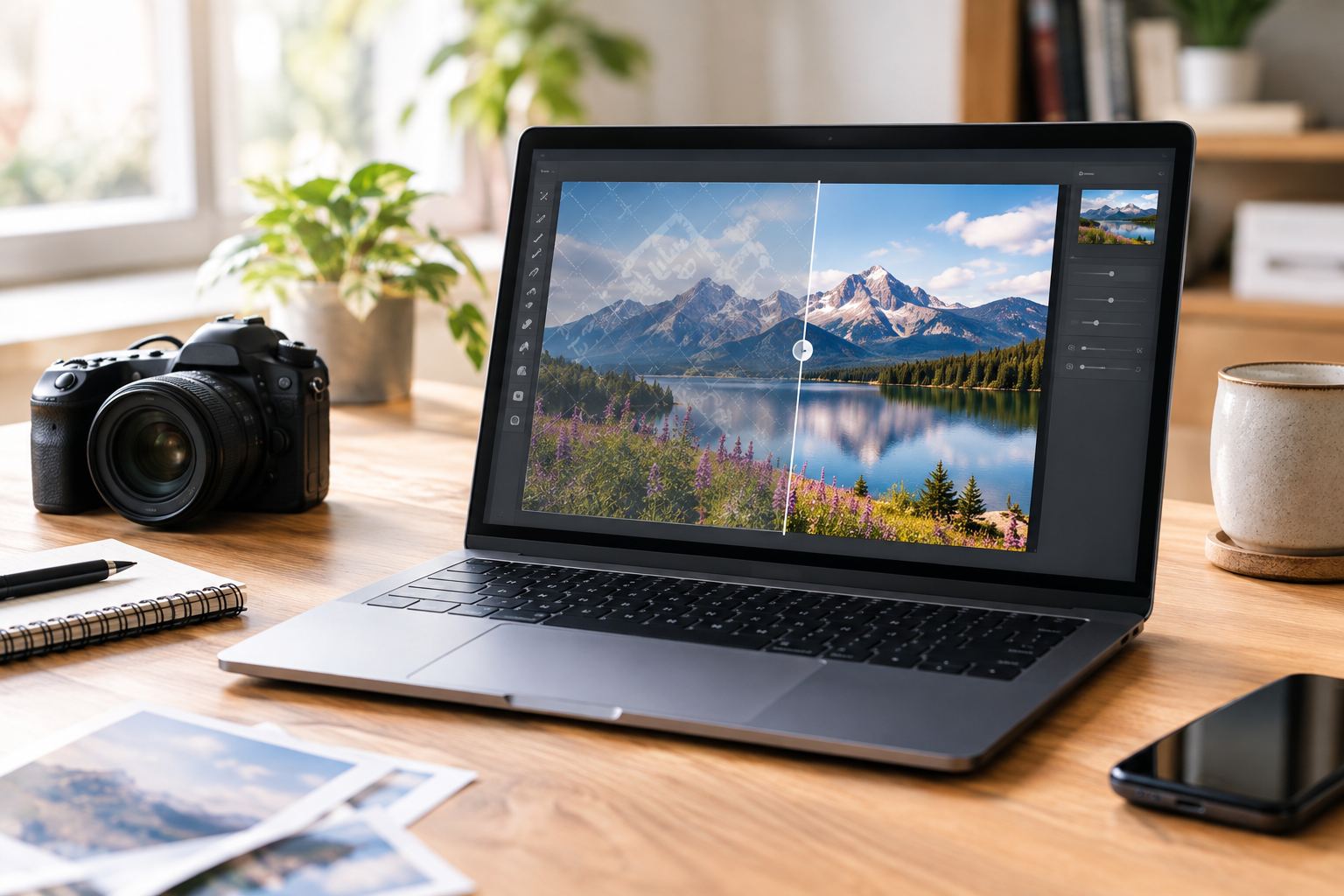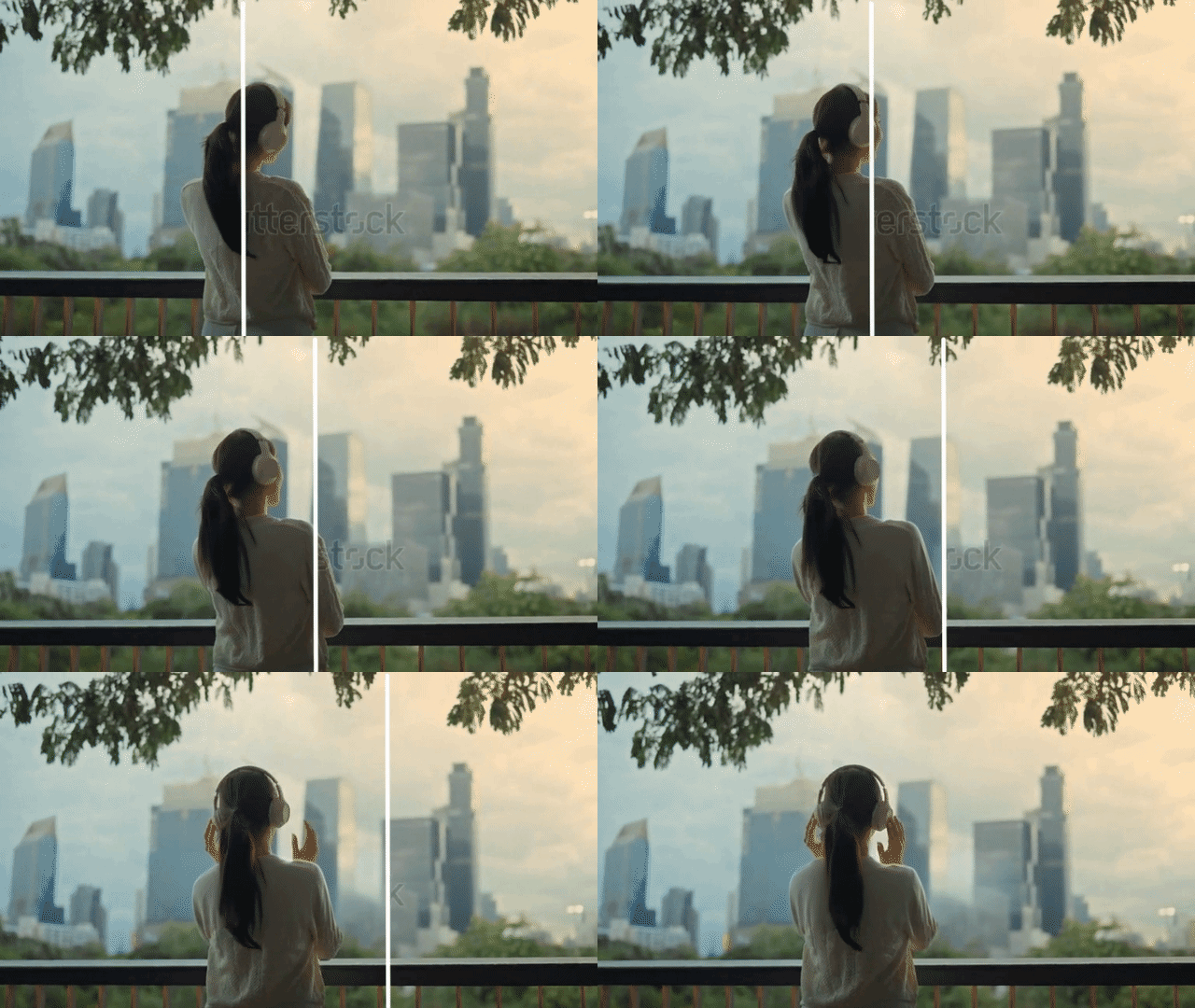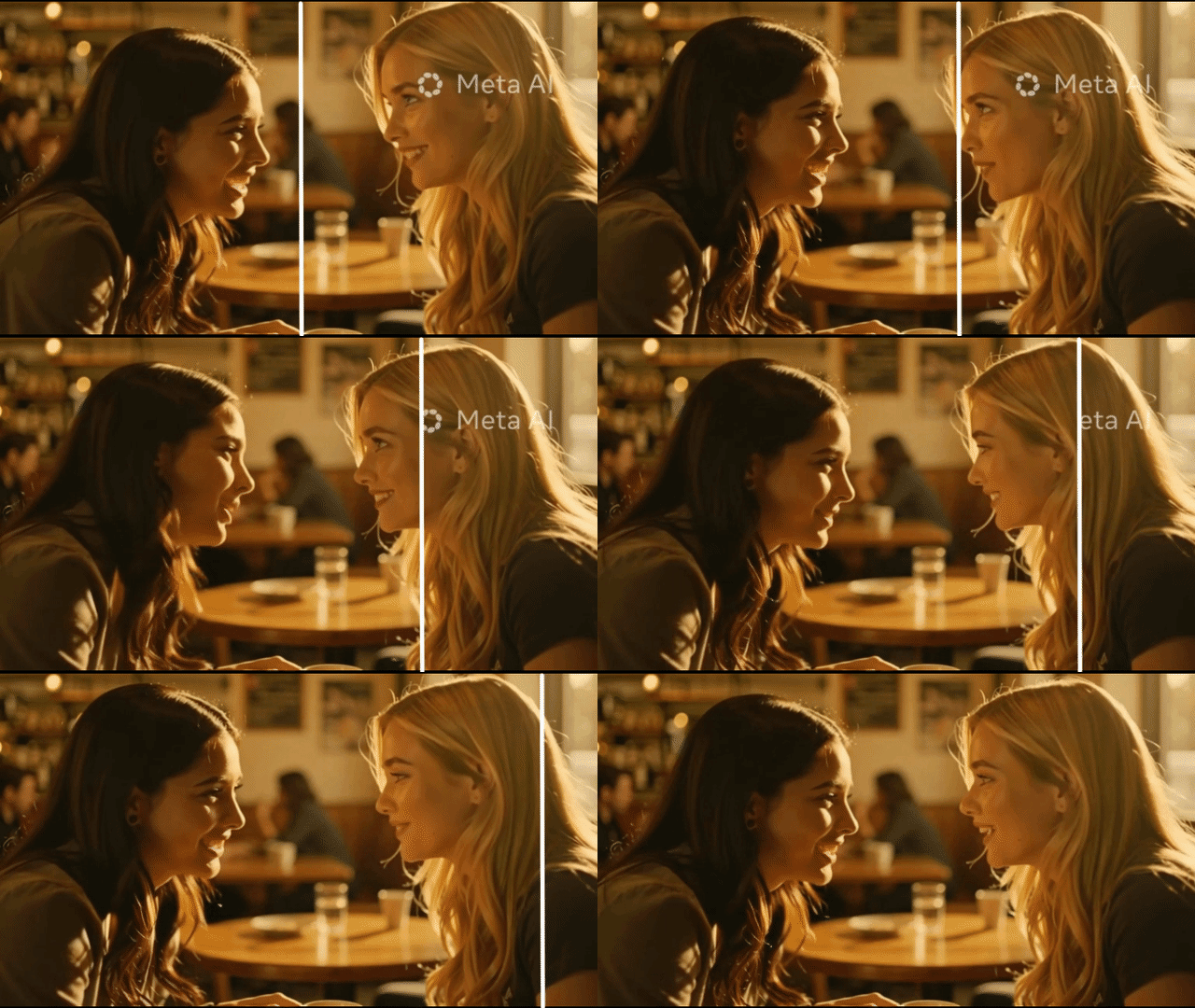
I didn’t think I would ever need a Meta AI watermark remover.
But after using Meta’s AI video tools for a while, I realized one harsh reality:
The “Imagined with AI” label makes almost every video harder to reuse.
At first, I ignored it. Then I tried to work around it. Eventually, I tested different ways to clean my footage—and only one method actually gave me usable 4K results.
This is what I learned.
Why the “Imagined with AI” Watermark Became a Real Problem
Meta automatically adds the “Imagined with AI” watermark to AI-generated videos across its Instagram, Facebook, and Threads tools.
I usually generate clips for:
- TikTok edits
- Instagram Reels reposts
- Ad creatives and variations
- Personal portfolio content
And in real editing workflows, I ran into the same issue every time:
The watermark wasn’t “small”—it changed how the whole video felt.
It distracted from the subject, made compositions feel unfinished, and instantly signaled to algorithms (like TikTok’s) that this was third-party content.
What I Tried First (And Why It Didn’t Work)
Before using any AI tools, I tried the obvious fixes:
1. Cropping
This was the fastest option—but I immediately stopped using it. It ruined the framing and cut off important visual details.
2. Blur / Mosaic
This looked okay at first… until motion came in. Once the video moved, the blurred area became a highly noticeable smudge. It looked edited, messy, and unprofessional.
3. AI Video Inpainting (The Only Fix)
This was the only method that gave me something I could actually publish.
Static images are easy to fix. Video is not. When the camera moves, both cropping and blur break down quickly. What I needed was a tool that actually reconstructed the background textures.
What Actually Works: A Dedicated Meta AI Watermark Remover
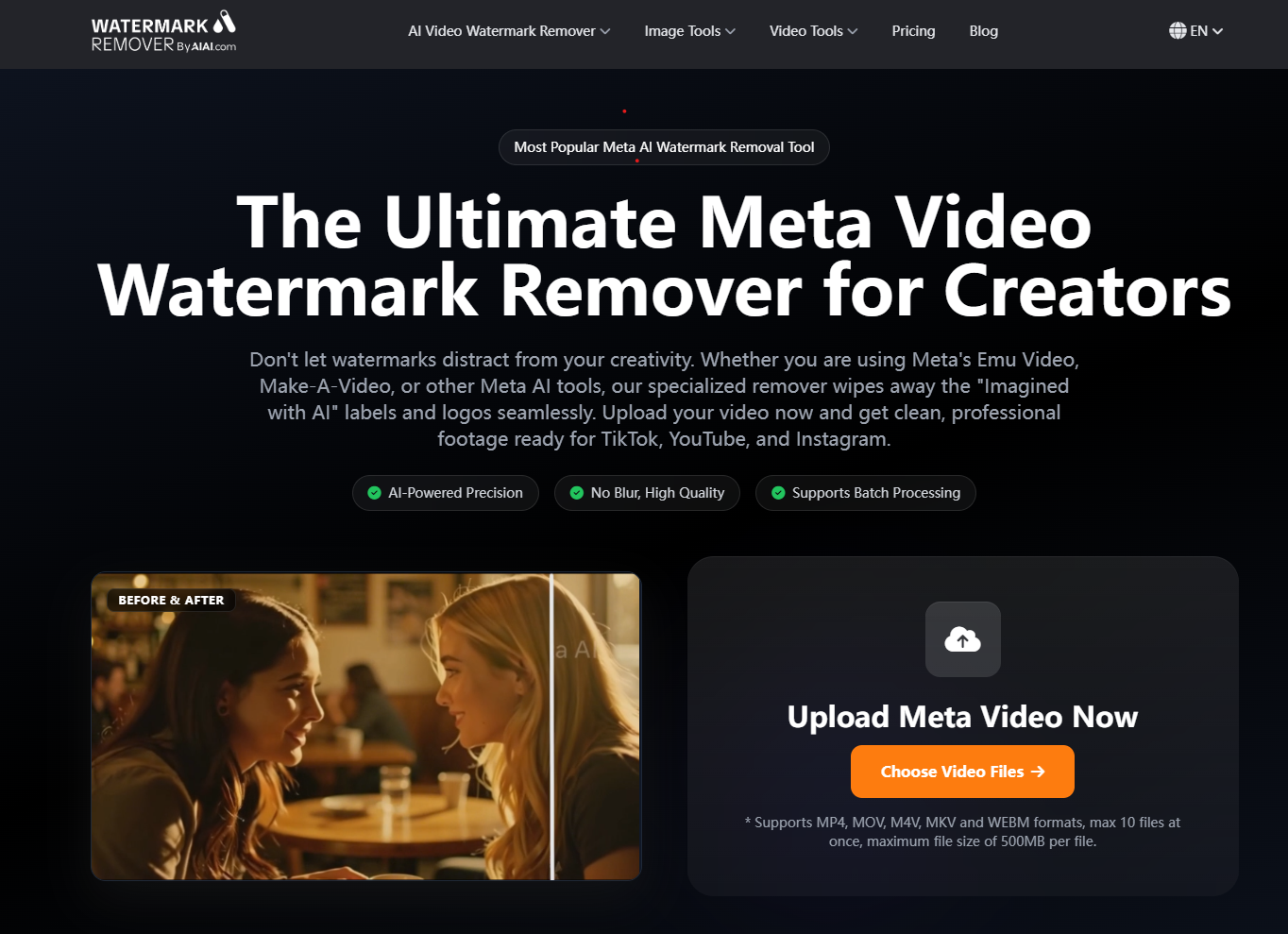
The method that worked best for me was AI video inpainting using the Meta AI watermark remover on AIAI.com.
Instead of hiding the watermark, it physically reconstructs the missing area.
In simple terms, it:
- Reads surrounding pixels in each frame
- Tracks motion across frames
- Predicts what should exist under the watermark
- Rebuilds the region seamlessly
When it works well, you barely notice anything was removed. And unlike other free tools that compress your files, this one actually maintains the original 4K and HD resolution.
My Exact Workflow (Step-by-Step)
Here’s the exact process I use on their browser-based tool:
Step 1: Upload Video (Batching is a lifesaver)
I upload the original Meta-generated clip (MP4 / MOV / WEBM). Tip: It supports batch processing up to 10 files at once, which saves me hours when prepping a weekly content calendar.
Step 2: Select Watermark Area
The AI’s auto-detect feature usually highlights the “Imagined with AI” label automatically.
My trick: I always slightly adjust the selection to extend just beyond the text. Giving the AI breathing room results in better texture reconstruction.
Step 3: Process and Export
I click remove, wait a few seconds, then preview and export the cleaned version.
The Honest Truth About Quality and Cost
Even though the AI inpainting is studio-grade, results depend heavily on motion and background complexity. It handles standard scenes perfectly, but extremely fast action might show slight texture shifts.
However, for TikTok, Reels, ad creatives, and B-roll, it is flawless.
As for pricing, I hate hidden fees. What I appreciate here is that you can start for free. Signing up gives you 20 free credits (enough to process about two 5-second videos), so you can test the AI quality yourself.
Also, they don’t store your files. Everything is processed via encrypted connection and auto-deleted after 24 hours.
Final Thoughts
For me, this isn’t about tricking people or hiding AI usage.
It’s about having more control over how I reuse content across platforms, keeping my brand looking polished, and avoiding ad compliance rejections.
Right now, the AI video inpainting tool on AIAI.com is the only method that actually gives me 4K results I feel confident publishing.
Watch the Step-by-Step Video Tutorial Here: