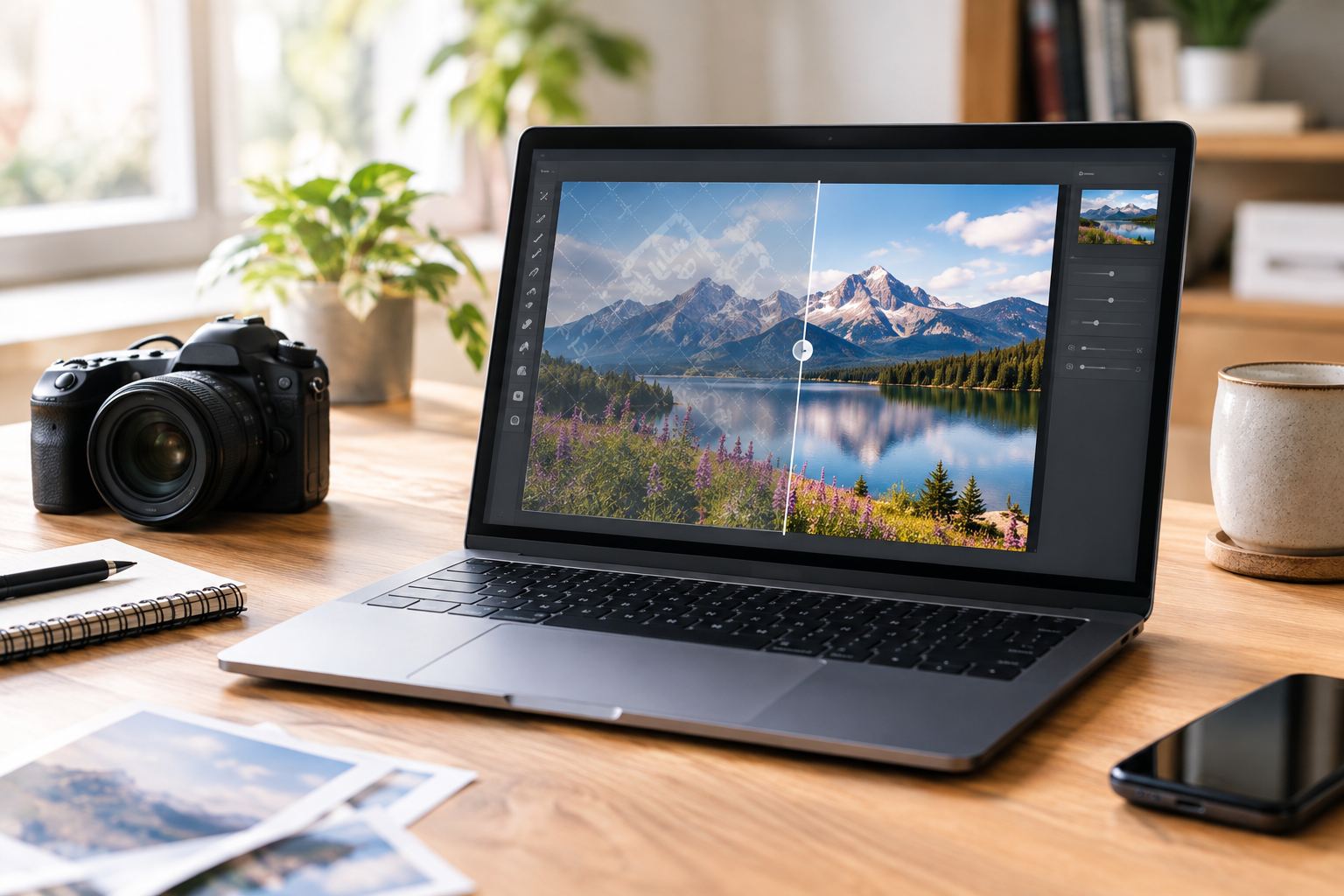
If you have ever browsed iStock for the perfect image, you probably know the feeling. You find a photo that fits your project almost perfectly, but the preview is covered with a watermark, making it hard to judge what the final image will actually look like.
I tested several iStock Watermark Remover to see which ones are actually worth using. I focused on three things: how easy they are to use, how natural the result looks, and how well they handle watermarks placed over detailed areas.
One important note before we get into the tools: removing a watermark does not give you permission to use an image. iStock allows watermarked content for testing and sample layouts, but not for final or publicly available materials. For commercial use, you still need the appropriate license.
Can You Remove an iStock Watermark? Here’s What I Found
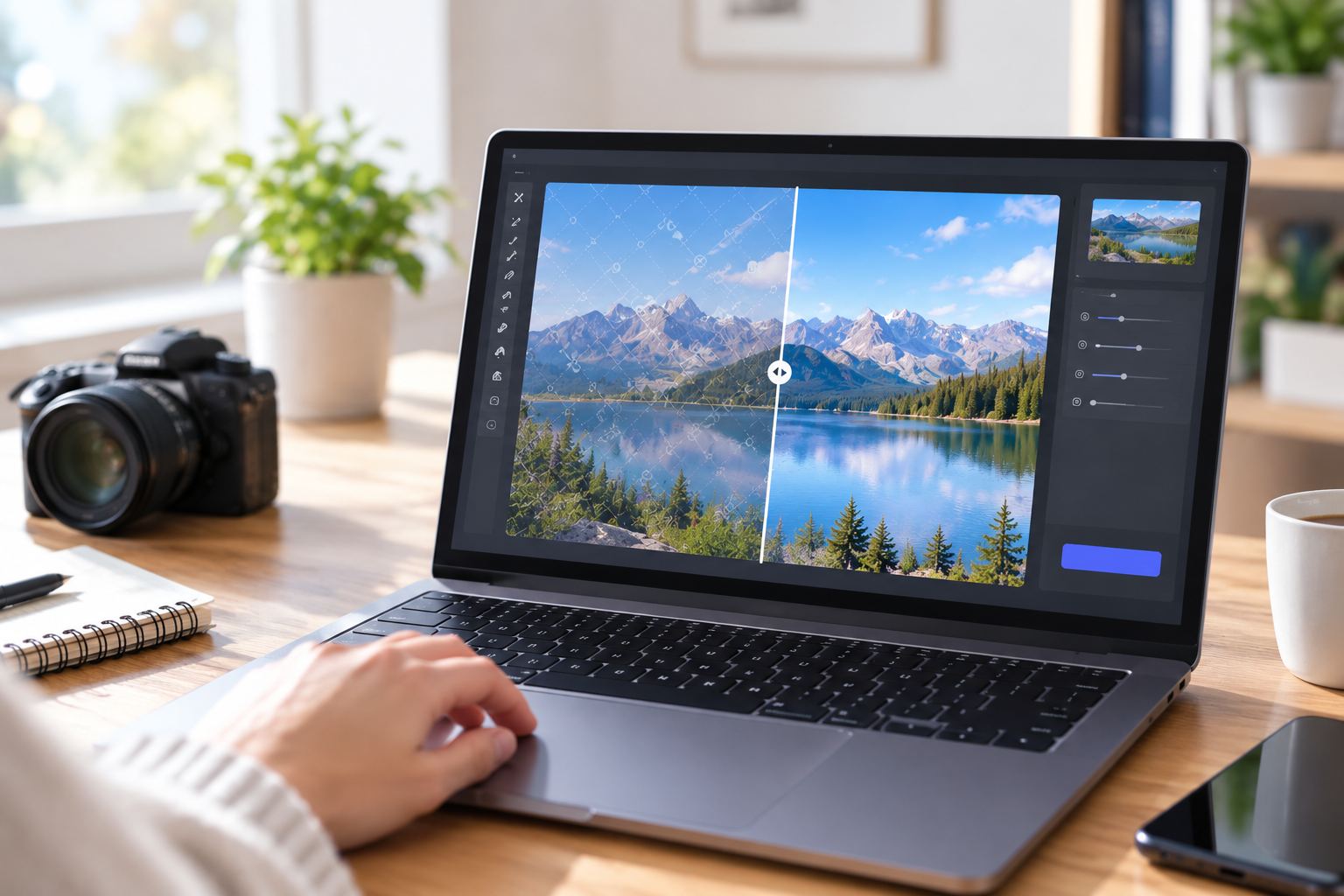
Yes, AI image editors can technically remove visible watermarks. The interesting part is what happens after the watermark is gone.
In my testing, simple backgrounds were generally much easier to rebuild than faces, hands, clothing patterns, text, or detailed architecture. That’s because AI isn’t recovering the original pixels hidden underneath the watermark. It’s generating a new version based on the surrounding image.
So I wouldn’t judge a tool just by looking at the thumbnail. I always zoom in afterward. A result can look perfect from a distance and still have strange details when you look closer.
There’s also an important distinction between editing an image and having permission to use it. Removing a watermark doesn’t give you copyright or a license to use an iStock image.
6 Best iStock Watermark Remover Tools: Quick Comparison
| Tool | Best For | My Take |
|---|---|---|
| AIAI.com | Overall AI watermark removal | Best balance of simplicity and results |
| Media.io | Online editing | Easy browser-based alternative |
| WatermarkRemover.io | Dedicated watermark removal | Simple and focused |
| Fotor | Photo editing | Good if you need more than watermark removal |
| HitPaw | Desktop editing | Better for regular desktop users |
| Adobe Photoshop | Professional editing | Most control, but higher learning curve |
What Is the Best iStock Watermark Remover?

If I had to pick just one, I’d go with AIAI.com.
The main reason isn’t that it has the longest feature list. It’s the workflow. I can upload an image, let the AI handle the unwanted area, check the result, and move on. For a quick cleanup, that’s exactly what I want.
Photoshop is still the better choice when I need precise manual control, while Fotor makes more sense if I want a broader photo-editing toolkit. But for a straightforward AI-based workflow, AIAI is the easiest starting point for me.
Deep Dive: The Best iStock Watermark Remover Tools
1. AIAI.com — Best Overall iStock Watermark Remover
This is the tool I’d recommend first.
What stood out to me during testing was how little effort it took to get started. I didn’t have to open a complicated editing workspace or figure out which brush or cloning tool to use. The workflow is much more straightforward: upload the image, let AI process the unwanted area, and check the result.
AIAI’s image watermark remover supports JPG, JPEG, PNG, and WEBP. It also supports batch processing, with up to 10 files at a time and a maximum file size of 20MB per image. See the batch watermark remover.
The part I liked most was the time saved on repetitive cleanup. For images where the watermark sits over a relatively simple background, I can get a usable result without doing much manual work.
That doesn’t mean every image comes out perfectly. When a watermark crosses someone’s face, hair, fingers, or a complicated pattern, I always check the result carefully. Those are the areas where AI reconstruction is most likely to need another pass.
Key features:
- AI-powered watermark removal
- Online workflow with no desktop installation
- Supports common image formats
- Batch image processing
- Can also remove other unwanted elements
Best for: Anyone who wants a quick AI image cleanup without learning professional editing software.
Pros: Simple workflow, fast to get started, batch support, beginner-friendly.
Cons: Complex areas still need a careful quality check.
2. Media.io — Best Online Alternative
Media.io is a good option if you want everything to happen in the browser. Its watermark remover is designed for removing unwanted elements from images without requiring traditional desktop editing software.
I would choose it for occasional cleanup when I want a straightforward online alternative.
3. WatermarkRemover.io — Best Dedicated AI Tool
WatermarkRemover.io keeps its focus pretty narrow, which can actually be a good thing. If all I want to do is remove an unwanted watermark or element, I don’t necessarily need a full photo editor with dozens of unrelated features.
It’s worth considering if dedicated watermark removal is your main requirement.
4. Fotor — Best for Photo Editing
Fotor is the better fit if watermark removal is only one part of your editing workflow.
Its AI Object Remover can remove unwanted objects and other elements from photos, so you can continue editing the image after the cleanup instead of switching to another tool.
5. HitPaw — Best Desktop Option
HitPaw is aimed more at desktop users and supports both image and video watermark removal.
If you’re regularly processing images or videos on a computer and prefer installed software over browser tools, it’s a more natural fit.
6. Adobe Photoshop — Best Professional Option
Photoshop takes more work, but there’s a reason professionals keep using it: control.
With tools such as Remove Tool and Generative Fill, I can decide exactly which area to edit and make additional adjustments when the first result isn’t quite right.
The downside is the learning curve. If I’m only trying to clean up one image, opening Photoshop can feel like using a toolbox when I only need a screwdriver.
How to Remove an iStock Watermark with AI
If you’re working with an image you own or have permission to edit, the basic AI workflow is pretty simple.
Step 1: Upload the Image
Open AIAI.com’s iStock watermark remover and upload the image you want to edit.
Step 2: Select the Unwanted Area
Identify the watermark or other element you want to remove. Try to keep the selected area focused rather than covering a much larger part of the image than necessary.
Step 3: Let AI Process the Image
The AI analyzes the surrounding content and reconstructs the selected area. This is where most of the repetitive manual work gets taken off your hands.
Step 4: Zoom In and Check
Don’t skip this part. Check faces, hair, hands, edges, patterns, and other fine details. If something looks slightly off, adjust the selection and process it again.
Step 5: Export the Result
Once the image looks right, export the edited version.
My Testing Methodology: How I Compared These Tools
I didn’t want to rank these tools based purely on feature lists, because that’s not how most people actually use them.
Instead, I focused on a few practical questions:
- How quickly can I get started?
- How much manual editing is required?
- Does the result look natural at normal viewing size?
- What happens when the watermark overlaps detailed areas?
- Is the tool better suited to occasional use or regular editing?
I also paid attention to the final image rather than just the processing speed. A tool isn’t really saving me time if I have to spend another ten minutes fixing the AI’s mistakes afterward.
What Works Best for Removing Watermarks from iStock Images?
There isn’t one method that’s perfect for every situation. Here’s how I’d choose:
| Method | Best For | Ease of Use |
|---|---|---|
| License the original image | Commercial and final use | ⭐ |
| AIAI.com | Fast AI cleanup | ⭐ |
| Media.io | Quick online editing | ⭐ |
| WatermarkRemover.io | Dedicated watermark removal | ⭐ |
| Fotor | Watermark removal + photo editing | ⭐⭐ |
| HitPaw | Desktop image and video editing | ⭐⭐ |
| Photoshop | Professional retouching | ⭐⭐⭐⭐ |
For an image that I own or have permission to edit, I’d use an AI tool when speed is the priority. For a professional project where I need complete control over every detail, Photoshop makes more sense.
For an iStock preview image that I want to use commercially, though, I’d simply license the original file rather than trying to turn a watermarked preview into a finished asset.
Before You Remove an iStock Watermark, Know This
This is the part that’s easy to overlook.
Removing a watermark does not remove the copyright or give you a license.
iStock’s terms allow watermarked content to be used for testing or sample layouts, but not in final materials or publicly available content. If you’re creating an advertisement, website, client project, or other commercial work, you should use the properly licensed file and follow the applicable license terms.
So I see AI watermark removal as an editing technique, not a workaround for image licensing.
iStock Watermark Remover FAQs
What is the best iStock watermark remover?
For a simple AI-powered workflow, AIAI.com is my top choice. Photoshop is better if you need detailed manual control.
How to remove iStock watermark?
If you own the image or have permission to edit it, you can upload it to an AI watermark removal tool, select the unwanted area, let the AI rebuild it, and then check the result before exporting.
Can I remove watermark from iStock images?
AI editors and Photoshop can technically remove visible watermarks, but your right to edit or use an iStock image depends on the applicable rights and license.
Is there an AI iStock watermark remover?
Yes. AIAI.com, Media.io, and WatermarkRemover.io are examples of AI-powered tools that can remove watermarks or unwanted elements from images.
Can I remove an iStock watermark online?
Yes. Online AI editors allow you to process images without installing desktop software. Just make sure you have the appropriate rights to edit the image.
Does removing a watermark give me permission to use the image?
No. Watermark removal and image licensing are separate issues. Removing the visible watermark does not give you copyright or commercial usage rights.
Which iStock Watermark Remover Is Right for You? My Final Verdict
After comparing all six options, AIAI.com is the one I’d choose for most quick watermark-removal jobs.
It’s not trying to replace Photoshop, and that’s actually part of the appeal. I don’t always need a full professional editing suite. Sometimes I just want to upload an image, let AI handle the repetitive cleanup, check the details, and get on with the rest of the project.
For that kind of workflow, AIAI hits the sweet spot between simplicity and control.
I’d pick Media.io or WatermarkRemover.io if I wanted another online alternative, Fotor if I also needed broader photo editing, HitPaw for desktop work, and Photoshop when precision matters more than speed.
And for a commercial iStock project, there’s one choice that beats all of them: license the original image. You’ll get the proper source file, preserve the original quality, and avoid turning an editing problem into a licensing problem.