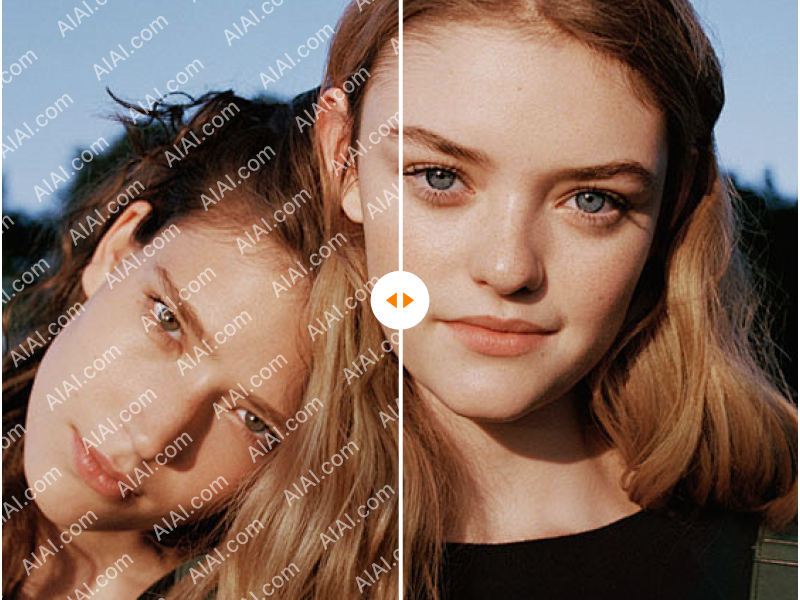
That’s exactly where a Batch Watermark Remover comes in handy.
Instead of spending hours manually masking out unwanted elements, it allows you to clear overlays in automated batches. Just drop your files in, let the AI process them, and move on to your next task.
In this guide, we’ll look at how batch processing works, who actually benefits from it, and how to clean a large set of images efficiently without manual pixel editing.
What is a batch watermark remover (in simple terms)?
A batch watermark remover is a tool designed to remove promotional text, logos, or watermarks from multiple images simultaneously, saving you from editing them one by one.
In practical terms, it helps you:
- Upload multiple images in one go
- Detect or estimate overlay regions automatically in most cases
- Reconstruct or fill the background using intelligent algorithms
- Download the processed results quickly without repetitive saving
Unlike traditional editing software that relies heavily on precise manual selection, modern AI tools use advanced image inpainting to blend missing pixels more naturally with the surrounding background.
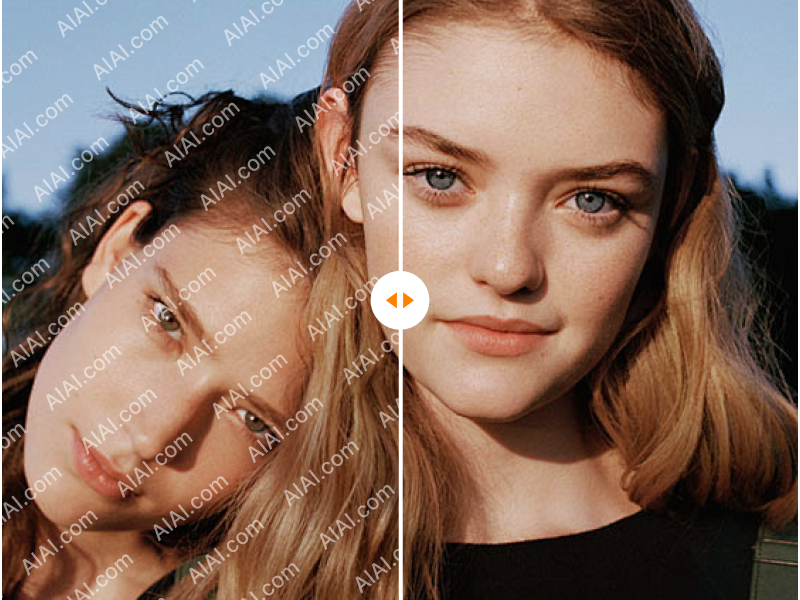
Two main approaches:
1. Traditional batch editing (manual-based)
- Photoshop actions / macros
- Requires complex initial setup and fixed masking rules
- Works under static conditions, but becomes inconsistent when elements change positions
2. AI batch processing (modern approach)
- Designed to automatically detect overlay regions across different images
- Removes or reconstructs backgrounds using contextual understanding
- Reduces repetitive manual brushing and editing work
This workflow is what makes handling large image folders practical for busy teams.
Who actually uses batch processing tools?
This isn’t just a tool for designers. It’s widely used across operational workflows where large volumes of images need to be processed regularly.
1. E-commerce sellers
Product catalog images often include outdated labels, badges, or branding elements that need to be cleaned before uploading to platforms like Amazon or Shopify.
- Large product collections per batch
- Requires fast processing for store consistency
- Manual editing becomes a major bottleneck
Efficiency comparison:
- Manual editing: hours of repetitive work
- Batch processing tools: significantly reduced processing time depending on image size and workload
2. Photographers & studios
- Client proof sets
- Portfolio updates
- Internal placeholder adjustments
Speed and workflow continuity are more important than pixel-perfect manual edits.
3. Marketing teams
- Internal draft visuals
- Rapid campaign testing
- Iteration of design variations
They often need large sets of clean visuals quickly rather than fully refined final assets.
4. Content creators
- Blog graphics
- Social media posts
- Thumbnail preparation
Batch tools help keep production workflows consistent and efficient.
5. Real estate agencies
- Property listing images from multiple sources
- High-volume weekly uploads
Even small time savings per image scale into significant efficiency gains.

How to clean multiple images at once (Step-by-step)
One practical option is the AIAI Batch Watermark Remover. It is designed for simple, queue-based processing that helps users handle multiple images efficiently without complex setup.
Step 1: Upload images in batches
Upload up to 10 images per run. For larger folders, process them in sequential batches to keep the workflow moving smoothly.
Step 2: Automated detection
The system automatically identifies overlay regions in most standard cases, reducing the need for manual selection or brushing.
Step 3: Sequential processing
Images are processed one after another in a streamlined queue, allowing efficient handling of larger workloads.
Step 4: Download results
Once processing is complete, you can download all cleaned images directly to your device.
Core features of AIAI
- Simple workflow designed for non-technical users
- Batch processing up to 10 images per run
- Supports JPG, PNG, and WebP formats without conversion
- Secure processing with automatic file deletion after completion
Other ways to handle bulk image processing
1. Desktop software (Photoshop batch actions)
Best for: professionals familiar with Adobe tools
Pros:
- Full control over editing
- High precision adjustments
Cons:
- Time-consuming setup
- Less flexible for dynamic content
2. API automation (developer workflow)
Best for: enterprise systems and SaaS platforms
Pros:
- Highly scalable
- Fully integrated workflows
Cons:
- Requires engineering resources
- Higher setup complexity
3. Manual single-image editing
Best for: 1–3 high-priority images
Pros:
- Maximum control
Cons:
- Not suitable for large-scale workflows
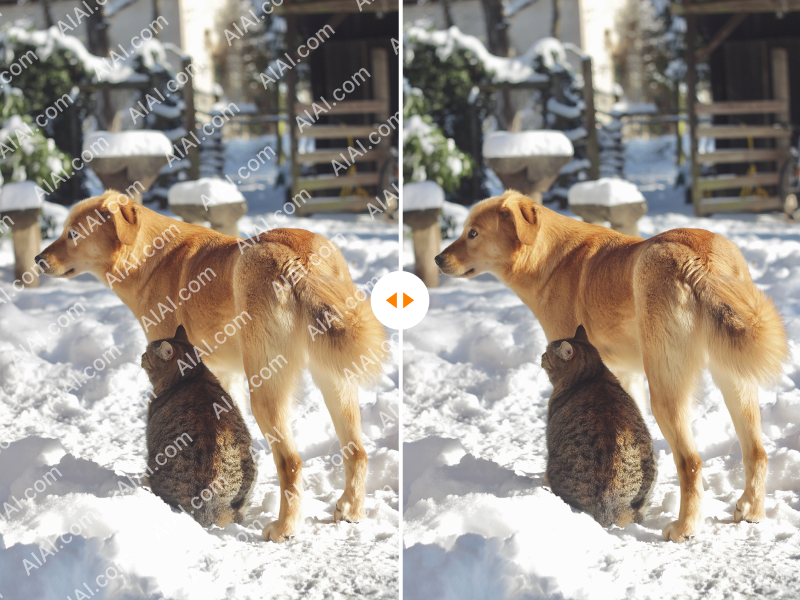
Tips for better batch results
1. Group similar images together
Images with similar lighting and layout produce more consistent results.
2. Choose output format wisely
- JPG → smaller file size, web-friendly
- PNG → higher quality, better detail retention
3. Always keep original files
Keep backups before processing.
4. Check complex backgrounds
Textures and patterns may require closer review.
5. Do a quick quality check
Review a small sample of outputs before full usage.
Legal and ethical considerations
When using automated image processing tools, always ensure proper rights and permissions.
Generally appropriate use:
- Your own original images
- Licensed commercial assets with modification rights
- Internal creative or presentation materials
Not appropriate use:
- Copyrighted content without permission
- Commercial use without proper licensing
Always ensure you have the legal right to modify the images you process.
FAQ: Bulk image processing
Will batch processing reduce image quality?
Most modern tools preserve original resolution. Minor artifacts may appear depending on image complexity.
Can it handle tiled overlays?
Tiled or repeated patterns are more complex but can often be handled better by AI-based systems compared to traditional methods.
Is there a free option?
Some tools, including AIAI, offer free trials or limited usage tiers.
Does it support videos?
No. This tool is designed for static images only. Video processing requires dedicated frame-based tools.
Conclusion
If you regularly work with large sets of images, manual editing is no longer efficient.
You typically have three options:
- Manual editing → precise but slow
- Desktop software → powerful but complex
- AI batch tools → fast, simple, and scalable
For most e-commerce, marketing, and content workflows, AI batch processing provides the most practical balance between speed and usability, helping turn repetitive editing tasks into a streamlined workflow.