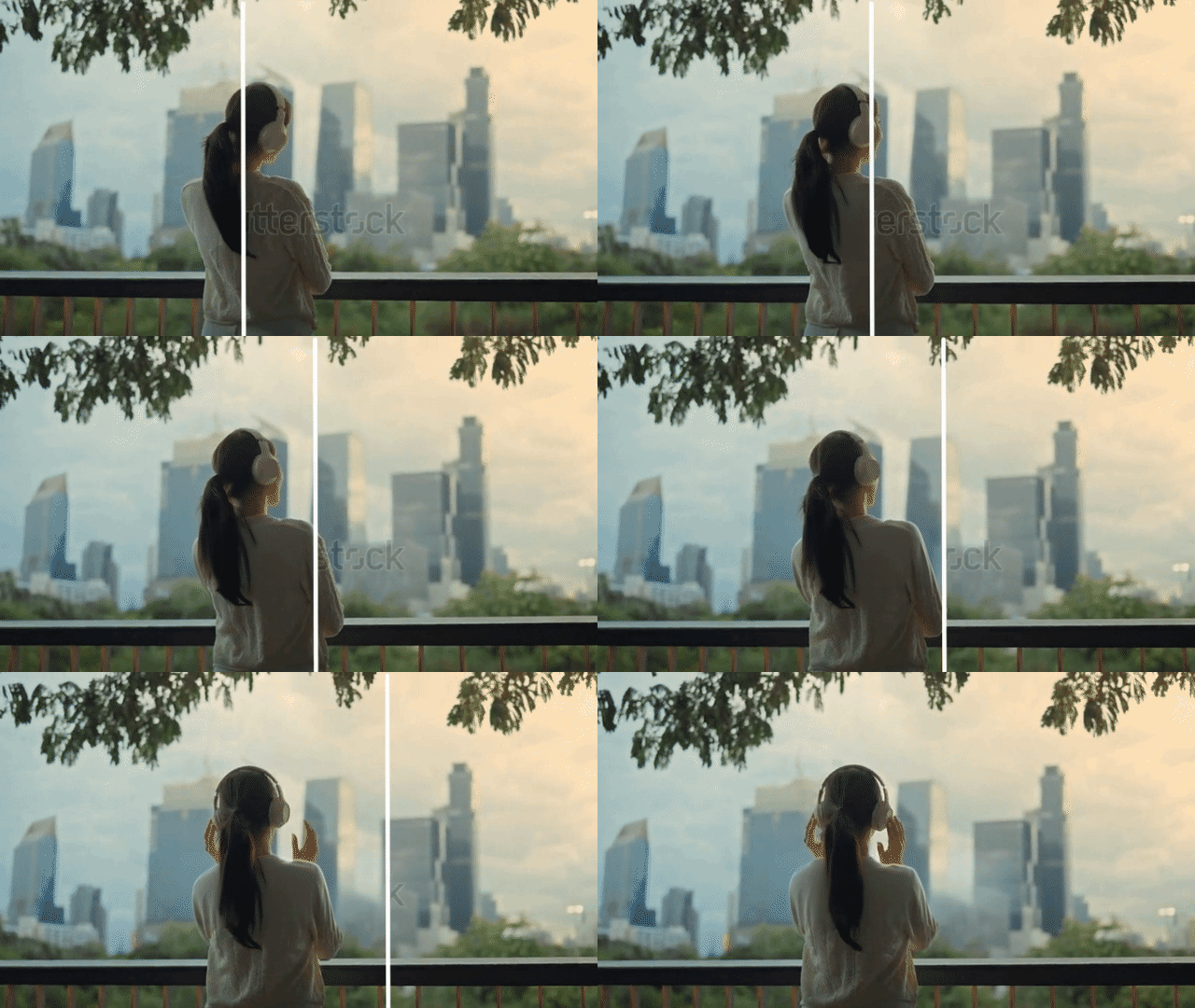
A Shutterstock Watermark Remover can help simplify the creative workflow by using AI to detect and reconstruct areas covered by unwanted logos, text, or other overlays. Stock images and videos are useful starting points for everything from social media campaigns to client presentations, but visible watermarks can often make it difficult to evaluate the composition or present a concept clearly.
Instead of manually cloning pixels or creating complicated masks, an AI-powered watermark remover can automate much of the restoration process for both images and videos. Of course, watermark removal should only be used on content you own, have permission to edit, or are otherwise authorized to process.
What Is a Shutterstock Watermark Remover?
A Shutterstock Watermark Remover is an AI-powered tool designed to remove visible watermark elements from images or videos and reconstruct the underlying area.
Traditional editing software usually requires users to manually select the watermark, clone nearby pixels, paint over the affected area, or create masks. AI watermark removal takes a different approach. The system analyzes the surrounding visual information and attempts to reconstruct the area hidden by the watermark, making the process particularly useful when you need to process multiple assets or when manual editing would take too much time.
How Does AI Watermark Removal Work?
Modern AI watermark removers generally rely on image restoration and inpainting techniques. The basic workflow can be broken down into three stages:
1. Detect the Watermark
The AI identifies the unwanted text, logo, or overlay. Users may be able to automatically detect or manually indicate the area.
2. Reconstruct the Area
AI analyzes nearby pixels, textures, and patterns to generate a plausible reconstruction of the missing area.
3. Preserve Details
The final stage blends the reconstructed area with textures and edges to ensure visual consistency across frames.
Why Use an AI Shutterstock Watermark Remover?
| Method | Speed | Skill Required | Best For |
|---|---|---|---|
| Clone / Healing Tools | Slow | Medium to High | Small, simple areas |
| Manual Video Masking | Medium | High | Advanced editing |
| AI Watermark Removal | Fast | Low | Images & Short videos |
Shutterstock Watermark Remover for Images & Video
For Images: Useful for product images, design mockups, and social media creatives. Complex backgrounds like hair or detailed patterns may require minor additional touch-ups.
For Videos: An effective watermark remover from video maintains consistency throughout the sequence, preventing flickering or artifacts across frames in MP4, MOV, or WEBM formats.
How to Remove a Shutterstock Watermark with AI
Upload Your Media
Upload the image or video you are authorized to edit.
Let AI Process
The AI analyzes and reconstructs the content underneath the watermark.
Review and Export
Review the natural look of the result and export the processed file.
Try the AI Shutterstock Watermark Remover
Streamline your creative workflow with our browser-based AI tool on AIAI.com.
Start Removing NowWhen Should You Use a Watermark Remover?
A watermark remover is most appropriate when you have the legal right or permission, such as:
- Your own content needing cleanup.
- Authorized client content for professional production.
- Licensed assets where editing is permitted.
- Internal creative workflows for presentation drafts.
Frequently Asked Questions
A: Yes. Online AI watermark removers allow you to process supported images and videos directly in a browser.
A: The goal of AI processing is to preserve original resolution while reconstructing the affected area.
A: Not necessarily. AI tools automate much of the process, making it accessible for everyone.