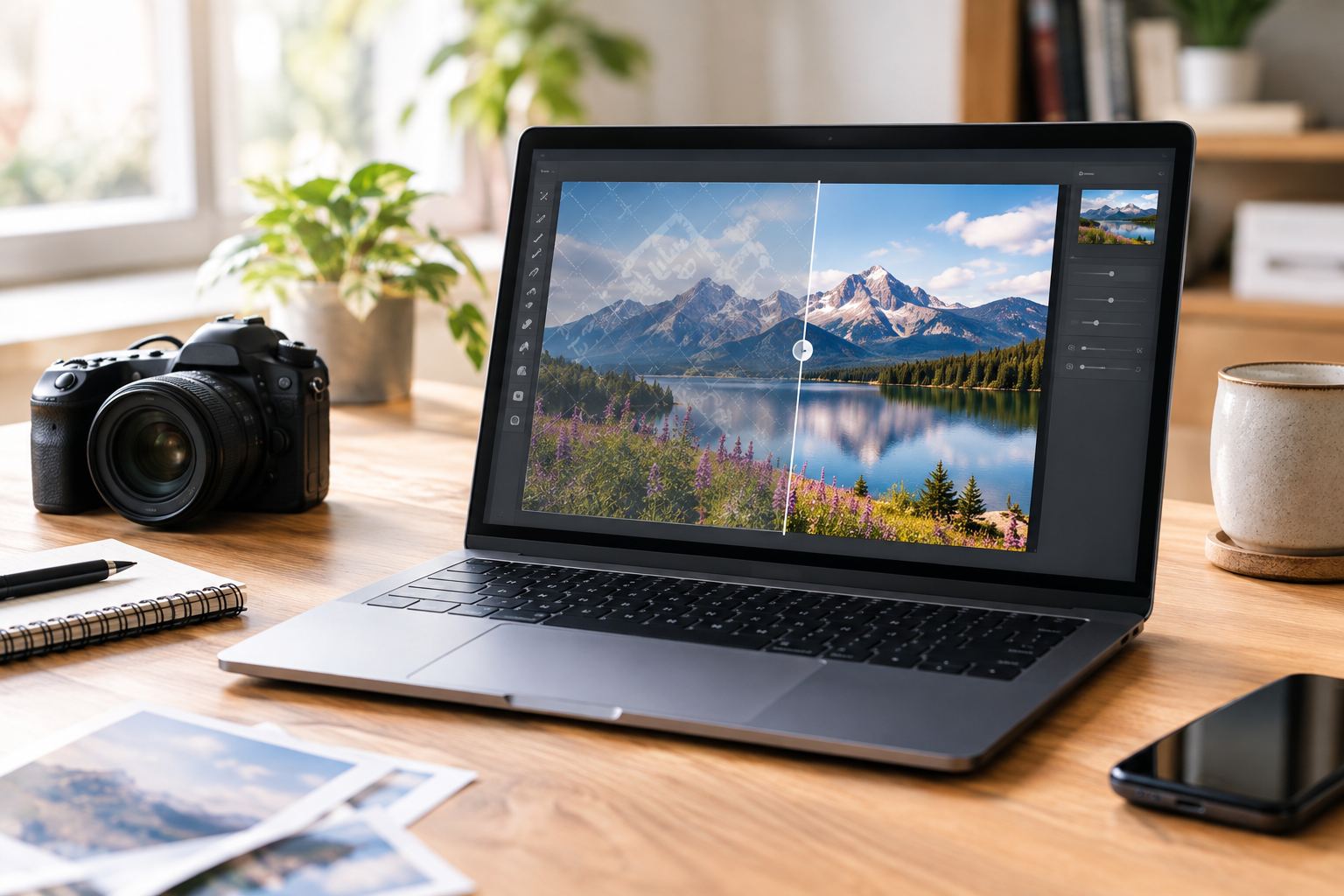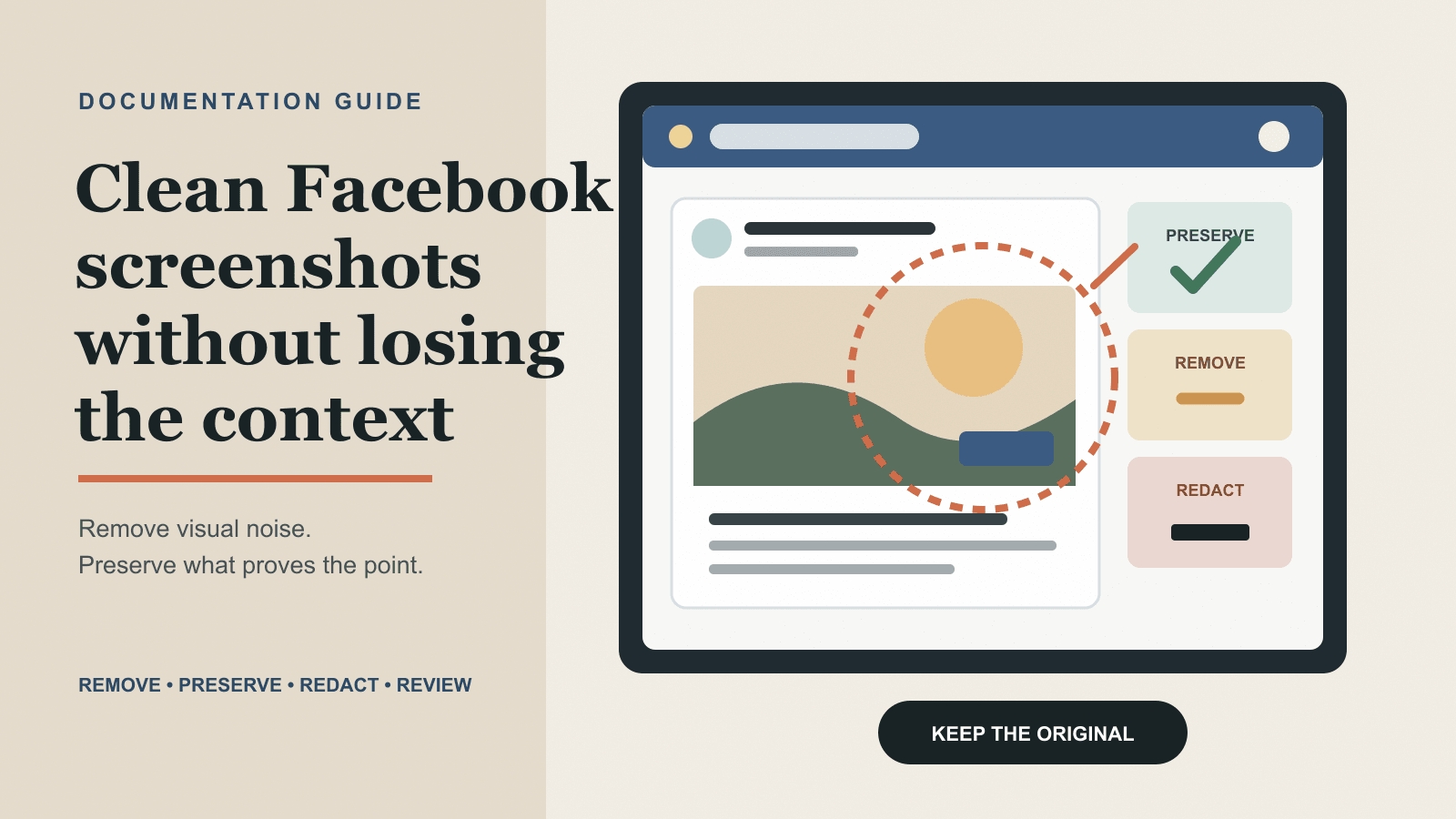
Start with the highest-quality screenshot, keep an untouched copy, remove only the authorized visible overlay, and compare the result with the original at 100 percent zoom. The most important checks are text accuracy, straight interface lines, icon shape, and consistent background color.
For an authorized screenshot, upload the working copy to the Facebook Watermark Remover, process the visible mark, and inspect the repaired area before downloading. The online page accepts JPG, JPEG, PNG, and WEBP images, supports up to 10 images at once, and lists a 20 MB limit per image.
Identify What Should Actually Be Removed
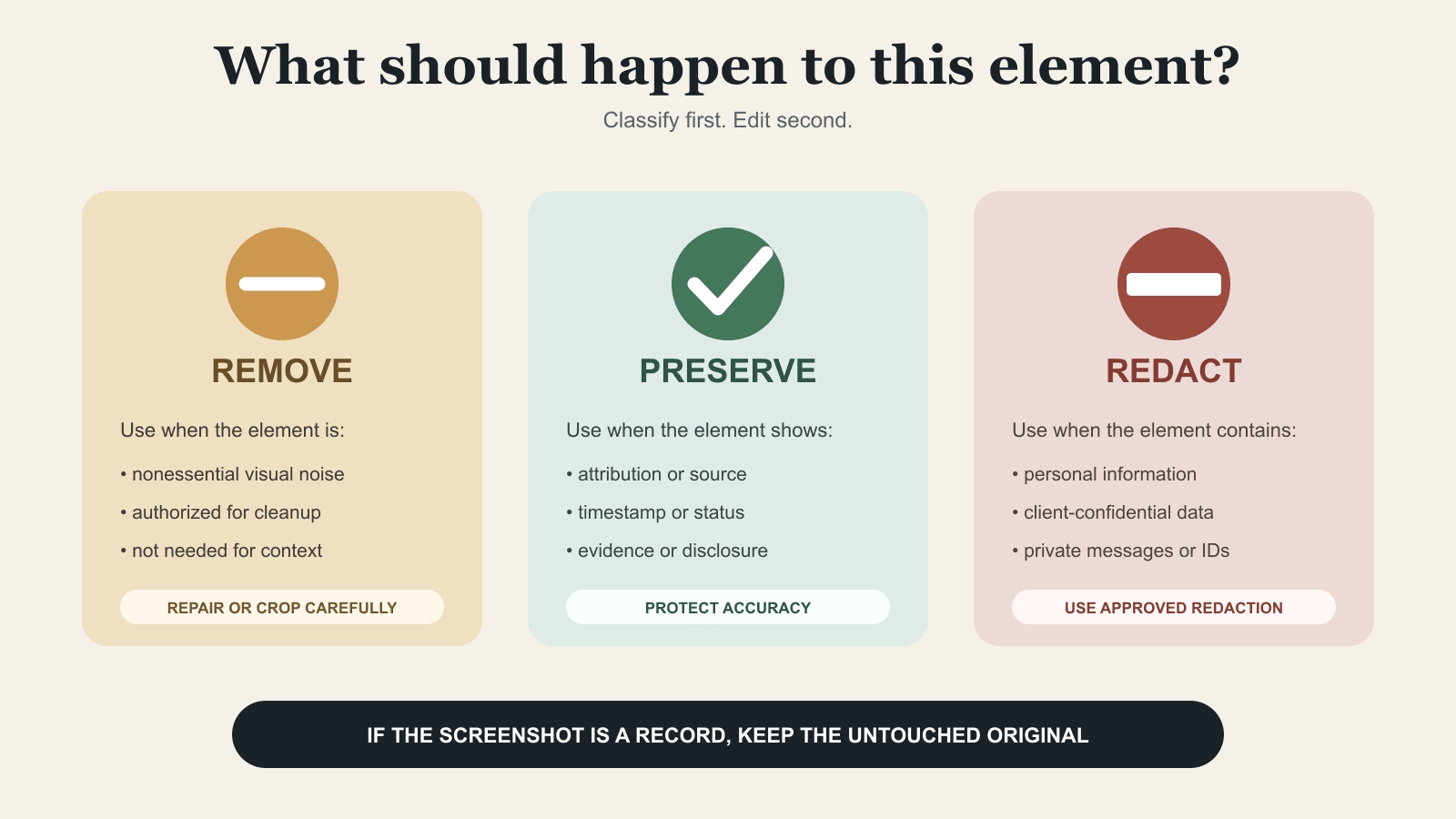
Not every label in a Facebook screenshot is a watermark. A removable mark is usually a logo, branded badge, corner label, or translucent overlay placed directly on the media. A page name, username, timestamp, reaction count, button label, or disclosure may be part of the information the screenshot is meant to show.
Classify the element before editing:
| Visible element | Best action | Why |
|---|---|---|
| Authorized logo or corner watermark | Remove | It is a visible overlay rather than necessary interface content |
| Watermark over a plain or repeatable background | Remove, then inspect | The surrounding pixels provide useful repair context |
| Username, page name, or source label | Usually preserve | It may provide attribution or context |
| Timestamp, metric, button, or menu text | Preserve | Changing it can make the screenshot inaccurate |
| Email, phone number, account ID, or private message | Redact separately | Privacy redaction is not the same as watermark removal |
| Unwanted content outside the useful frame | Crop | Cropping avoids unnecessary pixel reconstruction |
If the watermark covers a name, number, or instruction that must remain exact, use a clean source or recapture the screen. AI can create plausible-looking shapes, but it cannot reliably recover hidden text.
How to Remove a Watermark From a Facebook Screenshot
Use this workflow for screenshots you own or have permission to edit.
1. Use the Best Available Source
Choose the screenshot captured directly on the phone or computer. Copies saved from messaging apps, email previews, or slides may already be compressed, which softens small letters and interface edges.
PNG is often a strong working format for text-heavy UI, but source quality matters more than the extension. Converting a blurry JPEG to PNG will not restore missing detail.
2. Duplicate the Original
Keep the source untouched and edit a clearly named copy:
facebook-screenshot-original.png
facebook-screenshot-cleaned.png
This gives you a trustworthy comparison and lets you restart if the first result bends a border, changes a letter, or leaves a visible patch.
3. Check the Watermark Position
Removal is easiest when the mark sits over a plain color, soft gradient, sky, wall, or noncritical texture. Use extra caution when it crosses:
- Text, dates, or numbers
- Faces or product edges
- Buttons, icons, or card borders
- Detailed patterns
- Several background colors
If essential UI is hidden, recapturing or cropping is usually safer than reconstruction.
4. Upload One Working Copy First
Open the tool’s image uploader and add the duplicate. Although the page supports up to 10 images, test one representative screenshot before processing a batch. A single test shows whether the source resolution, watermark position, and background complexity are suitable for cleanup.
5. Process the Visible Overlay
Run the removal process. A successful result should do more than make the logo disappear: the repaired area should match the surrounding sharpness, color, texture, and geometry.
Do not use this step to hide confidential details. Apply an approved redaction method separately when the screenshot contains personal data.
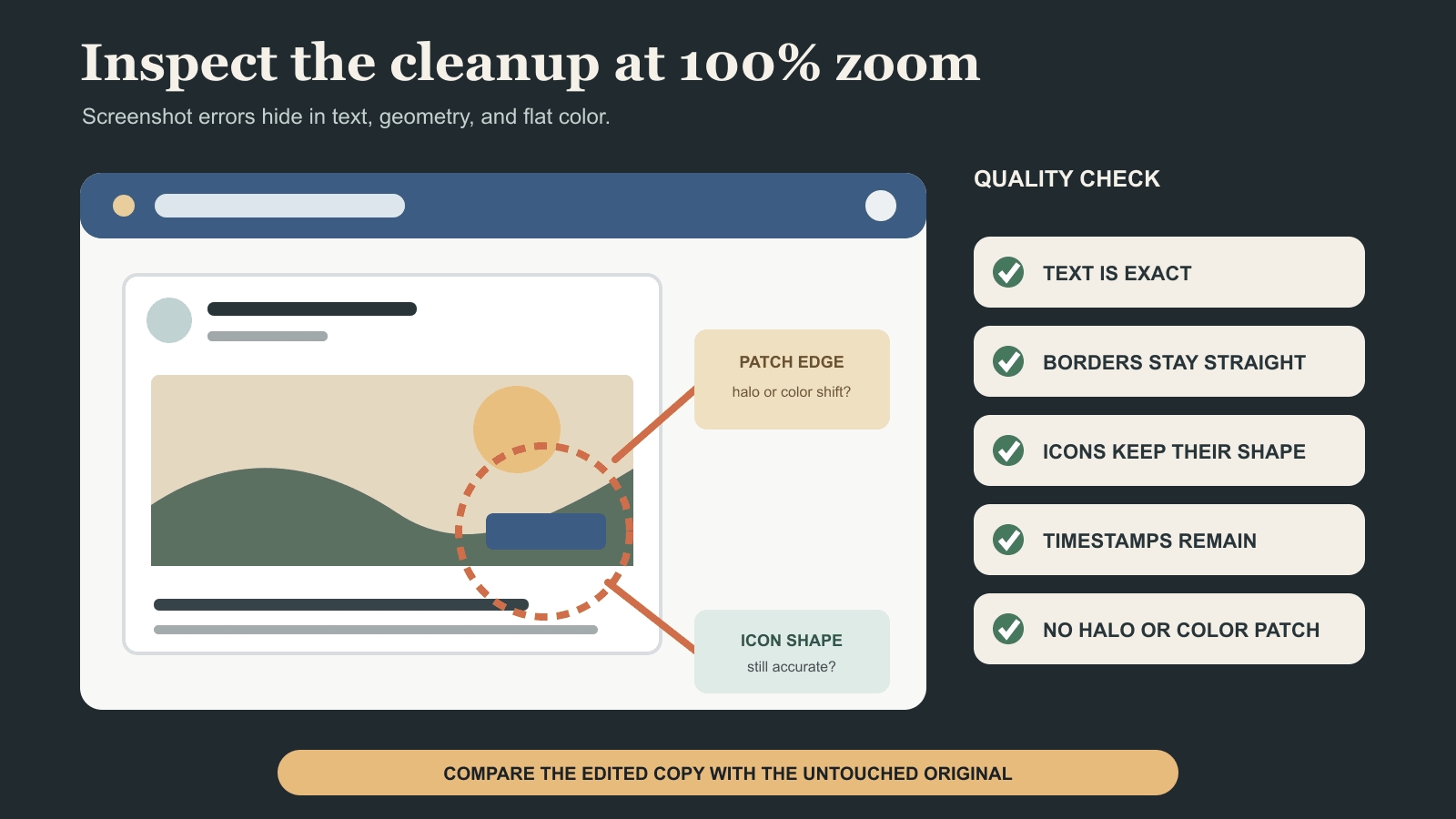
6. Inspect the Result at 100 Percent Zoom
Open the original and cleaned images at their actual pixel size. Compare the watermark area and its immediate edges. Check that:
- Letters and numbers are unchanged
- Horizontal and vertical lines remain straight
- Icons keep their original shape
- White, gray, or colored areas do not show a patch
- Gradients continue smoothly
- No watermark halo or shadow remains
- Repaired textures do not repeat unnaturally
7. Download and Review the Final Layout
Download the result only after the close-up inspection. Then place it in the report, tutorial, presentation, or article where it will appear. A patch that is difficult to notice in isolation may become obvious against a different page background or at a larger display size.
Keep the cleaned file separate from the original. When the edit could affect interpretation, identify it as an edited derivative in the filename or caption.
How to Fix Common Cleanup Problems
A Faint Watermark Edge Remains
The mark may include a translucent halo or shadow outside its obvious letters. Restart from the untouched working copy and process the complete visible overlay instead of repeatedly editing an already repaired result.
Nearby Text Looks Soft or Invented
Discard the result when meaningful text has changed. Do not guess a username, date, metric, or button label. Return to Facebook for a new capture or obtain an authorized clean source.
A Border or Icon Looks Bent
Straight interface geometry makes small errors easy to see. Restart from the original and avoid repairing more of the image than necessary. If the watermark directly crosses an important control, keep it or recapture the screen.
The Background Has a Visible Patch
Flat UI colors reveal even slight mismatches. Review the image at full size and inside its final layout. A higher-quality original may help, but cropping or recapturing is better when visual accuracy matters.
The Screenshot Is Too Compressed
Find the original capture. Upscaling can enlarge pixels, but it cannot restore the exact characters and edges lost through compression.
When to Use Another Method
Watermark removal is appropriate when an authorized visible logo, label, or overlay is the actual obstacle. It is not the right answer for every unwanted element.
- Crop when the mark sits outside the useful composition.
- Recapture when the Facebook screen can be opened again or the mark covers critical UI.
- Redact when personal or confidential information must be hidden.
- Preserve attribution when a creator or source label is required for context or permission.
- Keep the original unchanged when the screenshot is evidence, a formal record, or part of a regulated process.
Only remove watermarks from media you created, control, or have permission to edit. Facebook’s copyright guidance notes that modifying content or adding credit does not automatically resolve copyright concerns.
Final Screenshot Quality Check
- The screenshot is authorized for editing.
- The untouched original is stored separately.
- The selected element is a visible watermark rather than essential UI.
- The cleaned result was compared at 100 percent zoom.
- Text, numbers, icons, and borders remain accurate.
- No halo, blur, color patch, or repeated texture is visible.
- Private information was handled with a separate redaction process.
- The image was checked inside its final publishing layout.
- Each published image has useful alt text based on its purpose, following principles in the W3C Images Tutorial.