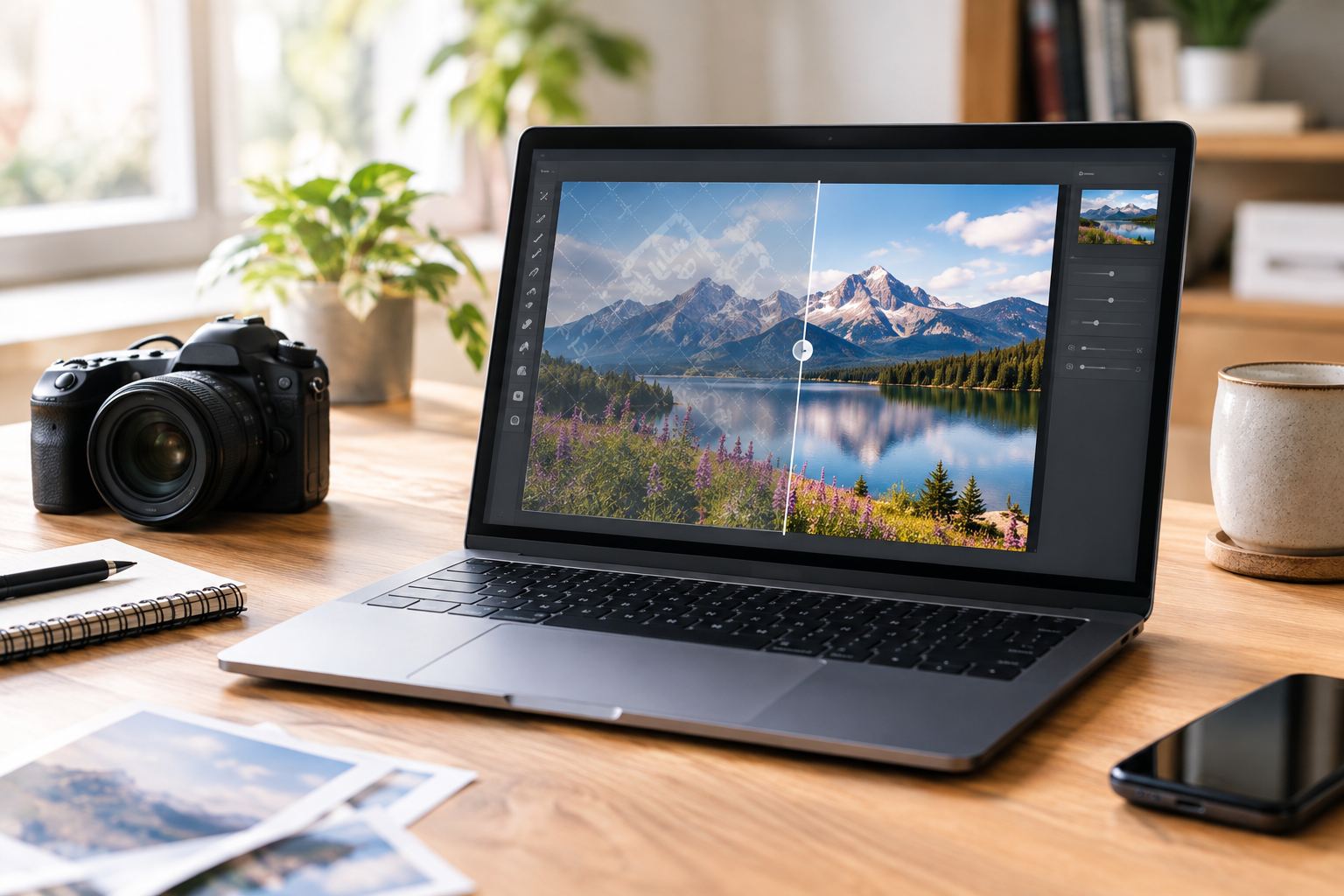
A Getty Images watermark remover can help you clean up a preview image after you have the right to use it, but the best results depend on the size of the watermark, the image resolution, and whether the tool lets you combine automatic AI cleanup with manual control. If you need a browser-based workflow, AIAI Getty Images Watermark Remover is built for fast upload, targeted cleanup, and download in a few steps.
Getty watermarks exist for a reason: they protect preview assets before licensing and help prevent unauthorized use. That means this topic is not just about “how to erase a mark.” It is also about when watermark removal makes sense, how to protect image quality, and how to avoid rebuilding a file that should have been licensed differently in the first place.
Why Getty watermarks appear in the first place
Getty Images is a licensing platform with stock photos, editorial content, video, archive assets, and rights-related services, including license information and rights and clearance tools on its official site. That context matters because a watermark is not random decoration. It signals that the image is still tied to licensing, attribution, or usage restrictions. Getty itself organizes its platform around content types, plans, pricing, and licensing-related services rather than around unrestricted downloads.
When a Getty Images watermark remover makes sense
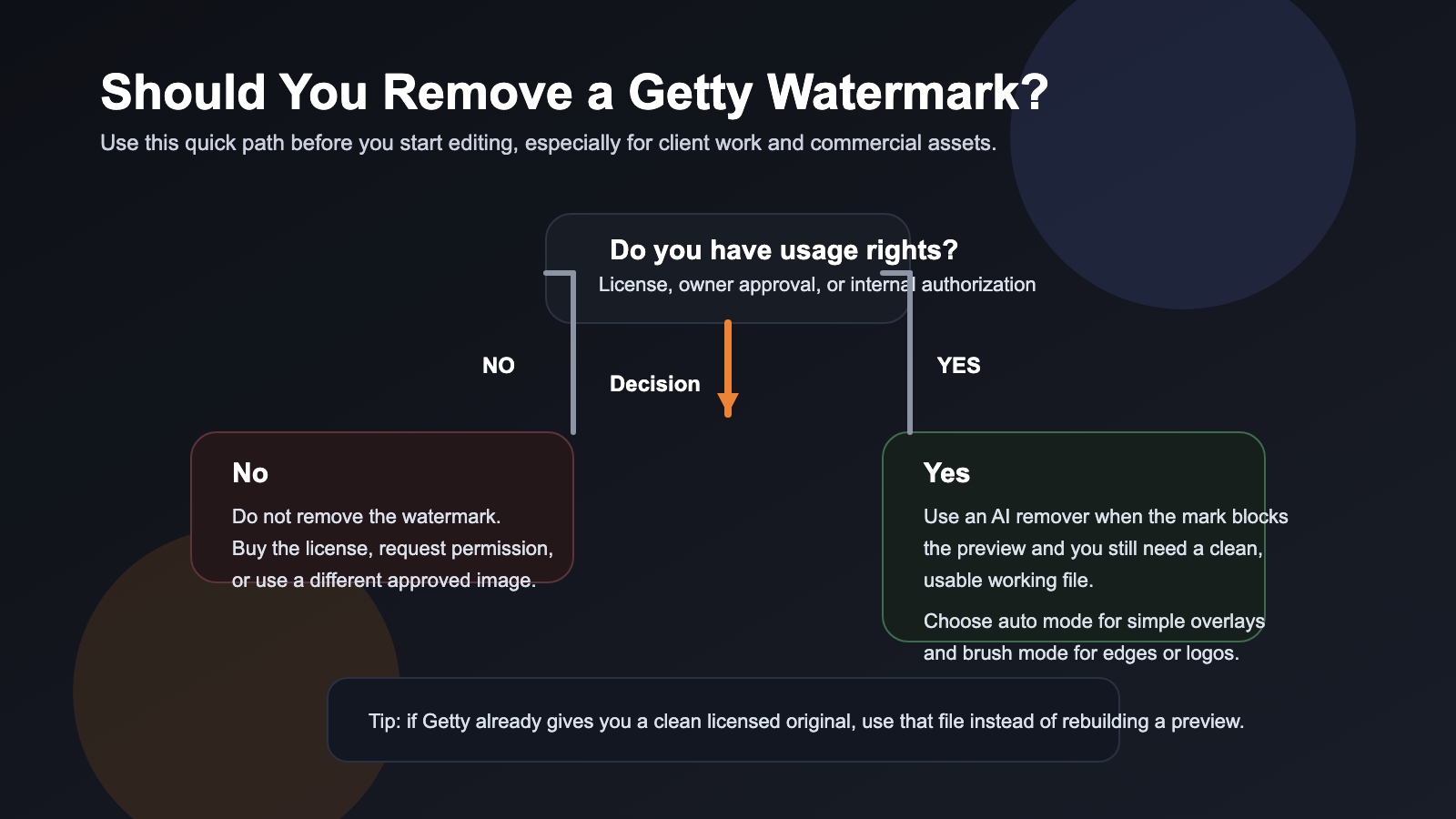
There are legitimate, lower-risk scenarios where cleanup tools are useful:
| Use case | Recommended path | Why it works |
|---|---|---|
| Licensed asset needs fast cleanup for a working draft | Use an AI remover with preview and brush controls | Lets you rebuild the covered area without opening heavy desktop software |
| Internal mood board or client comp | Use a browser-based tool and keep the file for review use only | Faster than manual cloning for temporary planning assets |
| Owned or approved image with a logo/text overlay | Use auto removal first, then manual touch-up | Best balance of speed and control |
| High-detail commercial image | Review whether the clean licensed original is available first | Rebuilding a complex preview is often worse than using the proper source file |
If your goal is speed, the best kind of tool is not just “AI-powered.” It should also let you refine the marked area when auto-detection misses edges. That is one reason the AIAI.com Getty Images Watermark Remover page is useful in practice: it supports a browser-based flow with guided selection rather than forcing a purely one-click result.
How to remove a Getty watermark without ruining the photo
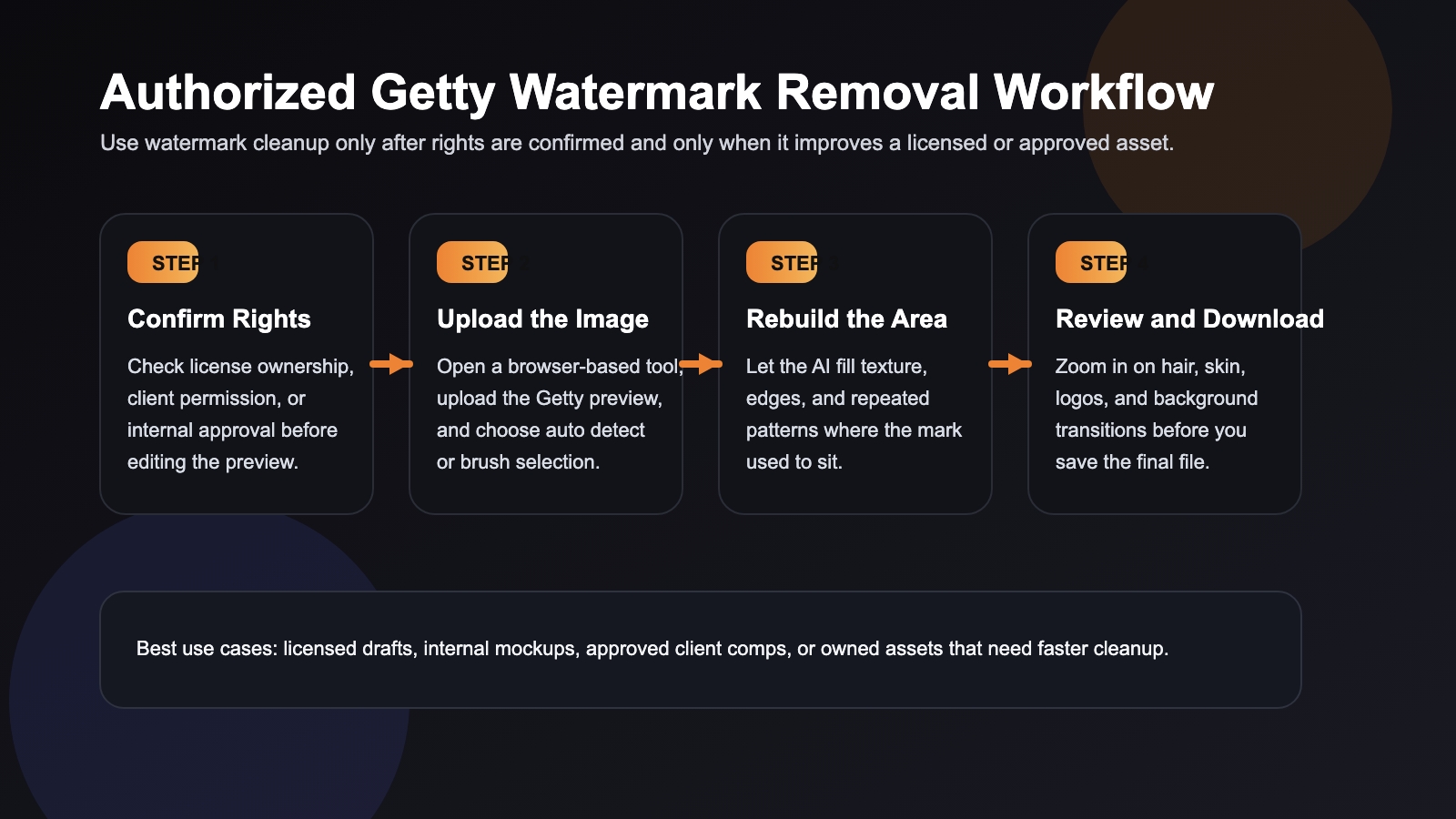
Most ranking pages reduce the process to upload, remove, download. That is directionally correct, but not complete. If you want a better final image, use this workflow instead:
1. Confirm the image is safe to edit
Before you upload anything, confirm one of these is true:
- You licensed the image already.
- The owner gave you permission.
- The file is being used in an approved internal workflow.
This matters because competitors themselves often add disclaimers saying unauthorized removal may violate rights. Even the tool-heavy ranking pages understand this risk, but many bury it under marketing copy.
2. Start with the cleanest source you have
If you only have a tiny screenshot, the rebuilt result will usually look soft. A larger preview gives the AI more surrounding texture to reconstruct. If Getty provides access to a cleaner licensed original, that is almost always better than repairing a heavily compressed preview.
3. Use automatic detection first
AI removal is fastest when the watermark sits over simple backgrounds like sky, paper, empty wall space, or blurred backgrounds. In those cases, the model can infer nearby pixels and rebuild the area naturally.
Adobe Firefly’s “Remove Object from Photo” workflow shows the same core logic: upload an image, remove the unwanted element, and let the system fill the background automatically. That principle applies here too. The more predictable the surrounding area, the more convincing the result tends to be.
4. Switch to manual control for difficult areas
Automatic cleanup struggles more when the watermark crosses:
- faces
- hair
- fingers
- product edges
- typography
- repeating patterns
If your tool offers a brush or masking mode, use it. Manual guidance helps the model focus on the exact problem area instead of over-editing the whole image.
5. Review before downloading
Do not judge the result at thumbnail size. Zoom in and inspect:
- skin texture
- edge transitions
- repeated lines
- text remnants
- blur patches
This is where many “free online remover” pages oversimplify the process. The image is not ready just because the watermark disappeared. It is ready when the rebuilt area still looks believable next to the untouched parts of the photo.
What affects final image quality the most
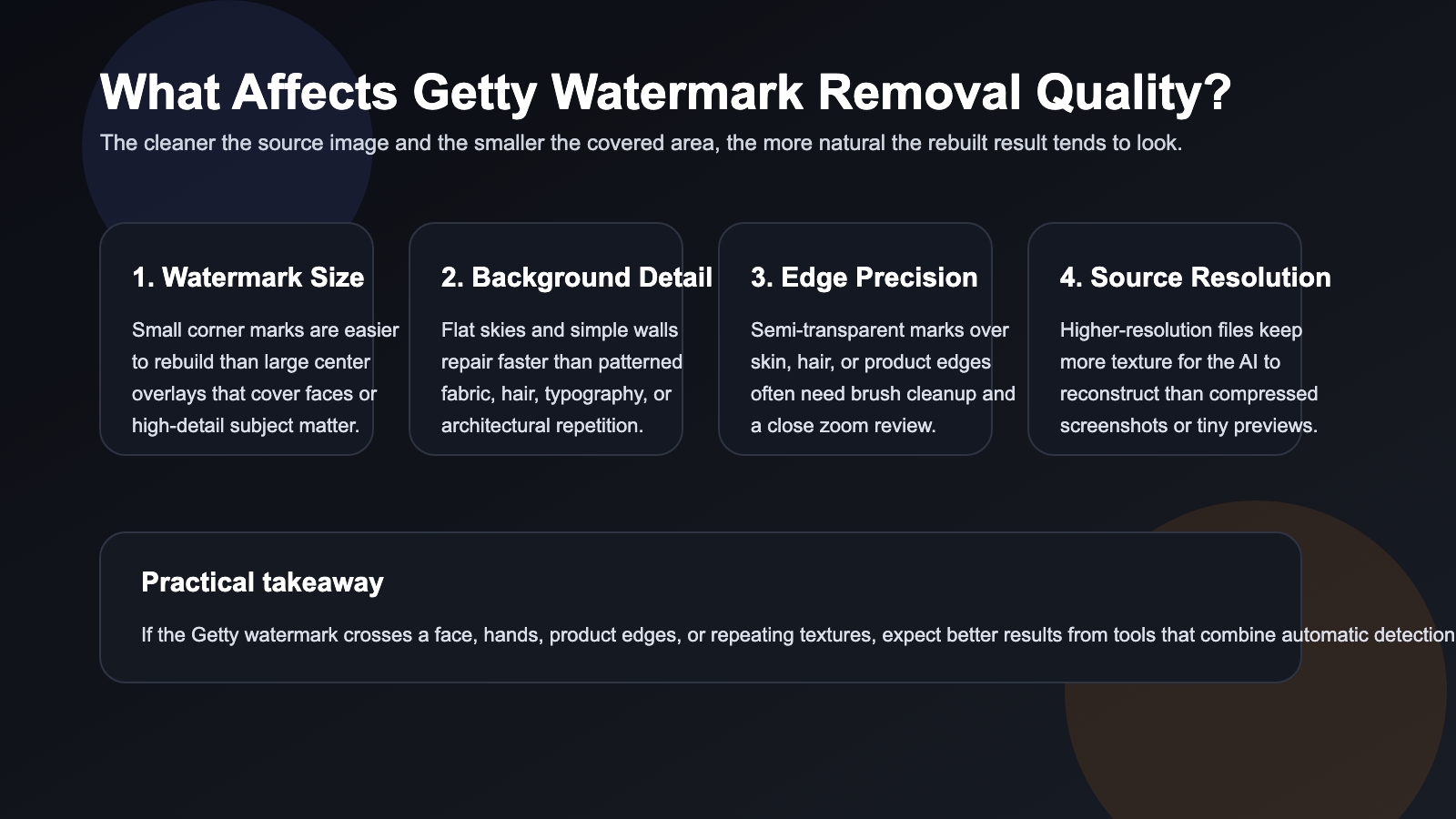
The SERP pages talk a lot about “high quality” and “no blur,” but they rarely explain what that really depends on. In practice, four variables matter most:
Watermark size
Small corner marks are much easier to repair than large central overlays. If the mark covers a face, product label, or key subject area, the tool is doing partial reconstruction, not simple cleanup.
Background complexity
Flat backgrounds are easier than textured ones. Brick walls, curls of hair, lace, jewelry, and layered shadows are harder to rebuild convincingly.
Edge detail
Semi-transparent watermarks crossing sharp object edges often leave halos or shape distortions. This is exactly where manual brush cleanup helps.
Source resolution
Higher-resolution inputs preserve more context for AI reconstruction. Low-resolution screenshots give the model less real information, which increases the chance of plastic-looking output.
AI tool vs manual editing: which is better?
| Method | Best for | Strengths | Tradeoffs |
|---|---|---|---|
| AI auto mode | Simple marks on clean backgrounds | Fast, browser-based, beginner-friendly | Can miss edges or over-smooth texture |
| AI plus brush/mask | Getty previews with complex overlays | Better precision, better control | Slightly slower than one-click cleanup |
| Photoshop or similar manual editing | High-value commercial assets | Fine-grain control for expert users | Slower, harder, and less scalable |
For most users searching this keyword, the middle option is the best fit. A tool that combines AI removal with targeted manual selection gives you the speed people want from online tools without giving up all control over the rebuilt area.
Common mistakes to avoid
Treating every result as production-ready
Many previews look acceptable at first glance but break down under zoom. Always inspect.
Using the wrong file
If a licensed clean original is available, use it instead of repairing a preview.
Ignoring permission
Watermark removal does not replace licensing. Rights come first, editing comes second.
Over-brushing the subject
Painting too wide an area can make the model invent detail that was never there. Tight selection usually gives cleaner results.
FAQ
What is a Getty Images watermark remover used for?
It is used to clean visible Getty overlays from an image when you have a valid reason and the right to work with that file, such as licensed use, approved drafts, or internal review.
Will removing a Getty watermark lower image quality?
It can. Large marks, low-resolution sources, and complex textures increase the chance of blur or visible repair artifacts. Tools with preview and manual correction usually perform better.
Is an online Getty Images watermark remover better than Photoshop?
For speed, yes. For very detailed commercial work, Photoshop or another advanced editor may still offer better manual precision. Most users benefit most from AI plus brush control.
Can AI remove watermarks without affecting the background?
Sometimes, yes. Results are strongest when the watermark sits over simple areas. When it crosses fine edges or detailed textures, a second pass or manual guidance is often needed.
What should I look for in a good Getty watermark remover?
Look for browser-based upload, auto detection, manual masking or brush tools, preview before download, and stable output quality on edge-heavy images.
Final takeaway
The best Getty Images watermark remover is not just the one that removes the mark fastest. It is the one that helps you protect image quality, work within a legitimate usage path, and fix difficult areas without forcing a full desktop editing workflow.
If you already have the right to use the image and want a practical browser-based option, the AIAI Getty Images Watermark Remover page is a strong next step because it combines guided upload, targeted cleanup, and a simple download workflow that fits real content production needs.