The best photo watermark remover depends on the kind of image you need to clean and how much control you need over the result. Browser-based AI tools are the fastest option for light cleanup on simple backgrounds, while manual retouching editors are better when the watermark overlaps faces, products, or detailed textures.
If you want the shortest answer, choose an AI photo watermark remover for speed, choose a manual editor for precision, and choose the original licensed file whenever the image is protected or the watermark is deeply embedded.
What Makes a Good Photo Watermark Remover?
Many pages ranking for this topic talk about “one-click AI” as if all tools behave the same way. They do not. A useful photo watermark remover should be judged on a few practical criteria:
- how cleanly it rebuilds the hidden background
- how much manual control it gives you
- how well it handles detailed textures
- how safe it is for private or commercial images
- how fast it is for one-off edits versus repeated workflows
That is why the best tool for a social media graphic may be the wrong tool for a portrait, product photo, or stock asset review.
The Main Types of Photo Watermark Remover Tools
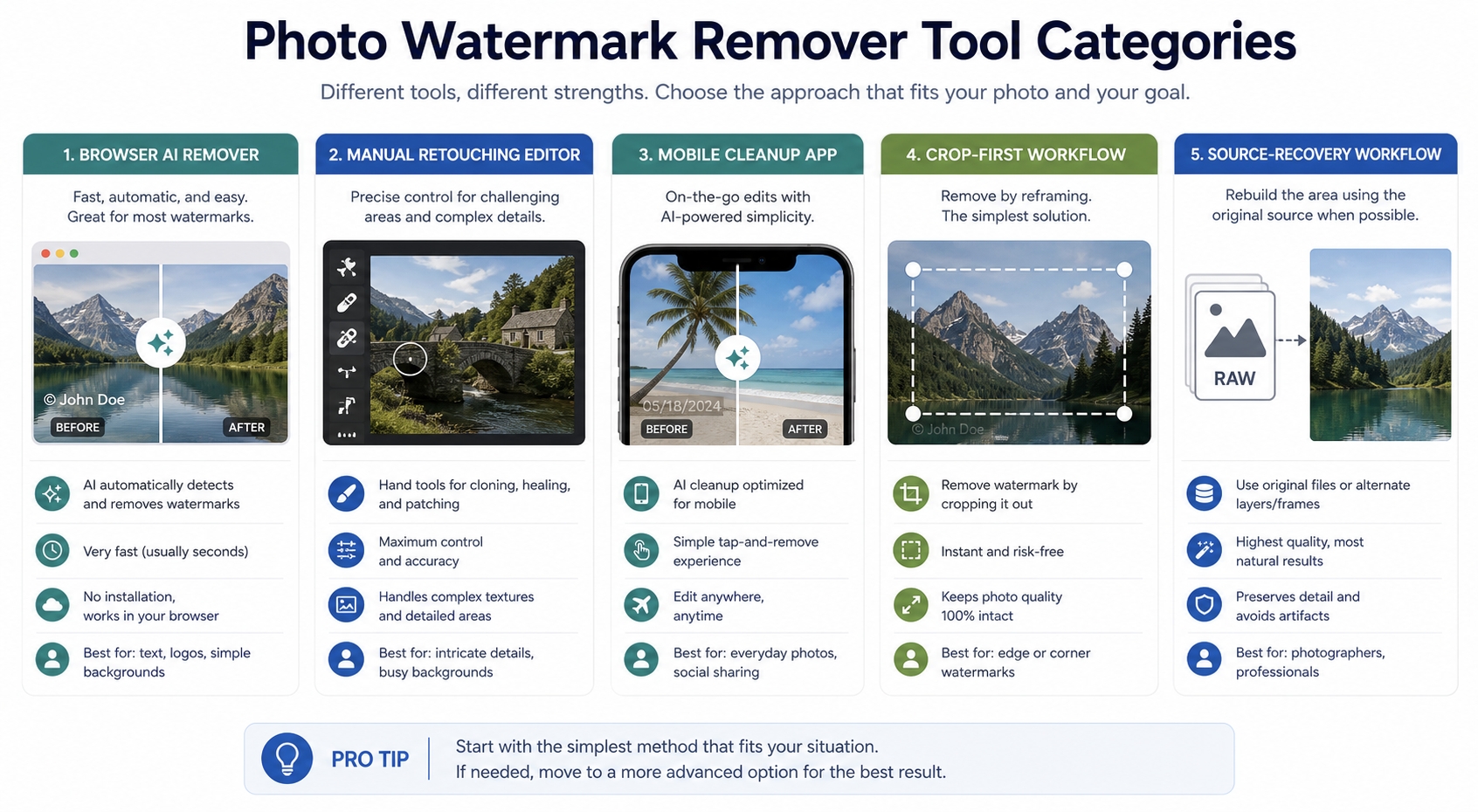
The market usually falls into five broad categories.
1. Browser-Based AI Removers
These are fast, simple, and beginner-friendly. You upload an image, mark the area, and let the tool generate a clean version. They are best for simple overlays and non-sensitive files.
2. Manual Retouching Editors
These use healing, cloning, patching, or local repair workflows. They take longer, but they are stronger when you need realism and control.
3. Mobile Cleanup Apps
These are useful for fast social media work and minor touch-ups. They are usually less precise than desktop workflows, but they are convenient for quick edits.
4. Crop-First Workflows
These are not true removers, but they are still valid. If the watermark sits near an edge and the image can survive reframing, cropping can be cleaner than AI reconstruction.
5. Source-Recovery Workflows
This is the safest option for licensed or protected images. Instead of removing the mark, you replace the preview or trial version with the clean original.
Online vs Desktop Photo Watermark Removers
This is one of the most useful comparisons for readers making a decision.
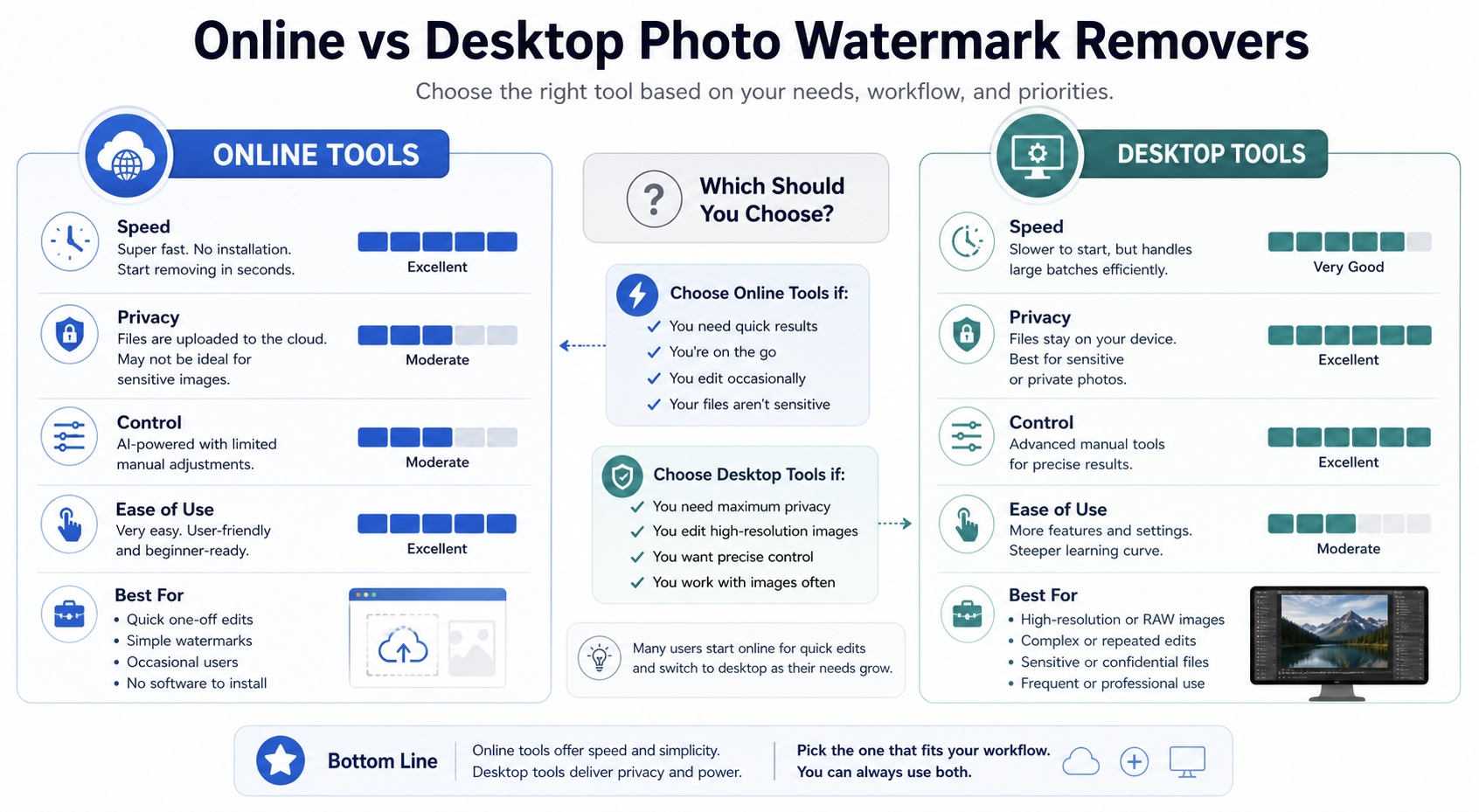
Online Tools
Best for:
- speed
- simple backgrounds
- casual use
- quick content workflows
Benefits:
- no installation
- fast upload-edit-download flow
- often easier for non-designers
Tradeoffs:
- weaker privacy control
- less manual precision
- more likely to fail on complex textures
Desktop or Pro Editing Workflows
Best for:
- product images
- portraits
- commercial assets
- complex or high-value visuals
Benefits:
- stronger manual control
- better local privacy
- easier refinement after AI cleanup
Tradeoffs:
- slower learning curve
- more steps
- may require paid software or editing skill
Best Photo Watermark Remover by Use Case
The best tool changes by scenario. That is more useful than a generic “top 10 tools” list.
Best for Beginners
Choose a browser-based AI remover. It is usually enough for simple text overlays, transparent corner logos, or date stamps on clean backgrounds.
Best for Portraits
Choose a manual retouching editor. Skin texture, hair strands, and facial edges are easy to damage with one-click AI cleanup.
Best for Product Photos
Use a hybrid workflow. Start with AI if the background is clean, then refine manually around labels, packaging edges, or reflections.
Best for Social Media Teams
Fast browser-based or mobile workflows are often enough. Speed matters more than perfect restoration in many short-form content pipelines.
Best for Old Archived Images
Test an AI tool first, especially for date stamps and corner marks. Some archived photos clean up surprisingly well when the marked area is simple.
Best for Stock or Protected Images
Use the licensed source, not removal. This is both the legal and quality-preserving choice.
Photo Watermark Remover Comparison Table
| Tool category | Best for | Main advantage | Main limitation | Best user type |
|---|---|---|---|---|
| Browser AI remover | Quick cleanup | Fast and easy | Weaker on texture-heavy images | Casual users, marketers |
| Manual retouching editor | Precision cleanup | Better control and realism | Slower workflow | Designers, photographers |
| Mobile app | On-the-go edits | Convenience | Smaller workspace, lighter control | Social media users |
| Crop-first workflow | Edge watermarks | No reconstruction artifacts | Changes composition | Content editors |
| Source recovery | Protected assets | Best legal and visual quality | Requires original access | Commercial teams |
How to Choose the Right Tool
Use a simple decision framework.
- If the watermark is small and the background is plain, start with AI.
- If the watermark crosses skin, hair, text, or product detail, use a manual workflow.
- If the watermark is near the edge, check whether cropping is enough.
- If the file is sensitive, prefer a local workflow over a cloud upload.
- If the image is licensed or protected, get the clean original instead of removing the mark.
This is the biggest gap in weak ranking content. Readers usually do not need another long list of tools. They need a decision path that prevents bad choices.
Privacy, Quality, and Cost Tradeoffs
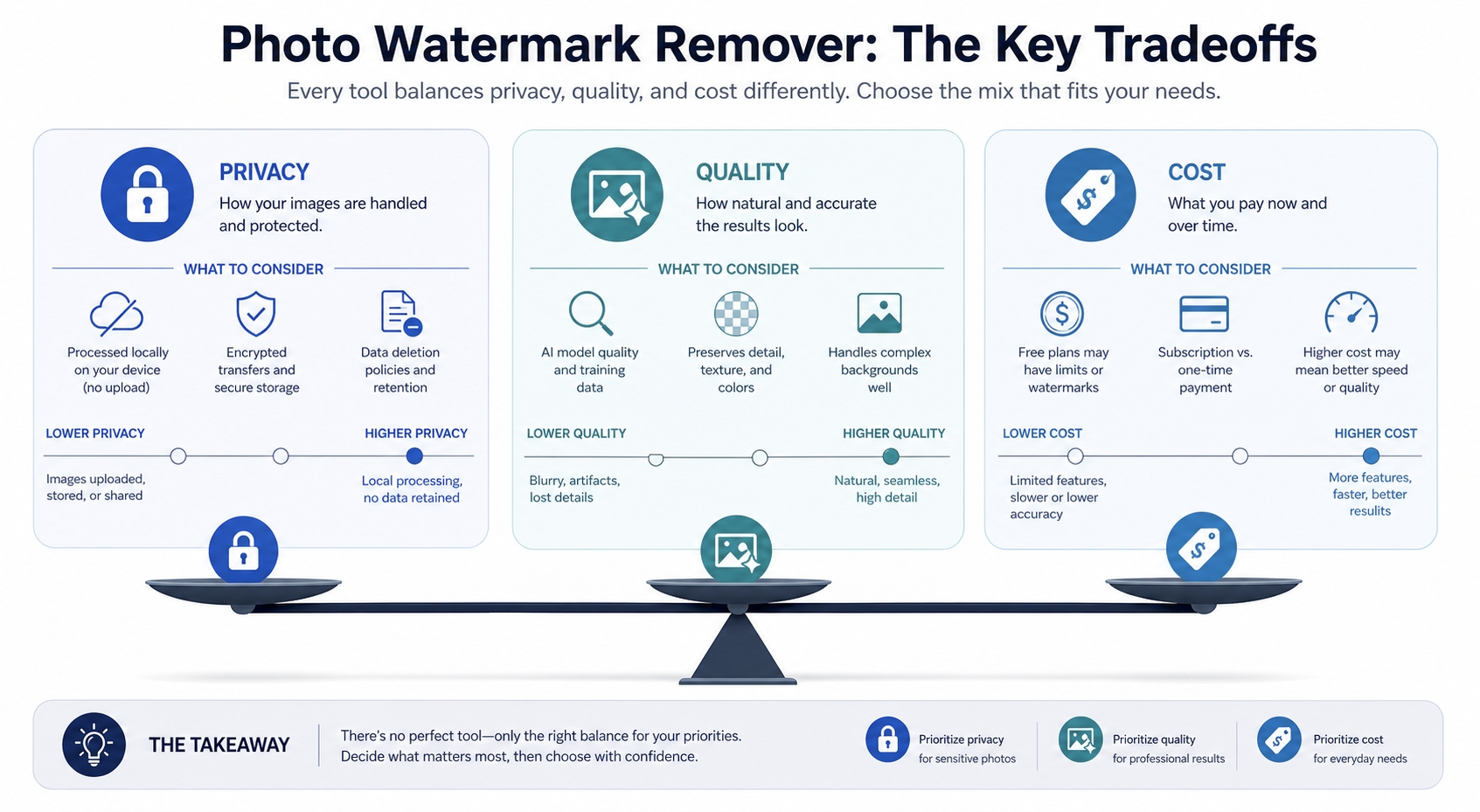
Tool choice is not only about removal quality.
Privacy
If you are working with client material, unreleased creative, or internal product images, online upload tools may not be the safest option. A desktop workflow gives you more control over where the file goes and how long it remains stored.
Quality
Faster tools usually give you less control. If the image is going on a paid landing page, product listing, print asset, or client deliverable, cleanup quality matters more than speed.
Cost
Free tools are useful for testing, but they often limit export quality, file size, batch usage, or advanced repair controls. Paid tools may be worth it if cleanup is part of a recurring workflow.
Common Tool Selection Mistakes
Many users pick the wrong solution before they understand the image.
Common mistakes include:
- using browser AI on a portrait with fine hair detail
- uploading sensitive client files to public cloud tools
- forcing AI cleanup on a repeated stock watermark
- ignoring crop as a simpler alternative
- choosing free tools for commercial-quality output without checking export limits
The best selection process starts with the image constraints, not the marketing claim on the tool landing page.
FAQ
What is the best free photo watermark remover?
The best free option depends on the background complexity and export needs. Free AI tools can work well for simple cleanup, but they often have limits on resolution or usage.
Are online photo watermark remover tools safe?
Some are convenient, but safety depends on file handling, retention, and privacy policy. Sensitive images are better processed in local or more controlled environments.
Which tool is best for portrait images?
Manual retouching editors are usually the safer choice for portraits because they preserve skin texture, hair edges, and subtle shading better than one-click cleanup tools.
Is a mobile photo watermark remover app good enough?
It can be enough for quick edits, social posts, and simple overlays. It is less ideal for high-value commercial images or detail-heavy repairs.
When should I skip watermark removal entirely?
Skip removal when the image is copyrighted, licensed, or protected by ownership restrictions, or when the watermark is so embedded that cleanup will obviously damage the final image.
In a Word
The best photo watermark remover is not the one with the loudest AI claim. It is the one that matches your image, privacy requirements, and quality expectations. For fast cleanup on simple images, browser-based AI tools are often enough. For portraits, products, and premium visual assets, manual control usually wins.
If readers leave with one takeaway, it should be this: choose by use case, not by hype. That framing creates stronger search content than another generic round-up of tools with copied feature blurbs.