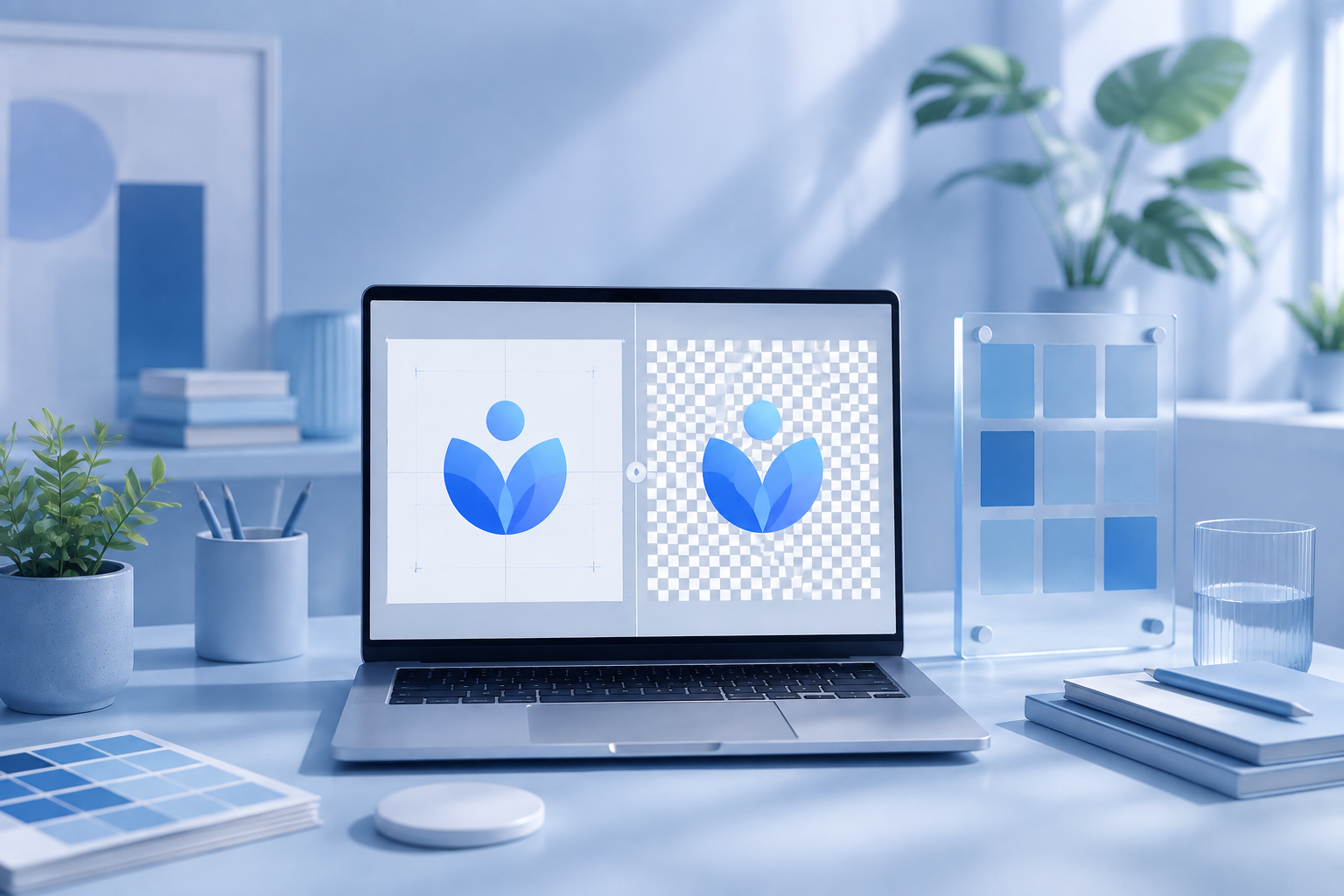
A good logo background remover can save a lot of time when you need to prepare a logo for websites, social media, marketing materials, or branding projects. A logo may look perfectly fine on a white background, but once you place it on a different design, the unwanted background can quickly become noticeable.
I have worked with different types of logo images, including simple text-based logos, brand icons, and logos with small details. What I found is that removing the background is not the only thing that matters. The real challenge is keeping the logo edges clean, preserving small design elements, and getting a transparent PNG file that is ready to use.
To find the best options, I compared several popular AI-powered tools and design platforms. Some tools are great for general image editing, while others are better suited for logo-related tasks.
In this article, I will share the tools that performed best, explain their strengths and weaknesses, and show why BGRemover is my top recommendation for quickly creating clean transparent logo files.
What Makes a Great Logo Background Remover?
Choosing a background removal tool is not only about whether it can delete the background. When working with logos, small details can make a big difference.
A professional result should keep the original logo design while removing everything unnecessary around it.
Clean Edge Detection
Logos often contain small details that are easy to damage during background removal, such as:
- Small text
- Thin lines
- Icons and symbols
- Detailed shapes
A good tool should separate the logo from the background without creating rough edges, missing parts, or unwanted borders.
Transparent PNG Output
Most users remove a logo background because they need a transparent file. A transparent PNG allows the same logo to work across different designs without being limited by the original background.
For example, you can use the logo on:
- Website headers
- Business presentations
- Social media graphics
- Advertisements
- Product packaging
Simple Workflow
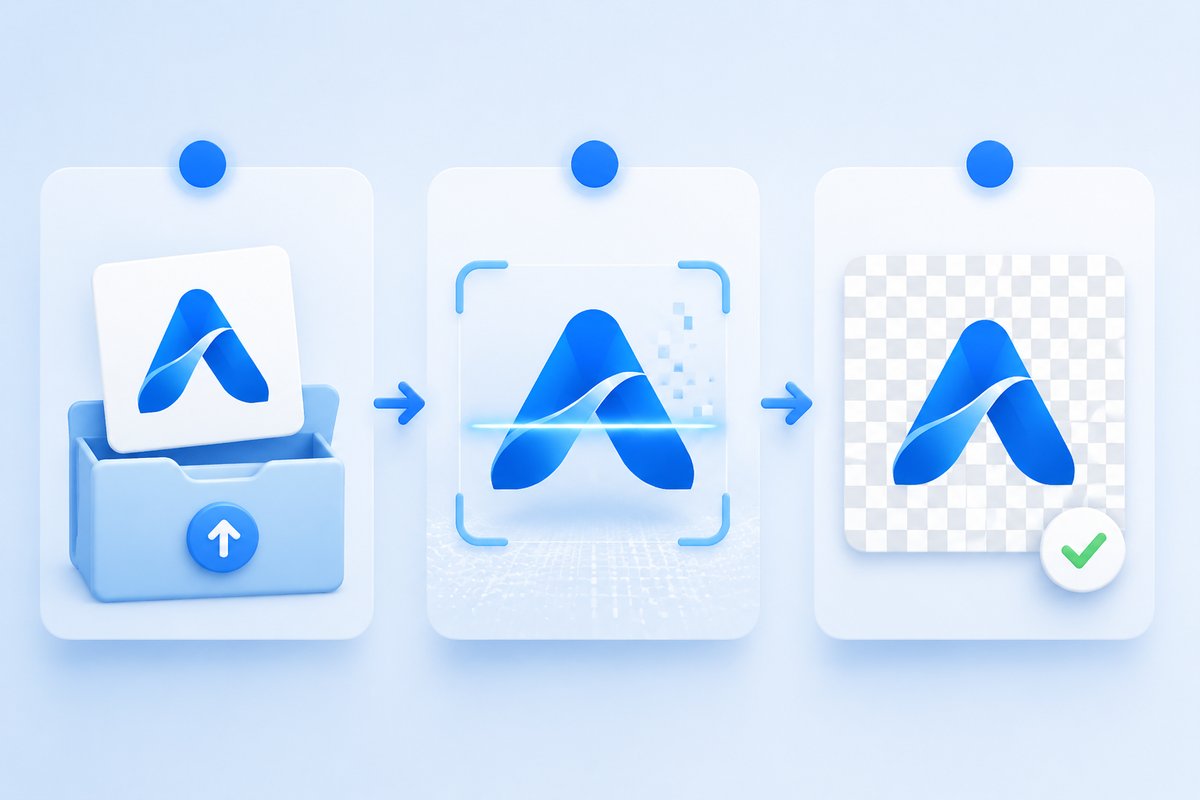
For most people, editing a logo manually in Photoshop is unnecessary. A good AI tool should make the process simple:
- Upload your logo
- Remove the background automatically
- Download a transparent PNG
Why Your Logo Needs a Transparent Background
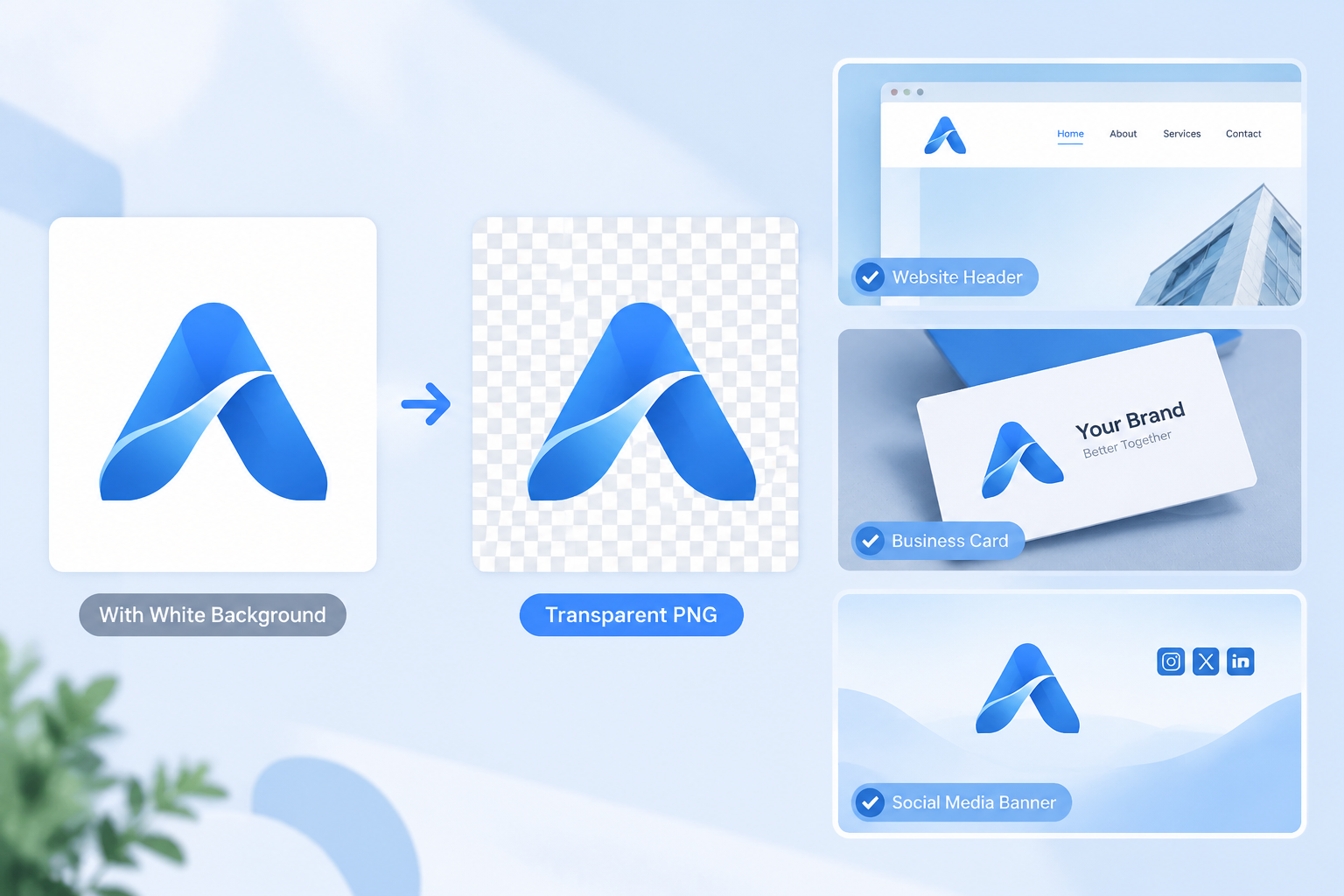
Many businesses still use logos saved as JPG files with white backgrounds. The problem is that these logos do not always look good when placed on different designs.
A white box around a logo can make a professional brand asset look unfinished, especially when used on dark backgrounds or colorful layouts.
Remove White Backgrounds from Logos
One of the most common reasons people search for how to remove white background from logo is because they want a cleaner version of their existing logo.
Removing the white background helps when using logos for:
- Website design
- Marketing banners
- Presentation slides
- Social media content
Make Logo Transparent for Flexible Use
When you make logo transparent, you create a more versatile brand asset. Instead of preparing different logo versions for every situation, one transparent file can work almost anywhere.
Convert Logo to Transparent PNG Without Complex Editing
Not everyone wants to spend time learning professional design software. For simple tasks, AI tools provide a faster way to convert logo to transparent PNG without manual selection or complicated editing steps.
6 Best Logo Background Remover Tools in 2026 (Tested & Compared)
Logo Background Remover Tools Compared: Features, Quality & Performance
| Tool | Removal Quality | Transparent PNG | Logo Edge Accuracy | Ease of Use | Best For |
|---|---|---|---|---|---|
| BGRemover | ★★★★★ | ★★★★★ | ★★★★★ | ★★★★★ | Logo transparency |
| Remove.bg | ★★★★★ | ★★★★☆ | ★★★★☆ | ★★★★★ | Quick background removal |
| Canva | ★★★★☆ | ★★★★☆ | ★★★★☆ | ★★★★★ | Design workflow |
| Adobe Express | ★★★★☆ | ★★★★☆ | ★★★★☆ | ★★★★☆ | Adobe ecosystem users |
| Photoroom | ★★★★☆ | ★★★★☆ | ★★★★☆ | ★★★★☆ | Business images |
| Fotor | ★★★☆☆ | ★★★☆☆ | ★★★☆☆ | ★★★★☆ | Simple editing |
1. BGRemover — Best Overall Logo Background Remover
BGRemover is my top choice for users who mainly need to remove backgrounds from logos and create clean transparent files.
What makes it different from many general image editors is the focus. Instead of offering hundreds of unrelated editing features, BGRemover is built around a specific need: helping users turn existing logos into usable transparent assets.
When I tested BGRemover with different logo styles, the biggest advantage was the simple workflow. I did not need to manually select the background or adjust complicated settings.
The process felt straightforward: upload the logo, wait for the AI processing, and get a cleaner version that can be used in different designs.
Key Features
- AI-powered background removal
- Transparent PNG creation
- Suitable for brand logos and graphics
- Fast and beginner-friendly workflow
Best For
- Businesses updating branding materials
- Website owners who need transparent logos
- Creators preparing visual content
- Anyone who wants a simple alternative to manual editing
Pros
- Focused on logo-related background removal
- Simple user experience
- Useful for different branding scenarios
Cons
- Not designed for advanced logo redesign or vector editing
For me, this is the main reason BGRemover stands out. If the goal is simply to remove a logo background and prepare a transparent file, a specialized tool usually provides a smoother experience than a full image editor.
2. Remove.bg — Best for Quick Background Removal
Remove.bg is one of the most popular AI background removal tools. It is a good choice for users who want to quickly remove unwanted backgrounds without learning complicated editing software.
The main advantage of Remove.bg is speed. The process is simple: upload an image, let the AI detect the subject, and download the result.
Best For
- Quick background removal
- General image editing tasks
- Users who want a simple solution
Pros
- Fast processing
- Very easy to use
- Works well for general images
Cons
- Not specifically focused on logos
- Small logo details may need extra checking
3. Canva Background Remover — Best for Design Projects
Canva is a popular option for creators who already use templates and design tools. Its background remover allows users to clean up a logo and immediately place it into a larger design project.
Best For
- Social media designs
- Marketing materials
- Creators who already use Canva
Pros
- Combines editing and design features
- Beginner-friendly interface
Cons
- Background removal is only one part of the platform
4. Adobe Express Background Remover — Best for Adobe Users
Adobe Express is a convenient choice for users who are already familiar with Adobe products. It provides simple online editing tools without requiring the full Photoshop workflow.
Best For
- Adobe ecosystem users
- Quick online design edits
- Small business owners
Pros
- Trusted Adobe experience
- Easy online workflow
Cons
- Less focused on logo-specific background removal
5. Photoroom — Best for Business Visual Content
Photoroom is designed mainly for commercial image editing. It is especially useful for businesses that create product images, advertisements, and marketing materials.
Although it is not a dedicated logo tool, it can still be useful when brands need to prepare different types of visual content.
Best For
- Ecommerce sellers
- Business marketing teams
- Product visuals
Pros
- Strong business-focused features
- Useful image editing workflow
Cons
- More focused on product images than logos
6. Fotor — Best Simple AI Editing Tool
Fotor is a general AI image editor that includes background removal features. It works well for casual users who want a simple editing platform with multiple functions.
Best For
- Basic image editing
- Users who need multiple AI tools
Pros
- Simple interface
- Includes additional editing features
Cons
- Not specialized for logo transparency
How to Remove White Background from Logo Online in 3 Simple Steps?
A white background is one of the most common problems with old logo files. A logo that looks fine on a white page can look out of place when added to a dark website, colorful banner, or product design.
The easiest way to remove white background from logo online is by using an AI-powered tool that automatically separates the logo from the background.
Step 1: Upload Your Logo
Upload your logo image to the background removal tool. Clear and high-quality images usually provide better results, especially when the logo contains small text or detailed shapes.
Step 2: Let AI Remove the Background
The AI identifies the logo area and removes the unwanted background automatically.
A good result should keep:
- Logo text
- Brand symbols
- Sharp edges
- Original colors
Step 3: Download Your Transparent PNG Logo
After removing the background, download the transparent PNG file and use it wherever you need.
A transparent logo can be reused for websites, presentations, social media graphics, advertisements, and other branding materials.
With BGRemover, the process is simple: upload your logo, remove the background, and get a cleaner transparent version without complicated editing steps.
How to Choose the Best Logo Background Remover for Your Needs?
The best tool depends on what you plan to do with your logo. Before choosing a platform, I usually look at four important factors.
1. Background Removal Quality
The most important factor is accuracy. A good tool should remove the background while keeping the logo itself unchanged.
Pay attention to:
- Text clarity
- Edge quality
- Small design details
2. Transparent PNG Support
A transparent PNG gives you the most flexibility. It allows the logo to work on different backgrounds without creating unwanted borders.
3. Ease of Use
Most people do not need professional editing software. The ideal process should be simple:
- Upload
- Process
- Download
4. Choose Based on Your Purpose
- If you need logo-specific background removal, choose BGRemover.
- If you need general image background removal, Remove.bg is a good option.
- If you create designs regularly, Canva may fit your workflow.
- If you use Adobe products, Adobe Express may be more convenient.
Final Verdict: Which Logo Background Remover Is Worth Using in 2026?
After comparing these tools, I found that each one has a specific strength.
Remove.bg is useful for quick general background removal. Canva works well for creators who want to combine editing with design. Adobe Express is a practical option for Adobe users, while Photoroom and Fotor are better suited for broader image editing needs.
However, if your main goal is to remove a logo background and create a clean transparent PNG file, BGRemover is the option I would recommend first.
The reason is simple: it focuses on the exact problem logo owners usually have. You already have a logo, but you need a cleaner version that works everywhere.
Instead of spending time manually editing images, BGRemover provides a faster way to prepare professional-looking logo assets for websites, branding, social media, and marketing projects.
Frequently Asked Questions About Logo Background Removal
Can I remove the background from a logo for free?
Yes. Many online tools provide free background removal options. However, available features, export quality, and usage limits may be different depending on the platform.
How do I make a logo transparent?
The easiest way is to upload your logo to an AI background removal tool. The tool removes the background and creates a transparent PNG file.
How can I convert logo to transparent PNG?
Upload your logo image, remove the unwanted background, and export it as a PNG with transparency. This makes the logo easier to use across different designs.
How do I remove white background from logo online?
You can use an AI background removal tool to automatically detect the logo and remove the white background. This is much faster than manually editing the image.
What is the best logo background remover?
For users who mainly need transparent logo files, BGRemover is one of the best options because it focuses on logo background removal rather than general photo editing.